Skip to content
  • About
  • Cart
  • Checkout
  • Contact
  • Cookie Policy
  • Copyright Policy
  • Daily Free Giveaways
  • Disclaimer/Privacy Policy
  • Games
    • ABC Wordgame
    • Adrenoid
    • Bongo Ball
    • BRU
    • Mystic Temple
    • Pac-Xon
    • Pacman
    • Pirate Gem
    • SokoZone
    • Space Invaders
    • Super Mario Crossover
    • Tetris
    • Treasure Chain
  • Get Me A Password
  • Giveaways and Freebies
  • My account
  • Newsletter
  • Shop
  • Sitemap
I Have A PC

Tech Tutorials, Linux & Windows Tips

  • Home
  • Tech
  • Apps
  • Linux
  • Windows
  • Misc
  • Digital Wellness
  • Sitemap
  • About
  • Contact
I Have A PC

Tech Tutorials, Linux & Windows Tips

How To Setup Automatic Email Forwarding In Gmail

  • adminadmin
  • May 18, 2012
  • Apps

Gmail has the option of automatically forwarding emails to a specified address. What this means is suppose if someone with a gmail account named [email protected] sets up email forwarding to another address [email protected], all the emails that arrive henceforth for intended recipient [email protected] will automatically get forwarded to the forwarding address [email protected].

Here is how to set up automatic email forwarding in Gmail :

1. Login to Gmail account and from the gear icon, select “Settings”.
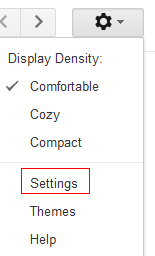
Gmail settings

2. Go to “Forwarding and POP/IMAP”, then select “Add a forwarding address”. Enter the email address where you want the emails to be forwarded.

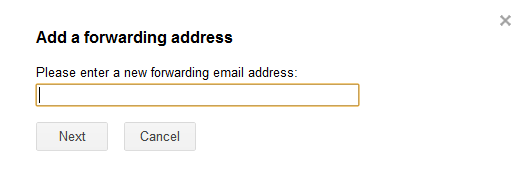
Enabling email forwarding in Gmail

Specifying forwarding email address

Verifying forwarding email address

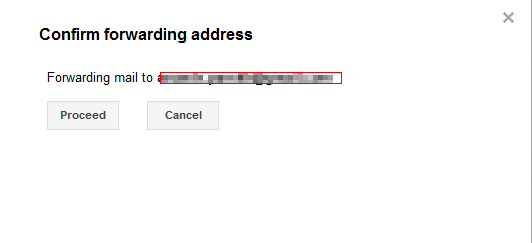
3. Once entered and confirmed, the forwarding email address needs to be verified. This is done through a confirmation code sent to that email. There will be a link that can be clicked to verify or a confirmation code that can be entered.
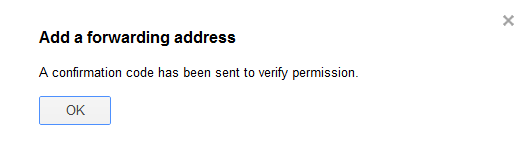
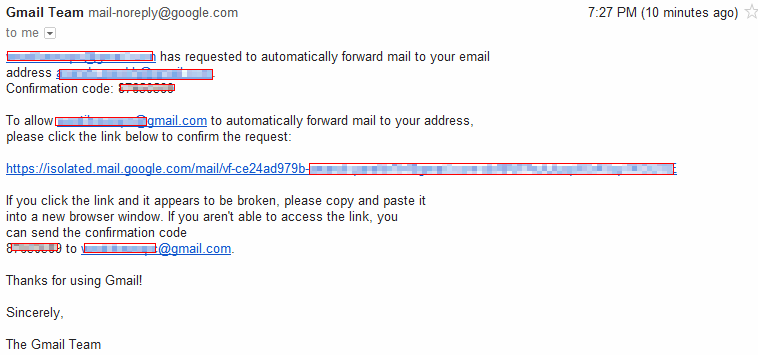
Confirmation dialog for Gmail forwarding

Link and confirmation code for activating Gmail forwarding

4. Once the new email address is verified, choose how the forwarding will be done. Best is to leave the default option as shown (which forwards all new incoming emails to new address while keeping a copy of them in Gmail inbox).
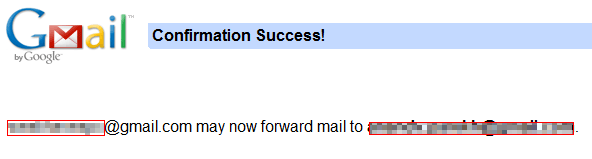
Email forwarding completed in Gmail

Additional email forwarding settings in Gmail

5. Also, there is a useful notification that stays on top of Gmail inbox indicating that email forwarding is active for the current email address.

Notification for Gmail forwarding

Overall, pretty simple to setup and use Gmail forwarding.

Happy emailing.
 

How evil bosses think
Previous Post How Evil Bosses Think : Explained
Next Post Online Dating : A Venn Diagram
Online dating : A Venn Diagram
No results
  • Bluesky
  • Email
  • Facebook
  • Twitter

A List of Giveaways

Free Giveaways

Free E-Books

Linux Command Line Cheatsheet
Linux Command Line Basics
Linux Shell Scripting Primer

Archives

Related Posts

public vs private IPs 101

Public vs. Private IP Addresses: What’s the Difference? (Simple Guide)

  • July 22, 2026
gzip vs brotli explained

5 Online Tools to Check Web Page Compression

  • July 10, 2026
ftp vs sftp 101

FTP vs. SFTP: A Webmaster’s Guide to File Transfer Protocols

  • July 8, 2026

Trending now

chrome 101
Google Chrome:Toggle On-Device Generative AI
crontab basics 101
How to Automatically Update Linux Mint Using Bash and Cron
df command in linux
Linux Command to Quickly Check Your Free Disk Space 
cbackup professional giveaway
CBackup Premium Giveaway: Cloud Backup and Storage
Copyright Policy Cookie Policy Disclaimer
Copyright © 2026 - WordPress Theme by CreativeThemes