Skip to content

I Have A PC

Tech Tips and How-To's Since 2010
Menu
  • Home
    • Tech
    • Apps
    • Misc
    • Linux
    • Windows
  • Giveaways and Freebies
  • Free Stuff
  • Sitemap
  • Copyright Policy
  • Cookie Policy
  • Contact
  • About
HomeWindows7How To Change The Display Language In Outlook.com

How To Change The Display Language In Outlook.com

October 2, 2013

Besides English, Outlook.com supports various other languages through which various settings as well as overall interface can be displayed.

To change these language settings :

Login to Outlook.com and from top right, click on the gear icon and select “More mail settings”.
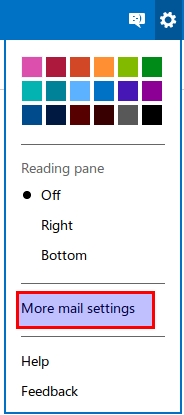
Outlook.com mail settings

Under the “Customizing Outlook” section, choose “Language” and from the list of available languages, select one as desired and save these changes.
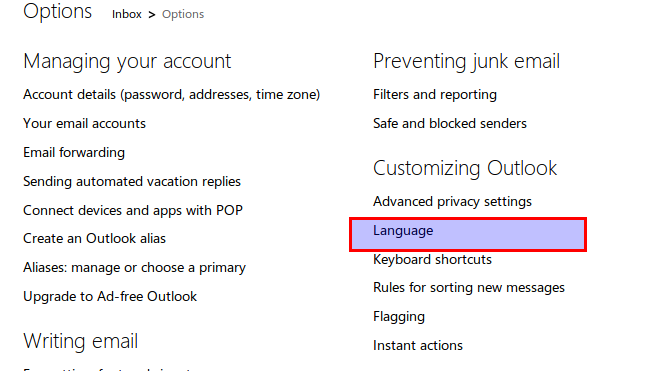
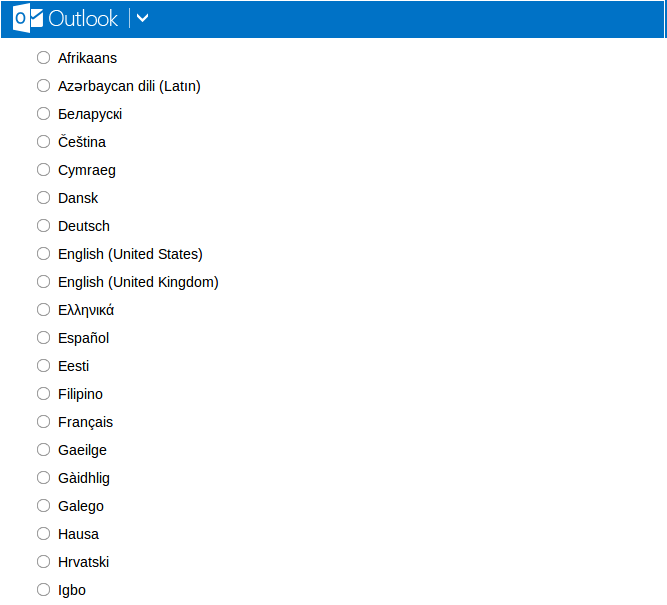
Language settings in Outlook.com

Available languages in Outlook.com

From now on, Outlook.com interface will be displayed in this language.
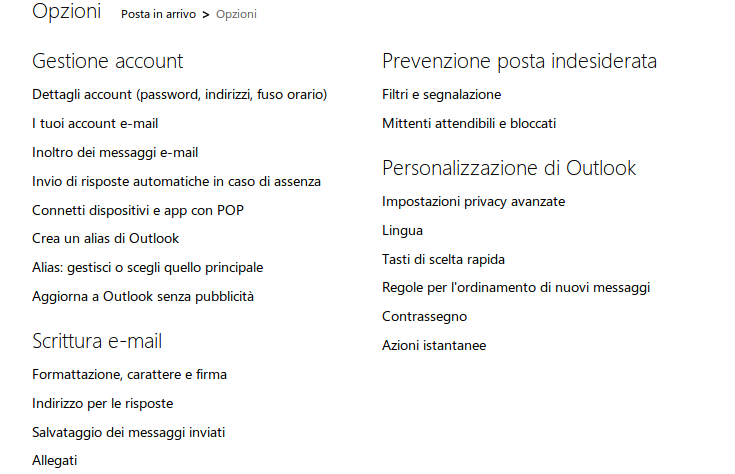
Outlook.com interface in different languages

Outlook.com interface in different langauages

Happy emailing.

(For doing the same in Gmail, please refer to this earlier post. )

Tags:change interface language in outlook.com, outlook.com email settings, outlook.com language settings, outlook.com tips

Related Posts

google drive logo

Useful Keyboard Shortcuts For Google Drive That You Should Know

Auto Fill Web Forms When Using Microsoft Edge

Version info displayed through winver

Two Ways To Find Out Windows Version Info

About The Author

admin

  • Bluesky
  • Email
  • Facebook
  • Twitter
  • YouTube

Free E-books

Linux Command-Line Cheatsheet
Linux Command-Line Basics
Linux Shell Scripting Primer

Free GWS Trial

Try Google Workspace free for 14 days

Archives

  • Bluesky
  • Email
  • Facebook
  • Twitter
© 2026 I Have A PC | WordPress Theme by Superb WordPress Themes
Back to Top ↑