How To Turn On/Off Content Preview In Outlook.com
December 16, 2013
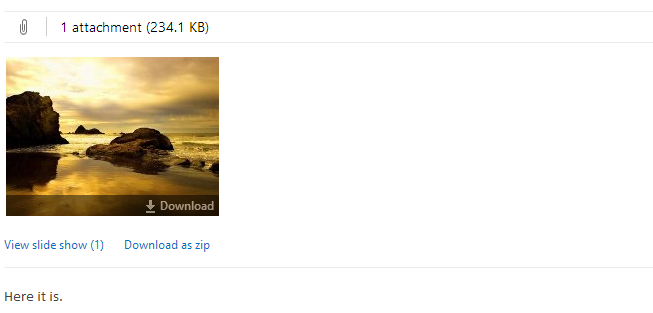
Outlook.com has the feature of completely turning on or off preview of media content like pictures and videos that are sent as attachments.
What this means is that when reading a message with an attachment of say an image, the preview generated for this can be enabled or disabled as per preferences.
To do this,
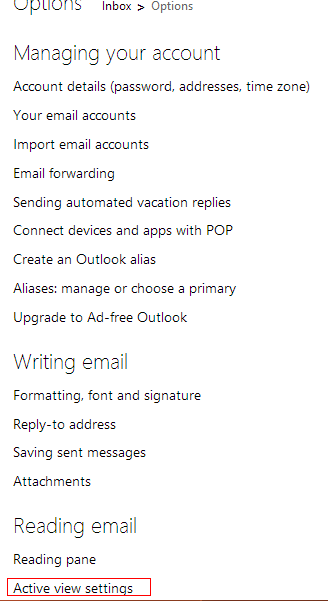
Access mail settings using the gear icon from top right in Outlook.com

Go to “Reading email” section and click on “Active view settings”.
Here, either choose “Always show previews” or “Hide previews” as needed.
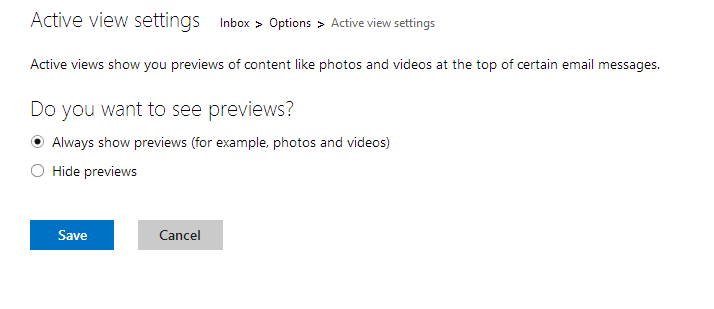
Hit Save for the changes to take effect.
All done.