How To Change Gmail Button Icons To Text
March 28, 2014
Gmail button labels by default are displayed as icons.


This can however be changed so that they appear as text. Here is how :
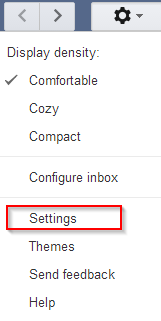
Click the gear icon on top right of Gmail inbox and choose “Settings”.
Next, under the “General” section, scroll down to “Button labels” and change the type to “Text. At the very bottom, hit “Save” for these changes to take place.
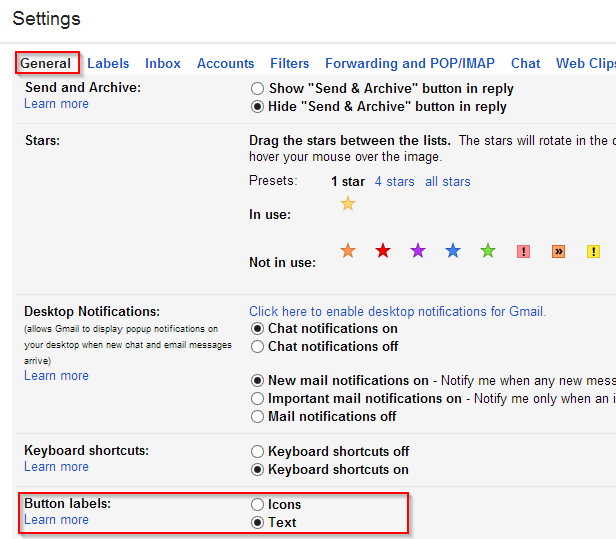
From now on, the Gmail button labels will be in text format which makes it easier to work with.


Happy emailing.