How To Transfer Bookmarks And Other Settings From Internet Explorer To Firefox
October 13, 2014
Firefox makes it easy to import bookmarks, browsing history, cookies and internet options from other browsers like Internet Explorer and Google Chrome.
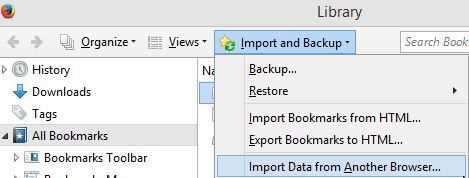
To do this, first access the Bookmark manager in Firefox by going to Bookmarks > Show All Bookmarks.

Now, from the “Import and Backup” menu, select “Import data from another browser”.
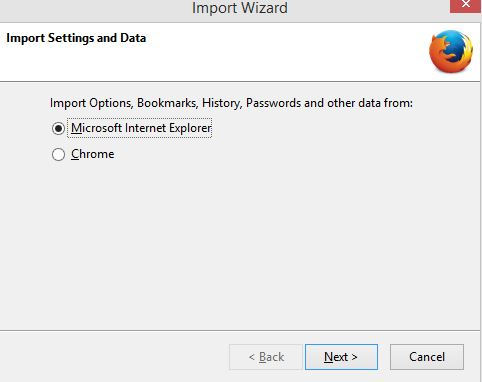
Choose the browser type and hit Next.
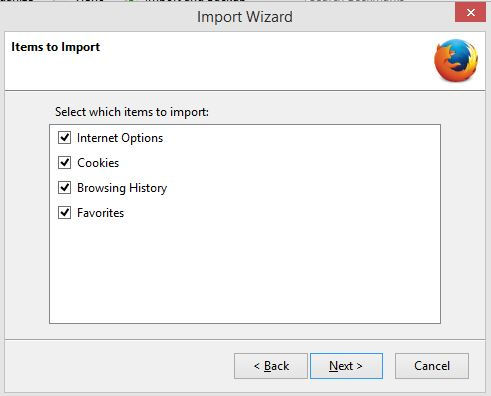
The default option imports eveything (favorites, Internet options, browsing history and cookies). Selectively choose what needs to be imported  and hit Next.
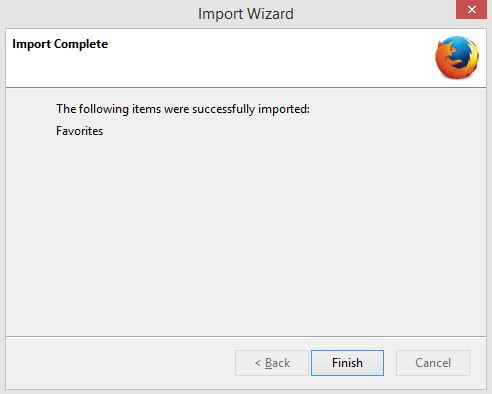
Once done, a separate menu will be visible in the Bookmarks drop-down displaying the bookmarks based on the browser type.

The process is same for Google Chrome as well. Nice and simple.
Happy importing.