How To Change Text Style For Gmail Messages
April 24, 2015
The font style, color and size while sending Gmail messages can be customized.
Here is how :
Click on the gear icon at top right when in Gmail.

Next, select “Settings”.

From the “General” tab, scroll down to the “Default text style” section.
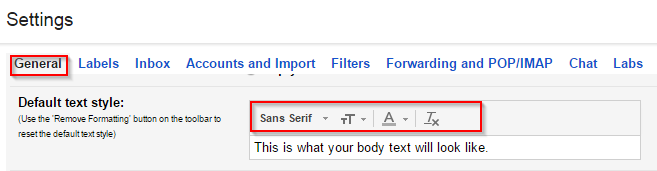
Here, change the font size, type and color as desired.

Finally, hit the “Save changes” button at the bottom of the page.

From now on, when composing new Gmail messages, the customized font preferences will be visible.
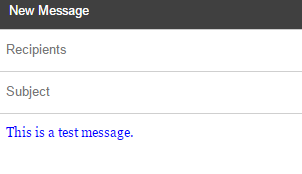
No more same old boring default fonts. 🙂
(To change the input language for Gmail messages, refer to this earlier article).
Happy emailing.
Related Posts
How To Enable Offline Mode For Google Calendar

How To Turn Off Web Clips In Gmail
