Prevent Windows 10 From Auto Restarting By Setting Active Hours
October 3, 2016
With the Anniversary update of Windows 10, a feature of Active Hours automatically delays the restarting of system once updates are applied.
The reboot will only take place outside the set Active Hours.
These hours can be changed as per convenience from Windows settings :
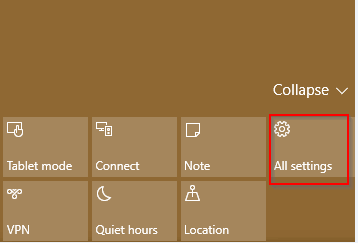
Access the Windows Settings option (click on Action center > All settings).

Choose Update & security.

From the Windows Update section, click on Change active hours.

Change the time window as needed and hit Save.

From now on, once updates are applied, Windows 10 won’t automatically restart during the set active hours.
Happy updating.