Add And Remove Start Menu Folders In Windows 10
May 13, 2019
The Start menu in Windows 10 by default lists certain folders like Documents, Pictures and Settings. You can add and remove these as needed.
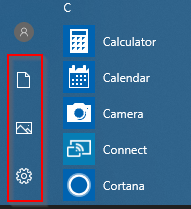
Here is how:
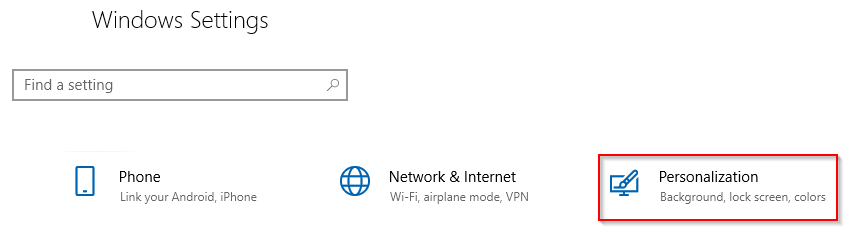
Access Windows Settings (shortcut key : Windows key + I). Then choose Personalization.
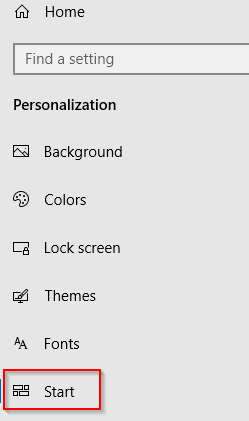
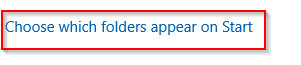
Scroll down to Start and click on Choose which folders appear on Start.
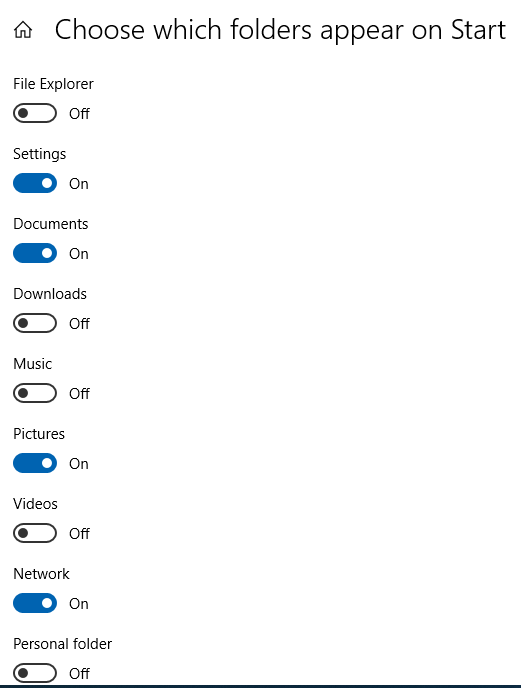
Enable or disable the folders as needed.
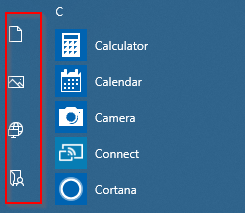
The Start menu will now list specific folders as per preferences.
All done.