Manage Network Interfaces From Linux Terminal With the ip Command
Newer Linux distros have the ip command rather than ifconfig for getting network interface information and for managing them from the Linux command line.
Here is a quick guide on how to use this command from the Linux terminal:
To show network information for all the interfaces, type:
[cc lang=”bash”]
ip addr show
[/cc]

This will list all the network interfaces sequentially along with their status and other network details.
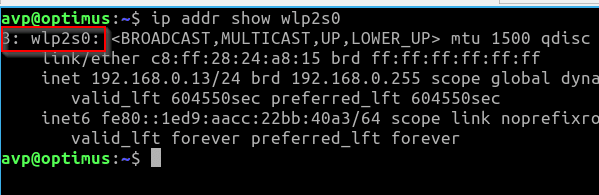
To get the information for a specific interface like ethernet or wireless, the command is:
[cc lang=”bash”]
ip addr show interfacename
[/cc]
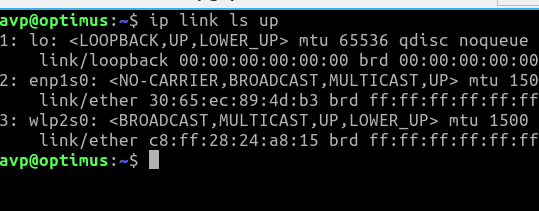
To find a list of all the network interfaces that are currently up:
[cc lang=”bash”]
ip link ls up
[/cc]
Similarly, you can also directly enable and disable network interfaces with the ip command (just like the ifconfig up/down commands):
[cc lang=”bash”]
sudo ip link set interfacename up
sudo ip link set interfacename down
[/cc]

This will enable and disable the interfaces. You can first check the interfaces using the ip addr show command and then use the link parameters.
Other than that, you can also add static IP address to a particular interface. To do that:
[cc lang=”bash”]
sudo ip addr add IP/MASK dev interfacename
[/cc]
So to add a static IP 192.168.0.20 / 255.255.255.0 to the ethernet interface eth1, the command will be:
[cc lang=”bash”]
sudo ip addr add 192.168.0.20/24 dev eth1
[/cc]
For deleting the static IP:
[cc lang=”bash”]
sudo ip addr del 192.168.0.20/24 dev eth1
[/cc]
The exact interface name will vary and can be found using the ip addr show command.
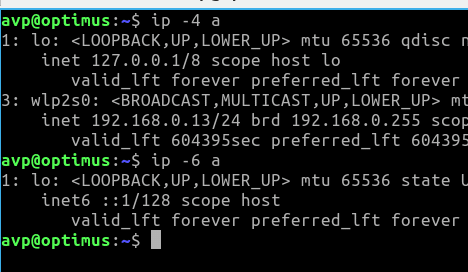
Also, to get the IPv4 and IPv6 details, the command is:
[cc lang=”bash”]
ip -4 a
ip -6 a
[/cc]
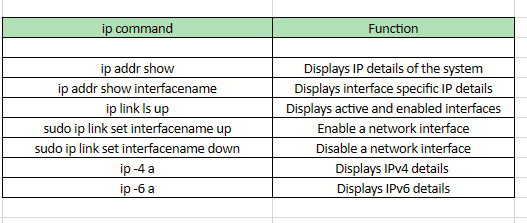
Here is a quick reference table for managing network properties from the Linux terminal with the ip command:
You can also use the man ip command to know about other different parameters and functions.
[cc lang=”bash”]
man ip
[/cc]

All done.


