How To Use The Password Checkup Tool For Google Accounts
Google has introduced a new Password Checkup tool to check for password strength and scan for vulnerable passwords when using your Google account. This tool is now built-in Google Chrome so that it can check for weak saved passwords but can also be used directly.
By the way, it is always a good idea to use password managers like BitWarden, LastPass, Dashlane, etc to generate and securely store passwords.
To use this tool directly, go to the Password Checkup page and sign in to your Google account.
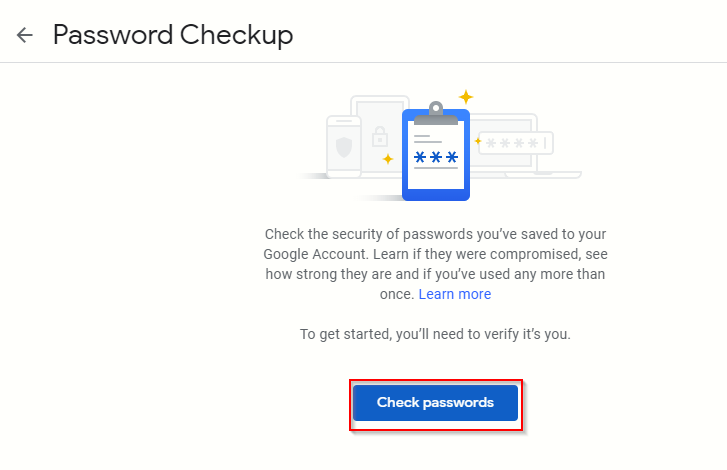
Then click on Check passwords to begin. This tool will show compromised passwords if any as well as weak and reused passwords.
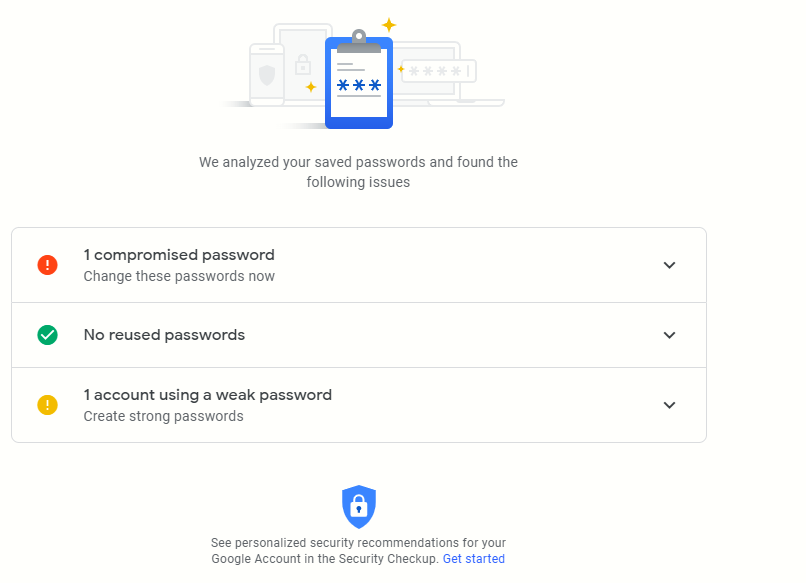
It uses the saved passwords from Google Chrome or Android devices and checks for vulnerablities. Also, saved passwords that were later updated using any other browser won’t reflect in this scanning unless they were also updated later in Chrome. So you’d need to update them too in Chrome‘s saved passwords list. You can directly see the list of saved passwords from Google Chrome settings or by typing in:
[cc lang=”bash”] chrome://settings/passwords [/cc]
To fix compromised or weak passwords, click on that message and select Change password.
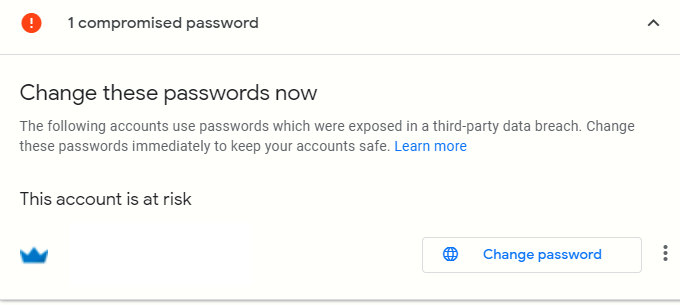
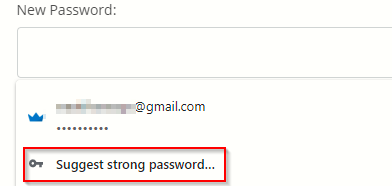
If using Google Chrome, use the Suggest strong password option to auto-generate a strong password. Enter that and save it as the new password.
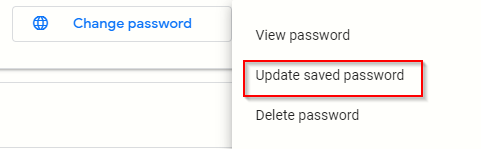
If a strong password is already in place but not updated in Google Chrome, click on the ellipsis icon next to Change password and select Update saved password.
Enter the new password and click Save.
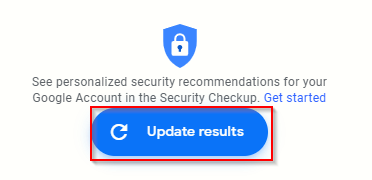
Then once the new passwords are created or updated, rescan for vulnerabilities by clicking Update results.
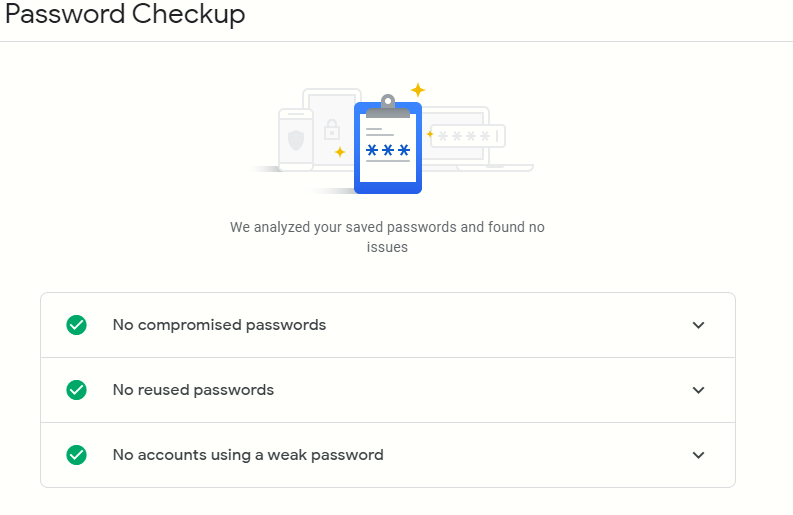
Password Checkup tool should now show no warnings for existing passwords.
All done.