Skip to content

I Have A PC

Tech Tips and How-To's Since 2010
Menu
  • Home
    • Tech
    • Apps
    • Misc
    • Linux
    • Windows
  • Giveaways and Freebies
  • Free Stuff
  • Sitemap
  • Copyright Policy
  • Cookie Policy
  • Contact
  • About
HomeAppsHow To Download Skype Chat History And Files

How To Download Skype Chat History And Files

April 6, 2020

It can be useful to have a local copy of the conversation history and other items like files for your Skype account.

Here is how to do that:

From the Skype desktop app:

Click on the ellipsis icon and choose Settings.
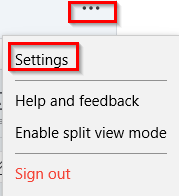
accessing Skype settings from Windows desktop app

Then select Account & Profile > Your account.
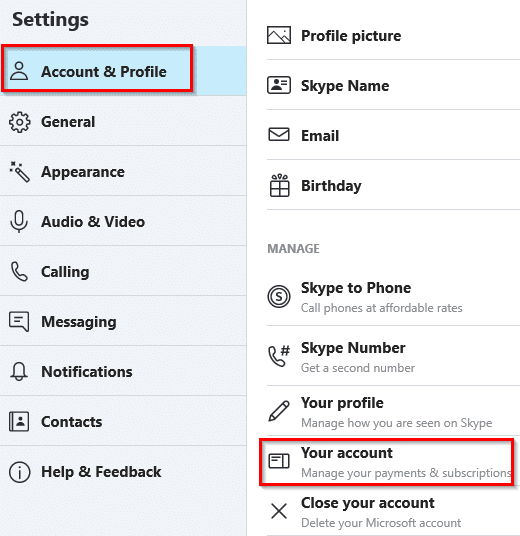
choosing account settings for Skype from the desktop app

This will open the account settings page for Skype.
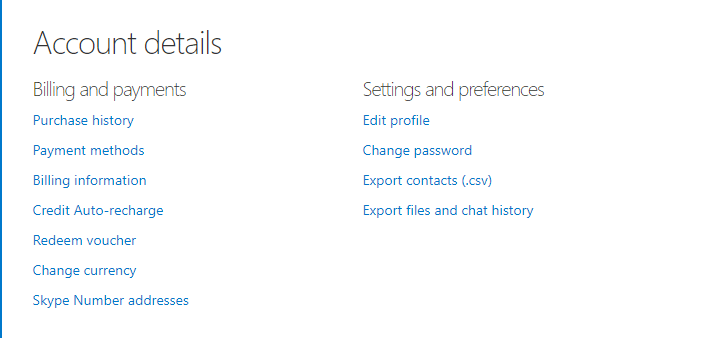
skype account settings page

From the browser:

Sign in to Skype and click on the down arrow next to the account name. Click on My account to access the account settings page.
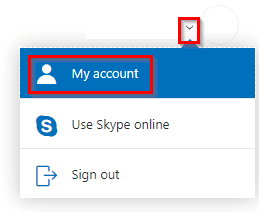
accessing Skype account settings from the browser
Then go to Settings and preferences. Click Export files and chat history.
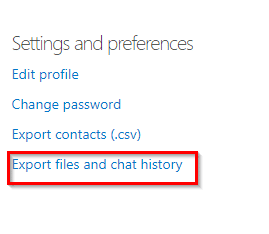
Skype account data export settings

To download both: the conversations and files, select them. Then click Submit request.
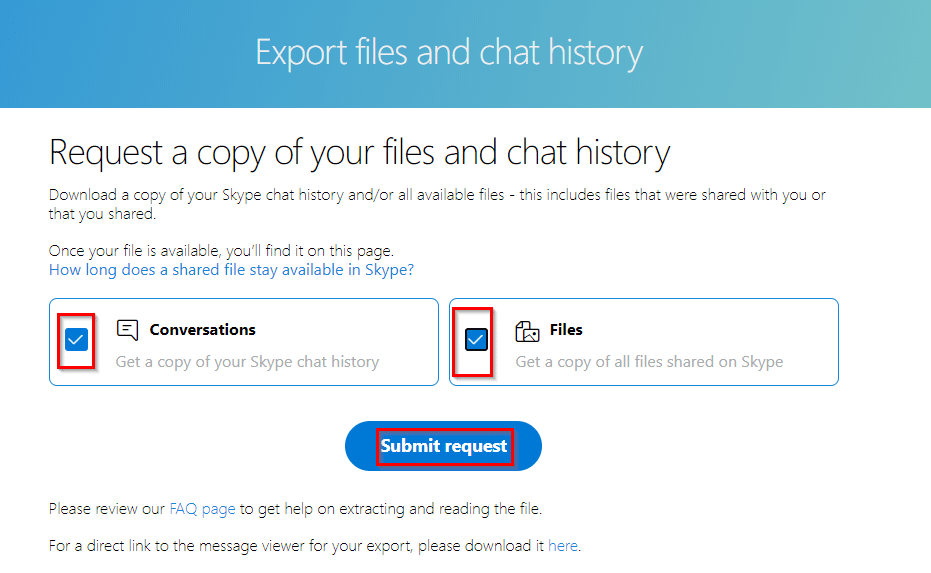
choosing what to backup or download from Skype account

Also from here, you can download the Skype parser tool through which you can view your Skype message history.

Skype parser tool for reading messages

Extract the parser tool after downloading, there will be an index.html file which you can open and use to view the Skype data later on when it is available for downloading.

index.html file in Skype parser tool

Next, click on Continue after submitting the export data request.
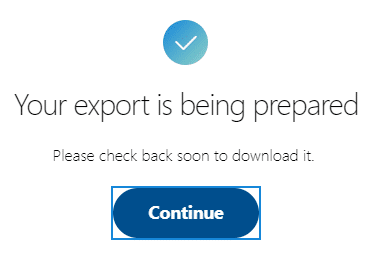
Skype data export request sent

It will take some time for the Skype data to be available for downloading. You can check the progress directly from the webpage here.

Skype account data available for downloading

Once the exported data is ready, click on Download. It will be a compressed .tar file.

Extract this .tar archive of your Skype data to your PC. You can then copy it somewhere else as a backup.

Skype data downloaded locally as a tar archive

Viewing Skype message history:

Then open the index.html file from the Skype parser tool that was downloaded earlier.
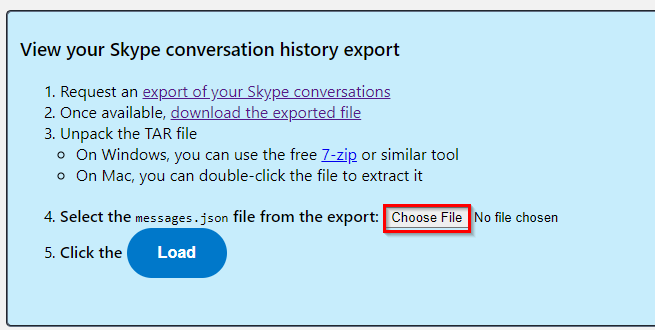
opening the messages.json file from Skype account data in parser

Select Choose File and choose the messages.json file from the Skype data folder.

messages.json file in Skype account data downloaded

You can now view all your Skype messages history by clicking on them.
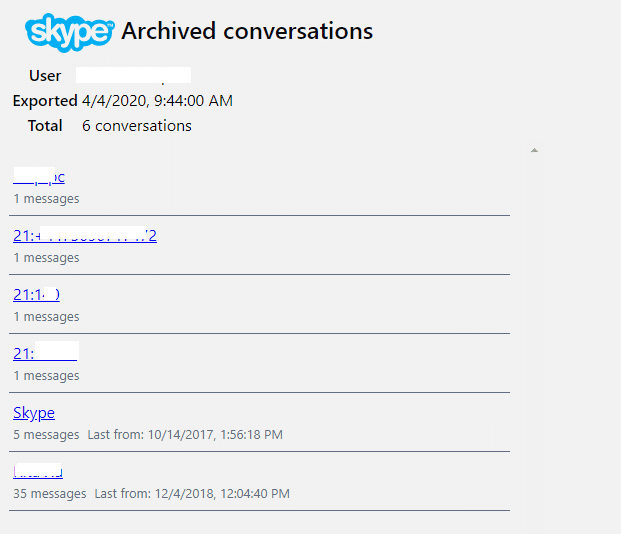
viewing message history from the downloaded Skype account data


All done.

Tags:download skype chat history and files, how to download Skype account data, skype, skype tips

Related Posts

3 Free Online Tools to Test Your Gaming Controller

Album download in progress through Facepaste

How To Download Facebook Albums Quickly Using Facepaste

SwifDoo PDF: An All-In-One PDF Tool

About The Author

admin

  • Bluesky
  • Email
  • Facebook
  • Twitter
  • YouTube

Free E-books

Linux Command-Line Cheatsheet
Linux Command-Line Basics
Linux Shell Scripting Primer

Free GWS Trial

Try Google Workspace free for 14 days

Archives

  • Bluesky
  • Email
  • Facebook
  • Twitter
© 2026 I Have A PC | WordPress Theme by Superb WordPress Themes
Back to Top ↑