How To Enable The Find My Device Feature For Windows 10 Devices
Find My Device is a useful security feature for Windows 10 devices. When this is enabled, you can track the location of the device and also lock it. This helps when it is lost or stolen. Find My Device works for all Windows 10 PCs, laptops, and Surface devices. Once turned on, you can track it’s location even if the location settings for the apps on that device are disabled.
To use it, you’d need to be an administrator and be signed in to the device with a Microsoft account. Also, it needs to be connected to the Internet and have enough battery (for laptops and Surface devices). So, it is a good idea to set it up right after installing Windows 10.
Here is how:
Go to the device management page here for your Microsoft account.
Then, click on Devices.

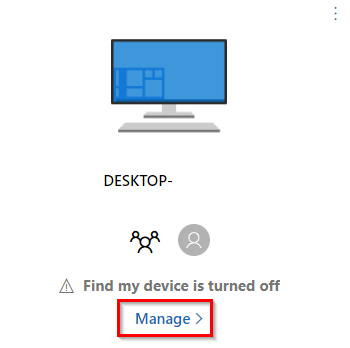
Select the device for which Find My Device needs to be enabled. Click on Manage.
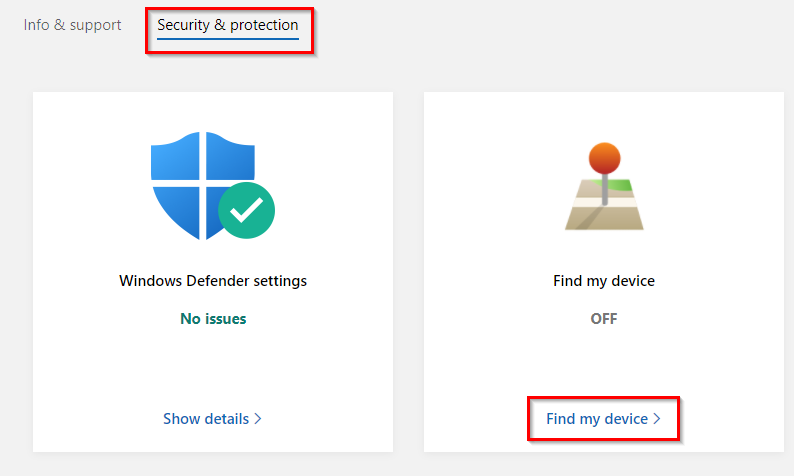
From the Security & Protection tab, select Find my device.
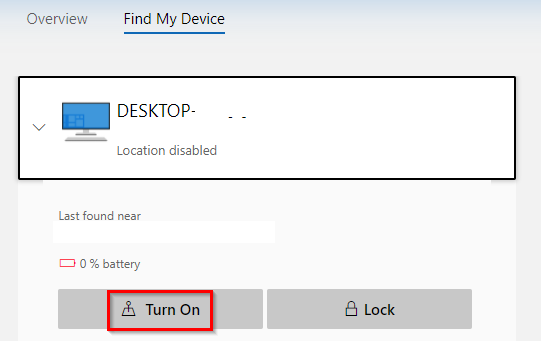
Then click on Turn On.
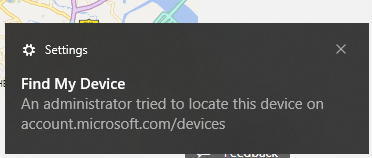
If the device is on, there will be a notification there about this.
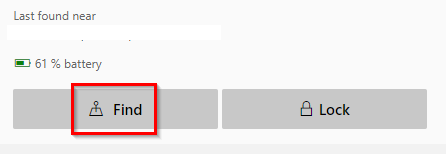
Once enabled, clicking on Find will try to locate the device location.
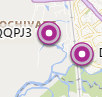
The device location will be displayed as a purple blip on the map. You can enable this feature for all your Windows 10 devices as a safeguard.
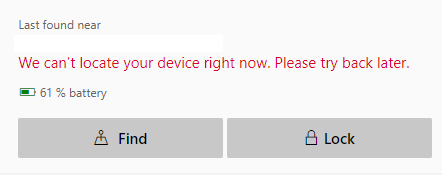
If the device is turned off, the last known location will be displayed.
Locking devices remotely:
If the device is misplaced or stolen, you can immediately lock it remotely. To do so, click on the Lock button next to the selected device.
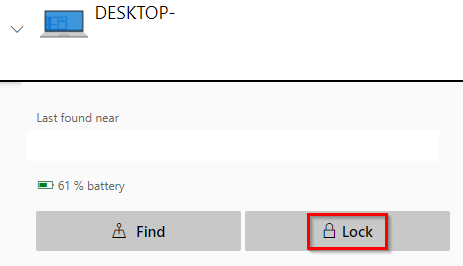
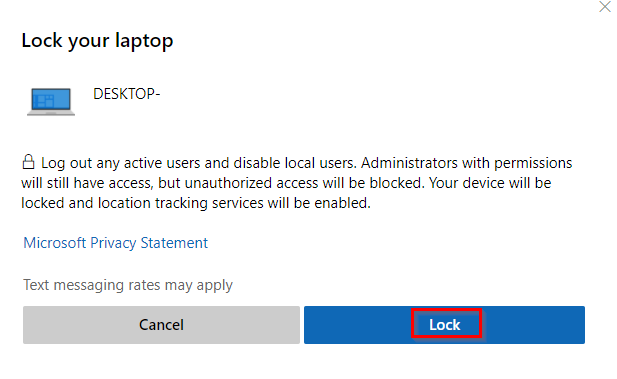
This will disable all the local users and log out signed-in users on that device. After that, only administrators can unlock it. Click on Lock to proceed with this.
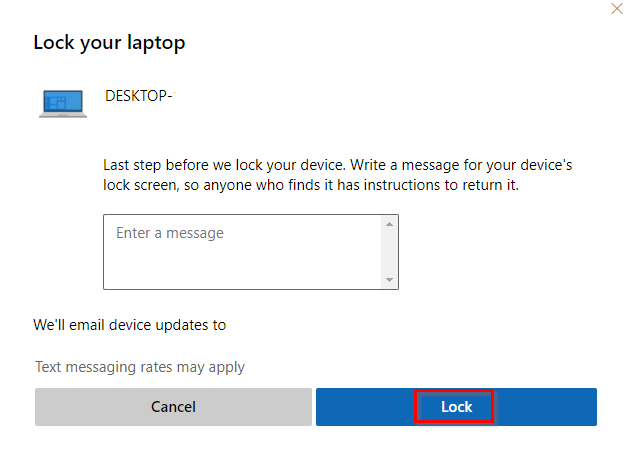
Next, you can also set a custom message that will be shown on the lock screen of that device. It can be your contact information to help get the device if lost, some other message, or can be blank. Click on Lock again.
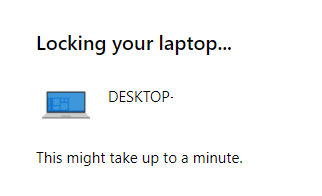
The device will now be locked and no local users would be able to sign-in.
Click on OK.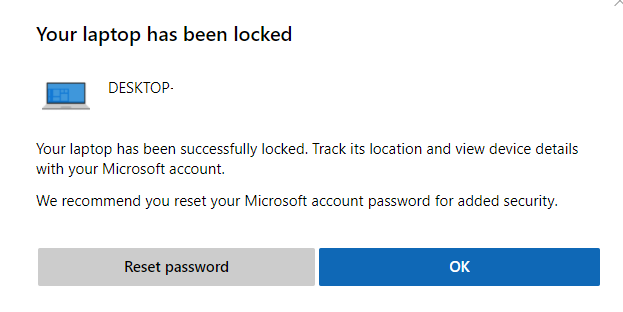
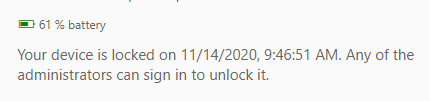
The Devices tab will display the current status of the locked device.
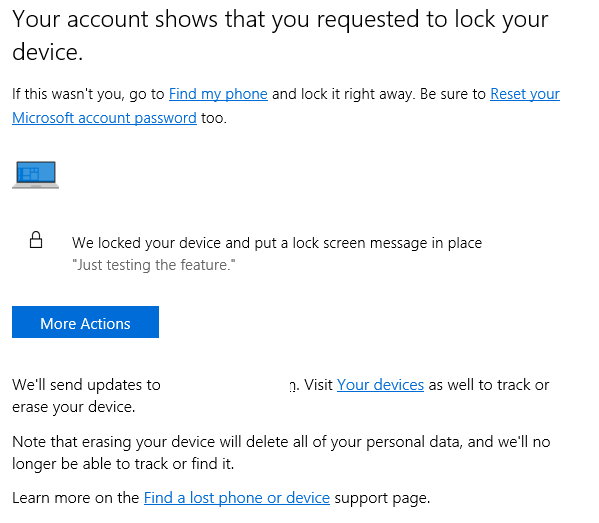
Also, you’d get an email stating that the device is locked.
It is a useful feature for Windows 10 laptops and Surface devices because of their mobility.
Do try it out.