How To Use The Microsoft Outlook Add-on For Edge Browser
Microsoft Edge has an official add-on for Outlook by which you can directly check for emails and schedule events without opening Outlook.com in a new tab.
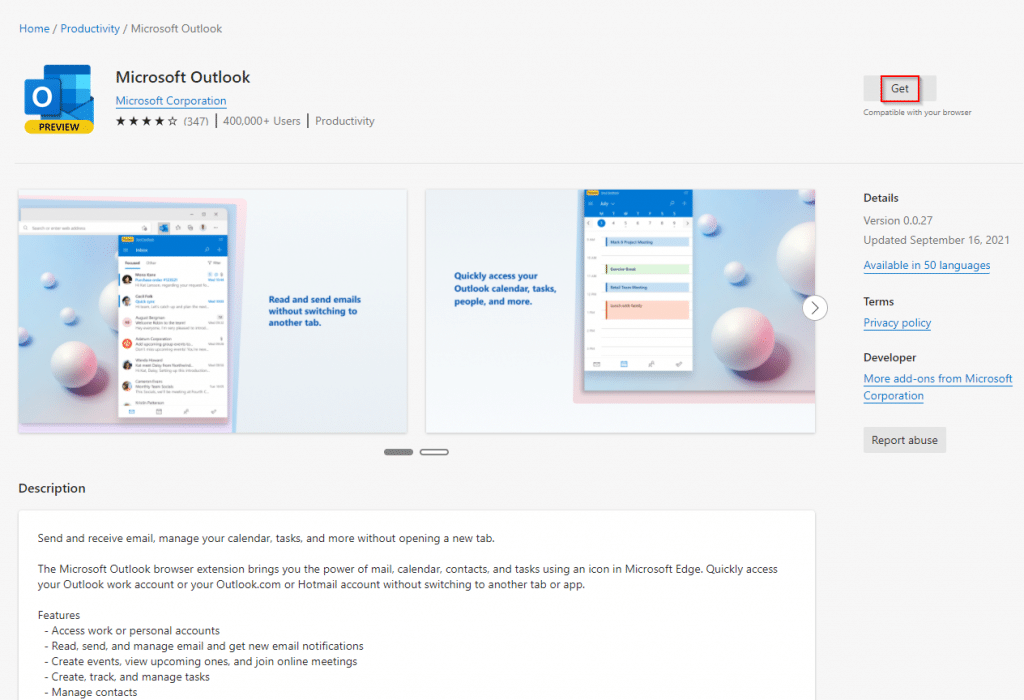
Download and install it from the Edge Add-ons page here.
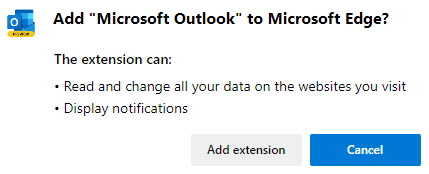
After it is added, initially the add-on icon would be grayed out.

Click on it and log in with your Outlook.com credentials.
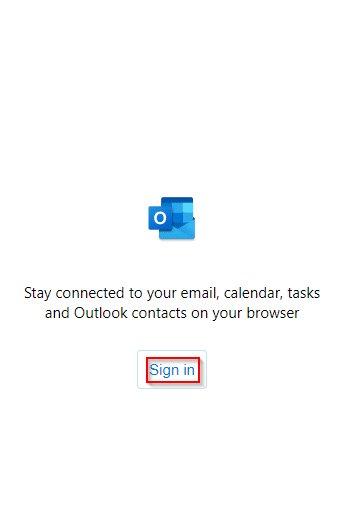
It will display the Outlook inbox as a drop-down.
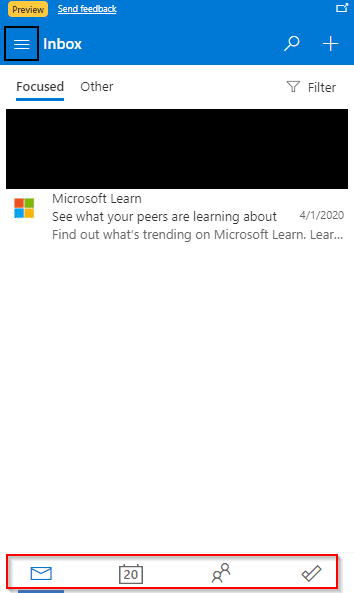
To compose a new message, click on the + button.


If there are any new messages or unread emails, the add-on icon will display a red dot.

You can also access People and Calendar by clicking on their icons from the bottom.
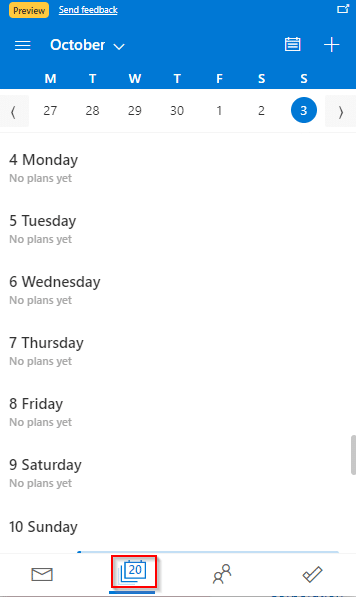
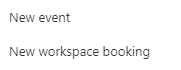
To add a new event to the calendar, click on the + button.
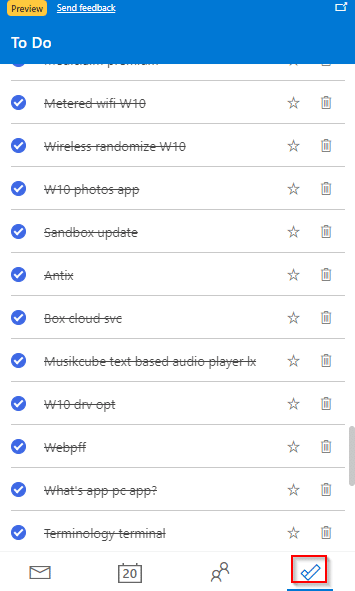
Similarly, the Microsoft To Do list can be viewed by clicking on the To Do icon.
Configuring Outlook add-on settings:
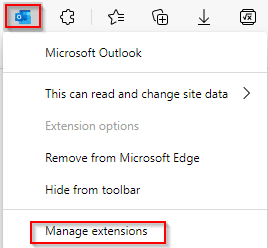
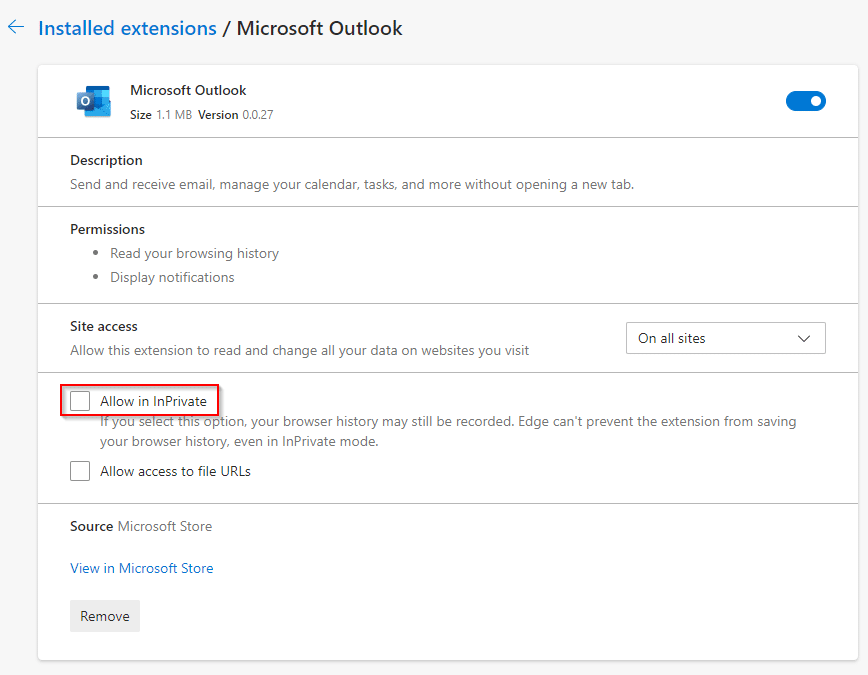
To enable the Outlook add-on for use in InPrivate window, right-click on the add-on and choose Manage Extensions.
Then, enable the option of Allow in InPrivate.
It is a useful add-on for managing emails and events without keeping Outlook.com open in a separate tab.
All done.