How to Change the Search Scope in Outlook
By default, Outlook searches all your mail folders, including Deleted Items. This can often clutter your search results with irrelevant information. Fortunately, you can easily customize Outlook’s search scope to include only the current folder you’re in and exclude deleted items.
Let us look at how to adjust these settings in both Outlook on the web and the Outlook desktop application.
Outlook on the Web
Log in to Outlook on the web. In your inbox, click the Gear icon (Settings) located in the top-right corner of the page.

On the Settings page, navigate to General > Search.
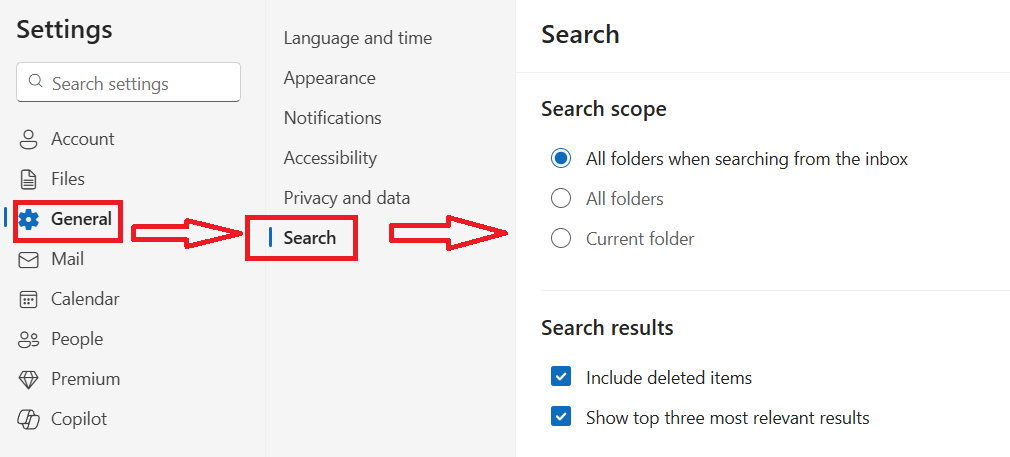
In the right pane, under the Search Scope, you’ll see options to refine where Outlook searches.
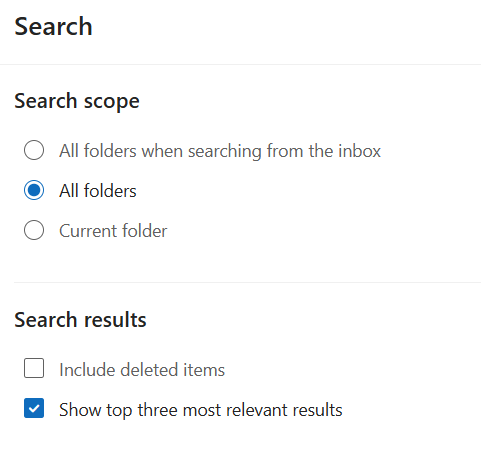
You can choose to search:
- Current mailbox when searching from the inbox: This option searches your entire mailbox when you initiate a search from your inbox.
- Current mailbox: Searches only the current mailbox
- Current folder only: This option restricts searches to only the folder you currently have open.
You can also control the appearance of your search results from the Search Results section:
- Include deleted items: Toggle this option off to exclude deleted emails from your searches.
- Show top three most relevant results: Toggle this option on or off based on your preference for how search results are prioritized.
Outlook Desktop Application
The process for changing search settings in the Outlook desktop application is similar to Outlook on the web:
Open the Outlook desktop application. Click the gear icon (Settings) in the top-right corner of the application window.
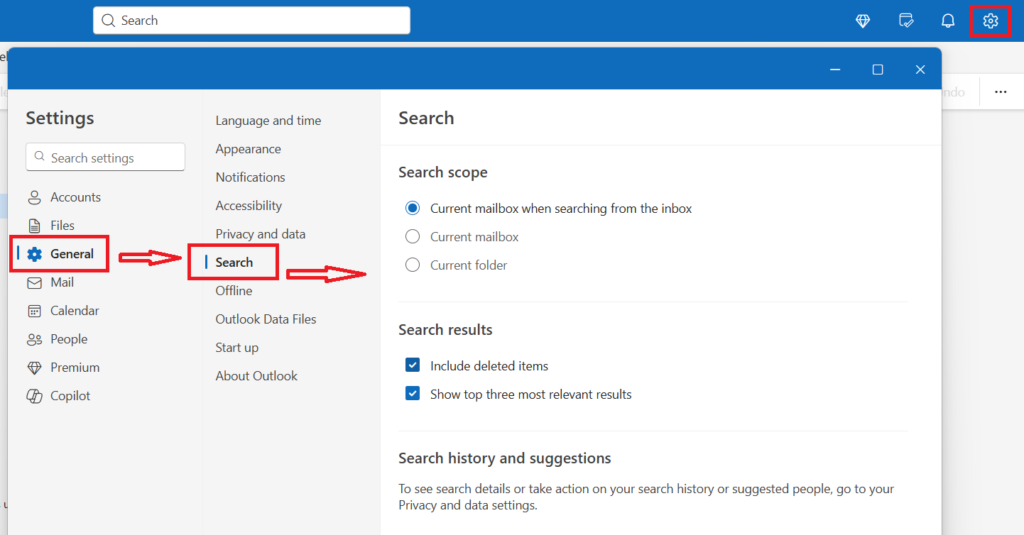
In the Settings menu, go to General > Search. Then adjust the scope of search and Search results options as described for Outlook on the web to fit your preferences.
By following these steps, you can ensure your Outlook searches are more precise and efficient, helping you find what you need faster.
Happy emailing.
How To Enable The Word Count Indicator In Google Docs

Automatically Take Screenshots In Windows At Specific Time And Dates