How To Get Classic Gnome Menu In Ubuntu 11.10 Oneiric Ocelot’s Unity Desktop
October 17, 2011
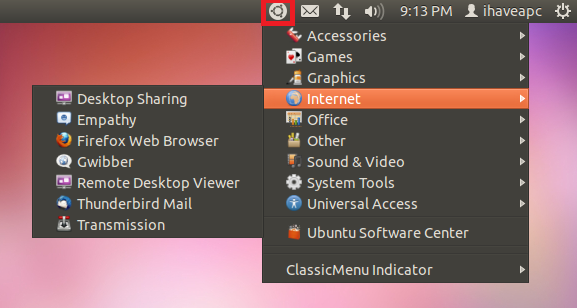
Here’s how to get classic Gnome Menu in Ubuntu 11.10 Oneiric Ocelot’s Unity desktop:
1. Issue the following command at the terminal –
sudo add-apt-repository ppa:diesch/testing

2. Now, issue the following command at the terminal –
sudo apt-get update

3. Now, issue the following command at the terminal –
sudo apt-get install classicmenu-indicator

4. Reboot your system after the installation is complete.

5. Log in to the system after reboot and you’ll find the classic Gnome Menu in the indicator tray in Unity desktop!

How To Get Classic Gnome Desktop In Ubuntu Linux 11.04 ‘Natty Narwhal’

How to Turn External Images On or Off in Gmail Messages
Quickly View Deleted And Offline Web Pages When Using Firefox
5 Comments
“4. Reboot your system after the installation is complete.”
Reboot!?? You don’t even need to log-off! Are you by chance a Window$ u$er!? Funny!!!
All you need to do is launch the application from terminal:
$ classicmenu-indicator &
or from the run box by pressing ALT+F2 and then running application from there:
classicmenu-indicator
By default this indicator automatically adds itself to launch at startup.
REMEMBER: GNU/Linux IS NOT WINDOW$. You will ONLY need to reboot if it’s totally necessary, you can go and go with your systems for months or even years without need to reboot.
Thanks for the tip!
it works thanks but how i hide the side bar,
i want the clasicc gnome desktop the i have in 11.04,
menu in up corner and task bar down like normal
this is was i looking for
sudo apt-get install gnome-panel
http://www.addictivetips.com/ubuntu-linux-tips/get-classic-start-menu-in-ubuntu-11-10-oneiric-ocelot/
Outstanding! Thanks.