How to Turn External Images On or Off in Gmail Messages
December 22, 2025
In general, not displaying images in received emails by default is generally a good security and privacy practice for the following reasons:
- Privacy protection: Many marketing and phishing emails include invisible tracking pixels embedded as images. When images are automatically loaded, the sender can confirm that your email address is active, note the time of opening, and sometimes infer your location or device type.
- Improved security: Some malicious emails use remote images to support phishing or scam activity. While images themselves are usually harmless, loading external content can be part of a broader attack strategy aimed at building trust or validating targets for follow-up attacks.
- Reduced exposure to spam: By blocking images, spammers receive fewer signals that their messages are being read. This can help reduce future spam, as active email addresses are less valuable to them.
- Faster loading and lower data usage: Emails without images load faster and consume less bandwidth, which is especially useful on slow connections or metered data plans.
- Better focus on content: Disabling images forces the email to be evaluated based on its actual text content, making it easier to spot suspicious messages that rely on visuals to appear legitimate.
In practice, images can always be viewed selectively, striking a balance between usability and safety.
Let us take a look at how to toggle displaying external images in Gmail messages:
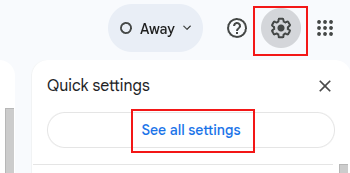
Log in to Gmail and click the settings icon. Select See all settings.
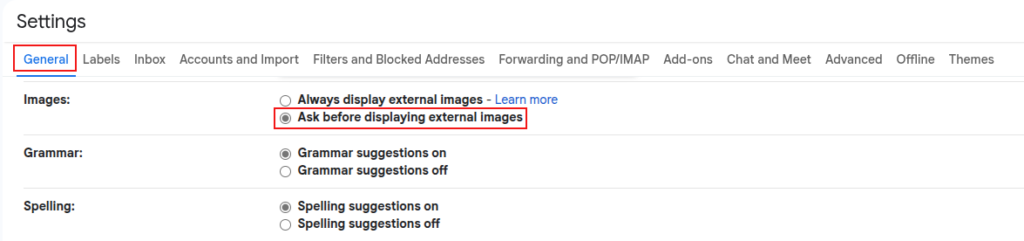
From the General section, scroll down to Images and select Ask before displaying external images.
Click the Save Changes button at the bottom of the page.

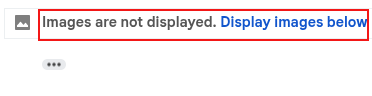
The inbox will reload, and you will see a link to display external images in received messages that contain images.
All done.
Ada : A Simple And Lightweight Twitter App
Quickly Find Out Types Of Links On A Web Page When Using Firefox
