Search Quickly Using Smart Keywords In Mozilla Firefox
Mozilla Firefox has a useful feature of adding “smart keywords”. What this does is provide a shortcut to search feature that is available at different websites.
So for example, to search anything on Wikipedia, instead of going to that site and then performing a search, using a smart keyword will automatically return search results from there by simply typing in the Firefox address bar.
Here is how to add smart keywords :
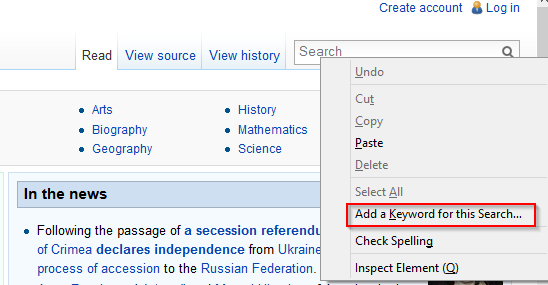
Go to the site whose search results are needed and right click on the search box. Then select “Add a Keyword for this Search”. (Wikipedia for this example).
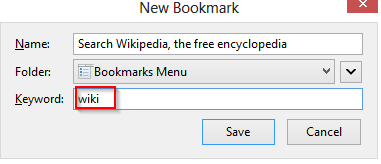
Next, use a relevant keyword (suppose “wiki”) and store this as a bookmark.
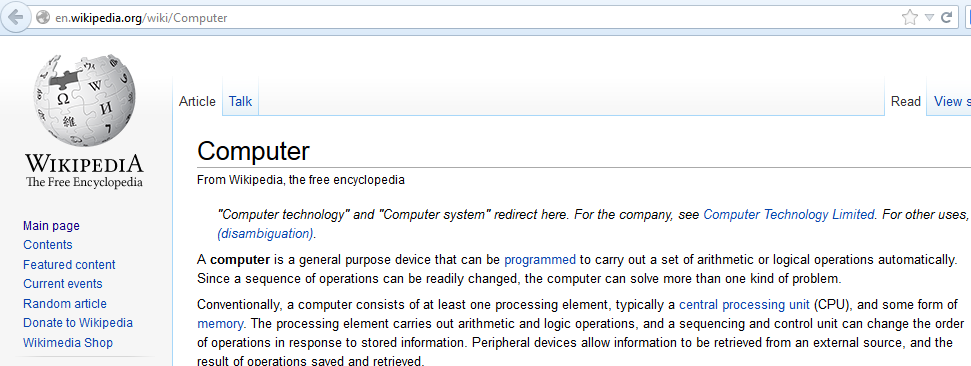
Now, to search anything from Wikipedia.org, simply type wiki and the desired keyword (e.g : wiki computer) in the address bar.

This automatically opens the relevant Wikipedia page for the provided search term.
These kind of smart keywords can be setup for various websites and doing this saves a lot of time whenever search needs to be performed.
Simply look for the search box, right click the search field and add the smart keyword. (So, for a news website , simply add a smart keyword “news” using the same method and search for anything over there by typing “news (desired search keyword)” in the Firefox address bar.
Very useful time-saving feature in Firefox.
Happy searching.