A Beginner’s Guide to ps: The Essential Linux Process Command
Linux, at its core, is a multi-process operating system. This means it can run numerous programs and tasks simultaneously. But how do you see what’s happening behind the scenes?
That’s where the ps command comes in. The ps command, which stands for process status, is your window into the world of running processes.
It’s one of the most fundamental tools for any Linux user, especially when you need to troubleshoot a slow system or find a specific program that’s running.
What is a Process?
First, let’s understand what a process is. A process is essentially a running instance of a program. When you open a terminal, that’s a process. When you run a command like ls, that’s another process. Every single command you execute and every application you launch creates one or more processes.
Think of them as individual workers on a factory floor, each with their own assigned task. So the ps command lets you see a snapshot of all these workers at a given moment.
The most basic way to use the command is simply typing ps in your terminal and pressing Enter.
ps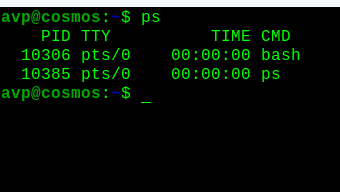
Let’s break down this output:
- PID: This stands for Process ID. It’s a unique number that the kernel assigns to each process. Think of it as the social security number for a process.
- TTY: This column shows the terminal (or teletypewriter) that the process is running on. In our case, pts/0 refers to the first pseudo-terminal session.
- TIME: This is the amount of CPU time the process has used, formatted as [minutes]:[seconds]:[milliseconds].
- CMD: This shows the command that launched the process.
Notice that the output only shows processes running in your current shell. This is a very limited view and isn’t usually what you’re looking for. To see more, you need to use options.
There are two main styles of options for the ps command: the Unix style and the BSD style. Both achieve similar results but use different flags. As a beginner, it’s a good idea to learn both.
1. The Unix-Style: ps -ef
This is a very popular combination. The –e flag stands for every process, and the –f stands for full format listing.
ps -efThis command will output a long list of all processes running on the system.

This is a much more useful view. You’ll see additional columns, including:
- UID: The User ID of the user who owns the process.
- PPID: The Parent Process ID. This is the PID of the process that launched the current one.
- C: CPU utilization.
- STIME: The start time of the process.
This is your go-to command for getting a comprehensive overview of everything running on your system.
2. The BSD-Style: ps aux
The ps aux command is another classic and widely used combination. The a flag stands for all processes (including those of other users), u for user-oriented format, and x for processes not associated with a terminal.

The output is very similar to ps -ef, but the columns are arranged differently and you get slightly different information like the %CPU and %MEM utilization, which is incredibly useful for spotting resource-hungry processes.
Example: Consider the below ps -aux output
USER PID %CPU %MEM VSZ RSS TTY STAT START TIME COMMAND
root 1 0.0 0.1 226996 4096 ? Ss Aug10 0:02 /sbin/init
avp 12345 5.2 25.0 1234567 876543 ? Ssl 18:30 0:15 /usr/bin/firefox
From this, you can immediately see that the firefox process owned by user avp is using 5.2% of the CPU and 25.0% of the memory.
Finding a Specific Process
One of the most powerful uses of ps is combining it with the grep command to search for a specific process. For example, if you want to find the PID for all gedit processes (text editor), you’d use a pipeline (|) to send the output of ps -ef to grep
ps -ef | grep gedit

This command first lists all processes and then filters the output to only show lines containing the word gedit. This is an invaluable technique for system administration and troubleshooting.
As with all Linux commands, you can deep dive into various usage options of the ps command by reading the man page. Use the man command for that:
man ps

Summary
The ps command is an essential tool for understanding and managing your Linux system. Remember these key takeaways:
- ps on its own is limited to your current shell.
- ps -ef and ps aux are the most common and useful variations for listing all processes.
- Use the PID to uniquely identify a process.
- Combine ps with grep to search for specific processes.
As you become more comfortable with Linux, you’ll find yourself using ps regularly. It’s the first step to knowing what’s running, why your system might be slow, and how to manage the tasks that make your computer run.
Enjoy exploring the Linux command line.

How To Know How A Command Is Executed In Linux
How To Browse Websites From Within Thunderbird 3
