Fix Browser Woes: A Simple Guide to Clearing Your Cache
Have you ever encountered a website that just won’t load correctly, a form that refuses to submit, or strange, outdated information appearing on a page you know has been updated?
These common browser problems can be frustrating, but the solution is often surprisingly simple: clearing your browser’s cache.
But what exactly is this “cache,” and why does clearing it work like a magic wand for so many issues?
What is Browser Cache?
Think of your browser’s cache as a temporary storage locker for a website. When you visit a website for the first time, your browser downloads a lot of information, like images, logos, stylesheets (which control the website’s look), and scripts.
Instead of re-downloading all of this every single time you visit that site, your browser saves a copy in a special folder on your computer. This makes the website load much faster on subsequent visits.
While this is a great feature for speeding things up, it can also be the root of your browsing problems.
Why Clearing the Cache Works
The main reason clearing your cache solves so many issues is that it forces your browser to download the most current version of a website’s files.
Here’s why that helps:
- Outdated Information: A website might have been updated since your last visit, but your browser is still showing you the old, cached version. Clearing the cache forces it to get the new, correct version.
- Corrupted Files: Sometimes, the cached files can get corrupted or damaged, leading to errors, broken images, or strange formatting. A fresh download of the files solves this.
- Security and Privacy: Clearing your cache can also help with security and privacy by removing stored information that could potentially be used to track your browsing habits.
How to Clear Your Cache
Clearing your cache is a straightforward process in most browsers. Here’s how to do it for the most popular ones:
Google Chrome
Type the following in the address bar:
chrome://settings/privacy
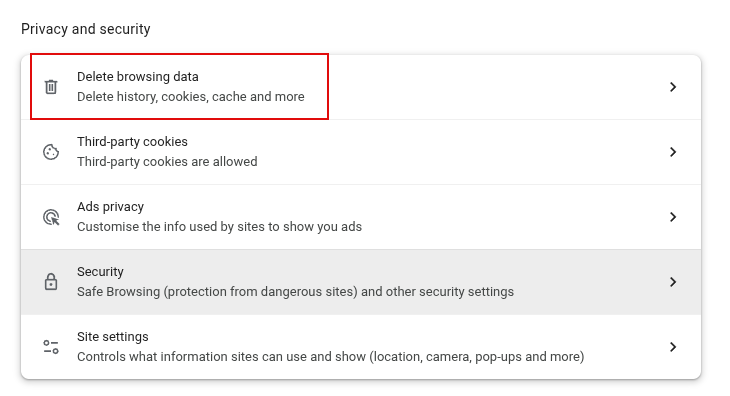
From the Privacy and security section, click on Delete browsing data.
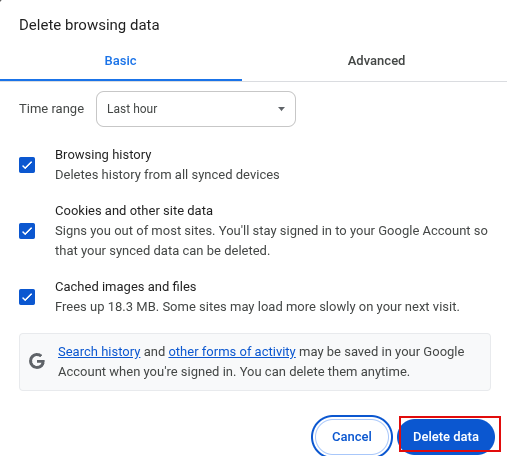
Choose what to delete along with the time range and click the Delete data button to clear cached files.
Mozilla Firefox
Access Firefox settings by typing in the address bar:
about:preferences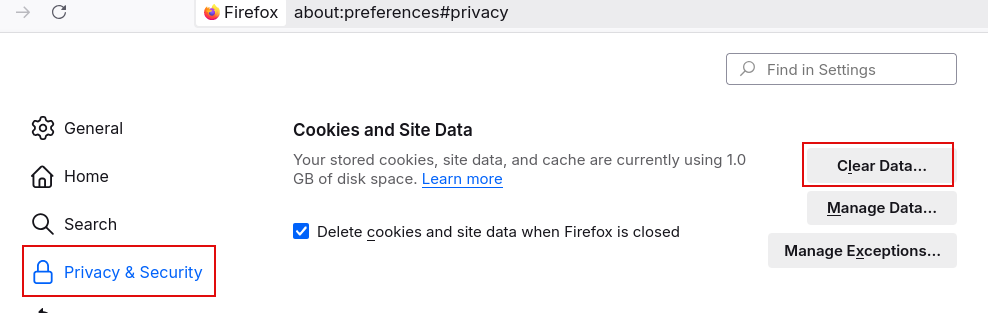
Then scroll down to the Privacy & Security section. Click the Clear Data button to choose and delete browser cache.
Microsoft Edge
Access Edge settings by typing in the address bar:
edge://settings/privacy
From the Privacy, search, and services section, click the Clear browsing data button to select and delete browser cache.

Brave browser
Type the following in the address bar:
brave://settings/privacy
From the Privacy and security > Delete browsing data section, choose what to delete to clear the cache.
After clearing your cache, restart your browser and revisit the website that was causing trouble. You should find that in most instances your problem has been fixed!
While clearing your cache is a powerful troubleshooting step, remember that it’s just one tool in your toolbox. If the problem persists, it may be a sign of a deeper issue, but for most everyday browser annoyances, a simple cache clear is all you’ll need.
Happy browsing.
How To Mute and Unmute Gmail Messages
How To Merge, Split Or Rearrange PDF Files In Linux Mint
