How to Download a Backup of Your Google Photos
Google Photos is a popular and convenient service for storing and backing up your precious memories. However, it’s always a good idea to have a local backup of your photos, whether for peace of mind, to migrate to another service, or to simply have a copy on your own device.
It offers an easy option to export your data. Let’s take a look at how to do that.
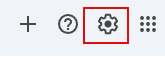
Log in to Google Photos web and click the gear icon to access settings.
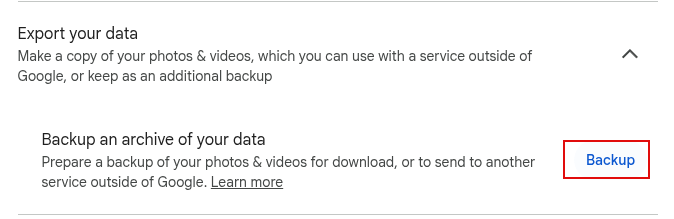
Scroll down until you see the Export your data section. Click the Backup link to begin.
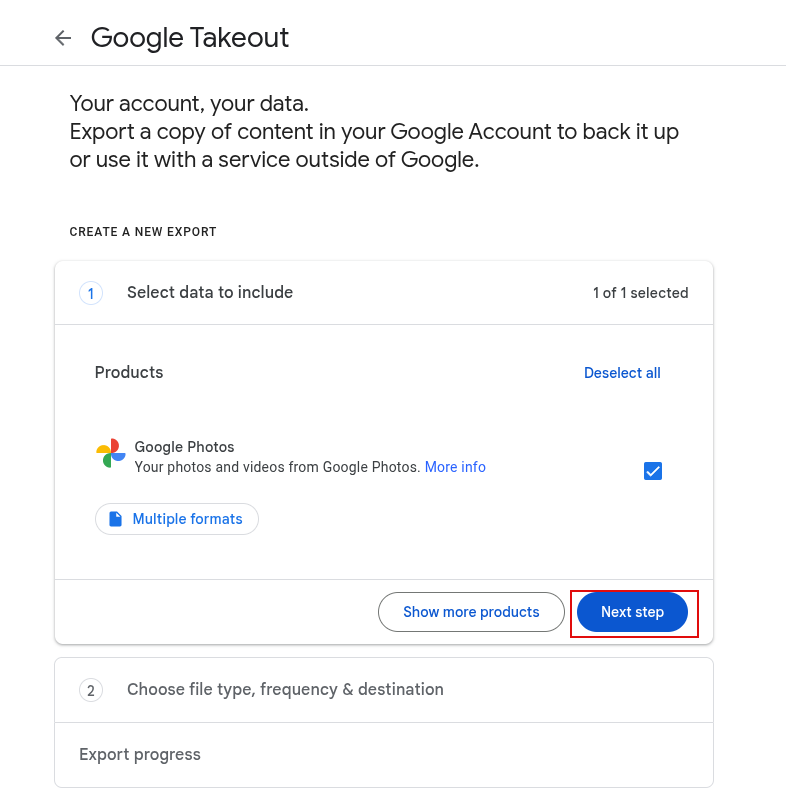
The Google Takeout page will be displayed with Google Photos already selected. Click the Next step button.
You can configure how you want your Google Photos backup.
By default, it can be downloaded through an email link, but there are other options like transferring to Google Drive, Dropbox, Box, and OneDrive. These can be chosen from the Transfer to drop-down menu.
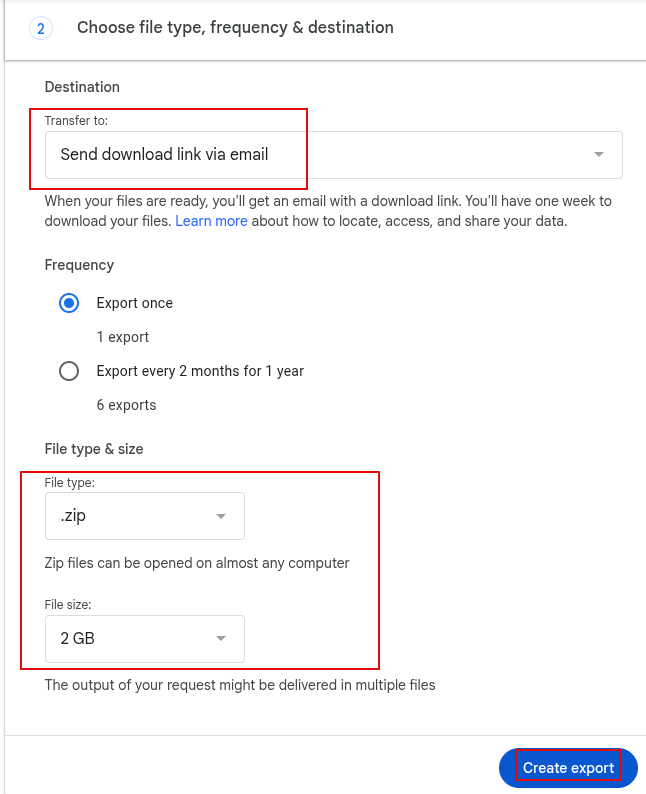
If this is a one-time export, keep the default frequency; otherwise, schedule the backup to be created every 2 months for a year.
The backup will be available by default in zip format, but you can change it to tgz format if needed.
Also, the data exported by default will be available as a 2 GB file in different parts, but you can increase this limit up to 50 GB from the File size drop-down menu.
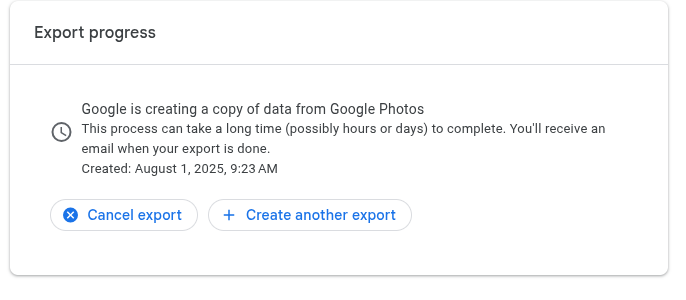
Click the Create export button to start the backup.
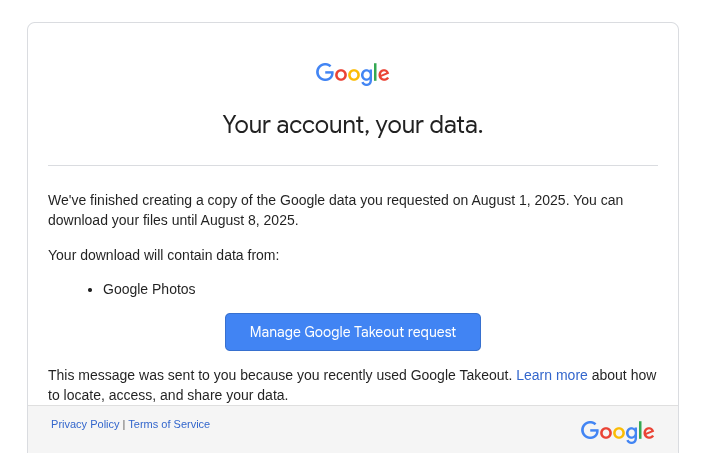
When it is complete, you will receive an email link (default option) from where you can download your Google Photos backup. This will be valid for 7 days.
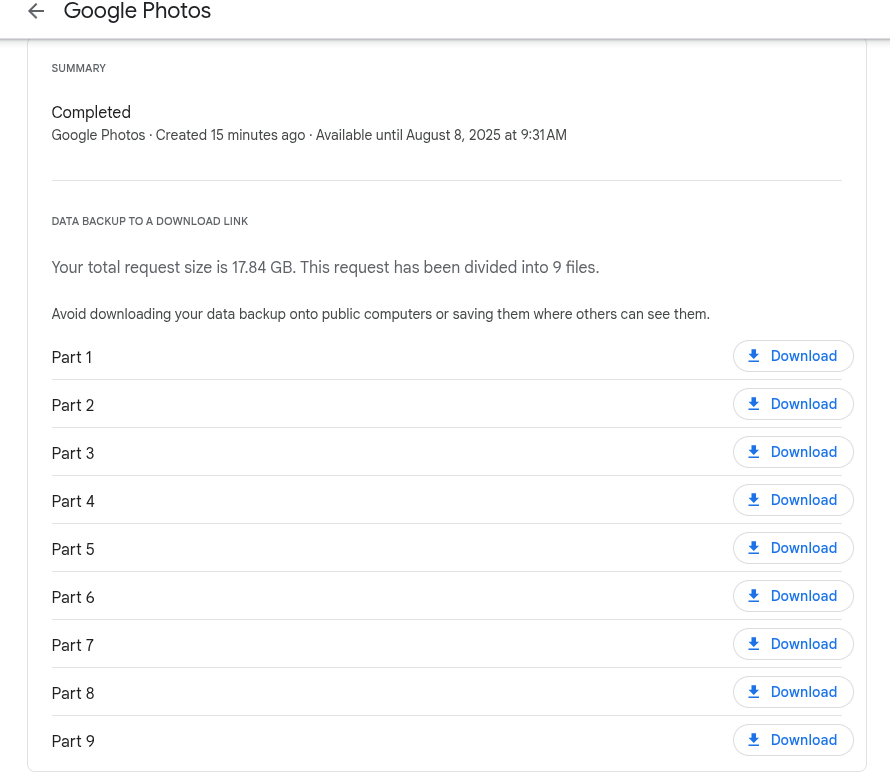
If your backup is more than 2 GB in size and the default file size was selected when creating the backup, you will see it split into different parts, which need to be individually downloaded.
Download the backups, extract and verify them.
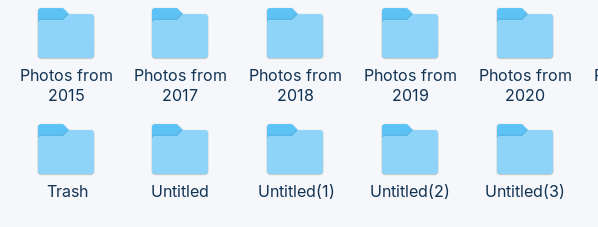
By following these steps, you can successfully download and secure a complete backup of your Google Photos library, giving you greater control over your personal data.
All done.
Brave Browser: Disable Auto-fill for Private Browsing Privacy

How To Schedule Themes To Change Automatically In Vivaldi Browser
