How To Turn Off OneDrive File Deletion Notifications
Microsoft OneDrive has a built-in safety feature: if you delete many files from your cloud storage at once, it automatically sends you an email notification.

This alert helps protect you from accidental deletions or malware activity.
However, if you regularly delete or reorganize files in bulk and find these notifications unnecessary, you can easily turn them off.
Here is how to do that:
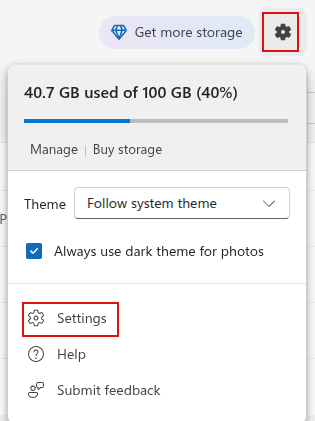
Click on the OneDrive cloud icon in your taskbar (Windows), menu bar (Mac), or login to OneDrive Web. Then click the gear icon.
Select Settings.
Go to Notifications. In the Send me email when section, look for an option that says: OneDrive detects a large number of files are deleted.

Uncheck this box and click the Save button.
From now on, OneDrive will no longer alert you when you delete a large batch of files.
When You Should Keep It On
Turning off this notification is fine if you intentionally manage files in bulk. But if you’re worried about accidental deletions, ransomware, or sync errors, keeping it enabled adds an extra layer of protection.
Tip: Even if you turn off notifications, deleted files remain in your OneDrive Recycle Bin for 30 days (or 93 days for business accounts), so you still have a safety net as you can restore them.
All done.

How To Use Telegram Desktop App For Windows 10

How To Turn “Reply-All” On Or Off In Outlook.com
