Manage Remote Content in Thunderbird
Have you ever opened an email in Thunderbird and seen a yellow bar at the top that says, “To protect your privacy, Thunderbird has blocked remote content in this message“?

This is a key feature of Thunderbird designed to keep your private information secure.
What Is Remote Content and Why Is It Blocked?
Remote content refers to anything in an email that isn’t included in the message itself but is instead downloaded from a website when you open the email. The most common examples are images and stylesheets that make emails look professional and visually appealing.
So why block it? When your email client downloads remote content, the server it’s getting the content from knows that your email address has accessed it. While this might seem harmless, spammers and advertisers use this exact method to track you.
They can embed tracker pixels as a tiny, invisible image in an email. If you open the email and the image loads, the sender knows your email address is active, which can lead to even more spam.
This is why by default, Thunderbird blocks this content so that the sender gets no information about you.
Managing Remote Content in Thunderbird
While blocking remote content is a smart security measure, it’s also true that emails often look much better when images are loaded. If you trust the sender, you can allow Thunderbird to show remote content for that specific message.
To allow remote content for a single email:
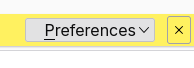
Click the Preferences button in the notification bar and select Show remote content in this message.
To permanently allow or block remote content by default:
You can change your settings so that Thunderbird automatically loads remote content for all messages, or you can create exceptions for specific senders.
Click the menu button (the three horizontal lines or burger icon) in the top-right corner of the Thunderbird window. and select Settings .

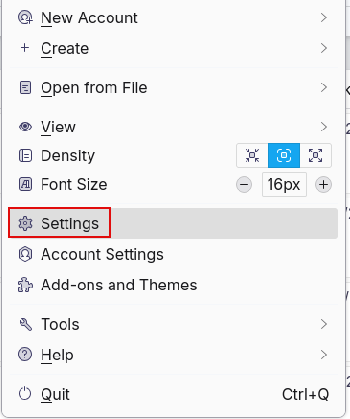
Then select Privacy & Security. Under the Mail Content section, you’ll see a checkbox labeled Allow remote content in messages.

Check this box if you want Thunderbird to automatically load remote content for all emails.
To create a list of exceptions (for example, to always allow images from a trusted sender like your bank), click the Exceptions… button.
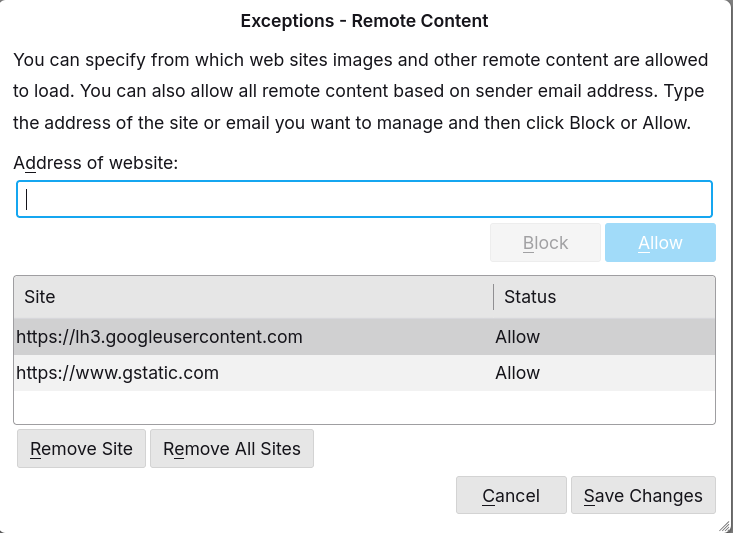
Enter the website or email address and then choose to Allow or Block remote content from that source.
By understanding and controlling how Thunderbird handles remote content, you can strike a balance between a rich email experience and keeping your personal information safe.
Happy emailing.
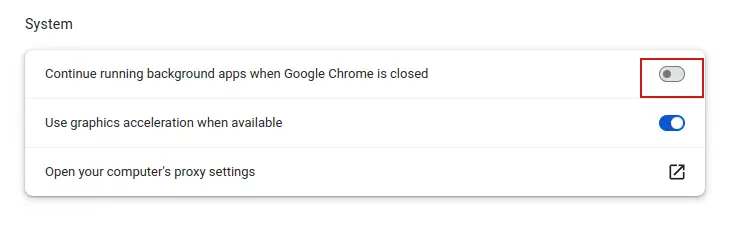
Understanding Chrome’s Continue Running Background Apps Feature
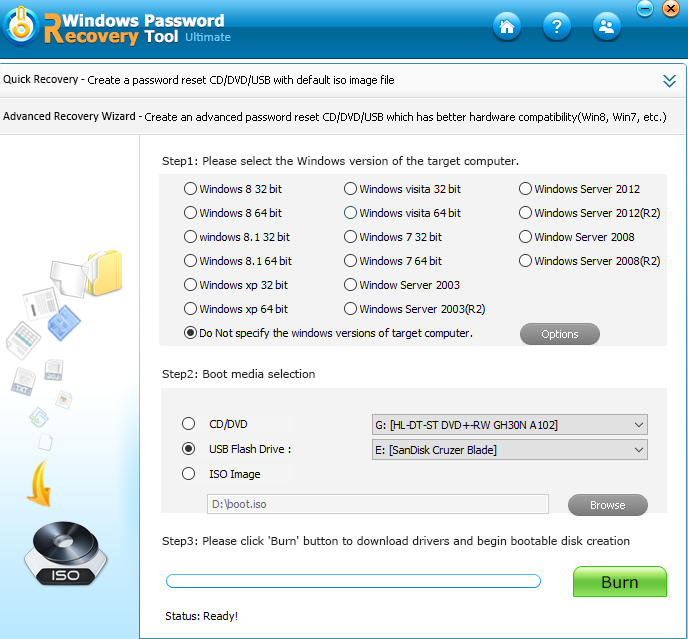
How to Reset Lost Windows 10 PC Password With Windows Password Recovery Tool