Use the Sweep Feature in Outlook for a Cleaner Inbox
Managing emails can be time-consuming, especially when your inbox is filled with newsletters, promotions, or updates you don’t always need.
If you use Outlook on the Web, there’s a built-in tool called Sweep that can help you organize and clean up your inbox in just a few clicks.
What is Sweep?

The Sweep feature is designed to quickly handle emails from specific senders. Instead of deleting or moving emails one by one, Sweep lets you apply bulk actions instantly.
What Can Sweep Do?
Here are the main things you can do with Sweep:
- Delete all emails from a sender: Perfect for when you no longer want any emails from a company or newsletter.
- Keep only the latest email: Great for things like weekly updates where the newest version is all you need.
- Automatically move future emails: You can set a rule so that future emails from that sender go directly into a folder, skipping your inbox.
- Automatically delete future emails: If you don’t want to receive emails from a sender at all, Sweep can take care of it.
Why Use Sweep?
- Saves time by cleaning up multiple emails at once.
- Keeps your inbox clutter-free.
- Helps you stay focused on important emails.
How to Use Sweep in Outlook for the Web
Login to Outlook and go to your Inbox. Select an email from the sender you want to manage and click the Sweep option in the toolbar.

Choose one of the available actions (delete, keep latest, move to a folder, or auto-delete).

A list of the folders will be available if you wish to sweep the message to any one of them. Confirm as needed, and Outlook will take care of the rest.

The Sweep feature will automatically create a rule that will move all the emails from the sender to the chosen destination. You can also view and edit this rule by clicking the View rules button.

Quick tip: Use Sweep regularly in Outlook to stop your inbox from becoming overloaded with emails you don’t need.
Happy emailing.

Reduce Clutter And Manage Open Tabs In Google Chrome
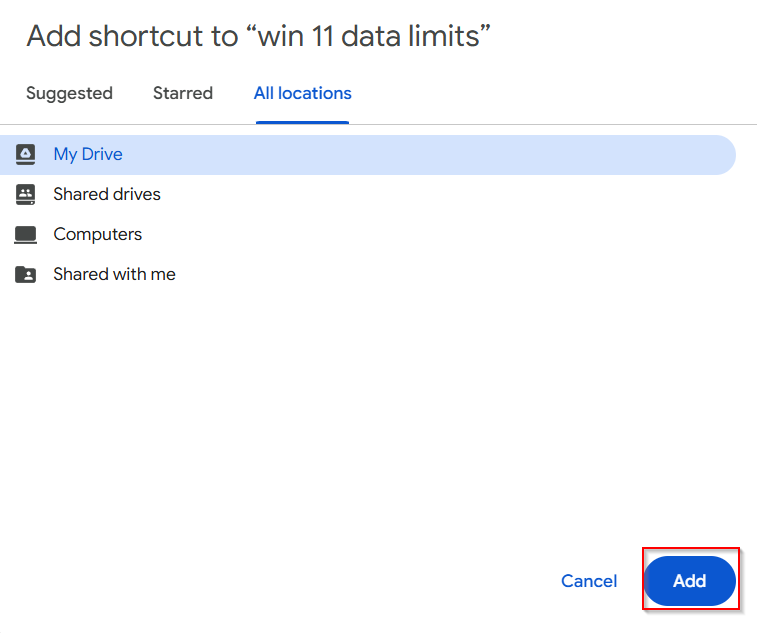
Streamline Your Google Drive using File Shortcuts
