A Beginner’s Guide to Linux Environment Variables
If you’re new to Linux, the terminal might seem like a strange and intimidating place. But don’t worry! With a bit of guidance, you’ll see that it’s a powerful tool and one of the key parts of working with the terminal is understanding environment variables.
Let us explore what environment variables are, what they do, and how they can make your command-line life a lot easier.
What Are Environment Variables?
Environment variables are like small notes or settings that your Linux system uses to configure how programs run.

Think of them as key-value pairs: each environment variable has a name and a value.
For example:
HOME=/home/username
In this case: HOME is the name of the variable. (Environment variables are in uppercase and case-sensitive).
These variables are part of your shell environment, and they help the system know things like:
- Who you are
- Where your home directory is
- What language to use
- Where to find programs to run
Why Are They Useful?
They can be used to:
- Customize your shell (like setting default editors or colors)
- Control program behavior
- Set paths to help the shell find installed software
- Pass settings to variousscripts and commands
So they are kind of like behind-the-scenes helpers for your terminal.
Some common environment variables
| Variable | What It Does |
| HOME | Your home directory (/home/yourname) |
| USER | Your username |
| PATH | A list of directories to look in for commands |
| PWD | Current working directory |
| SHELL | The shell program you’re using (/bin/bash, for example) |
| EDITOR | Your default text editor |
| LANG | Language and locale settings |
How to View Environment Variables
You can view all environment variables with:
printenv
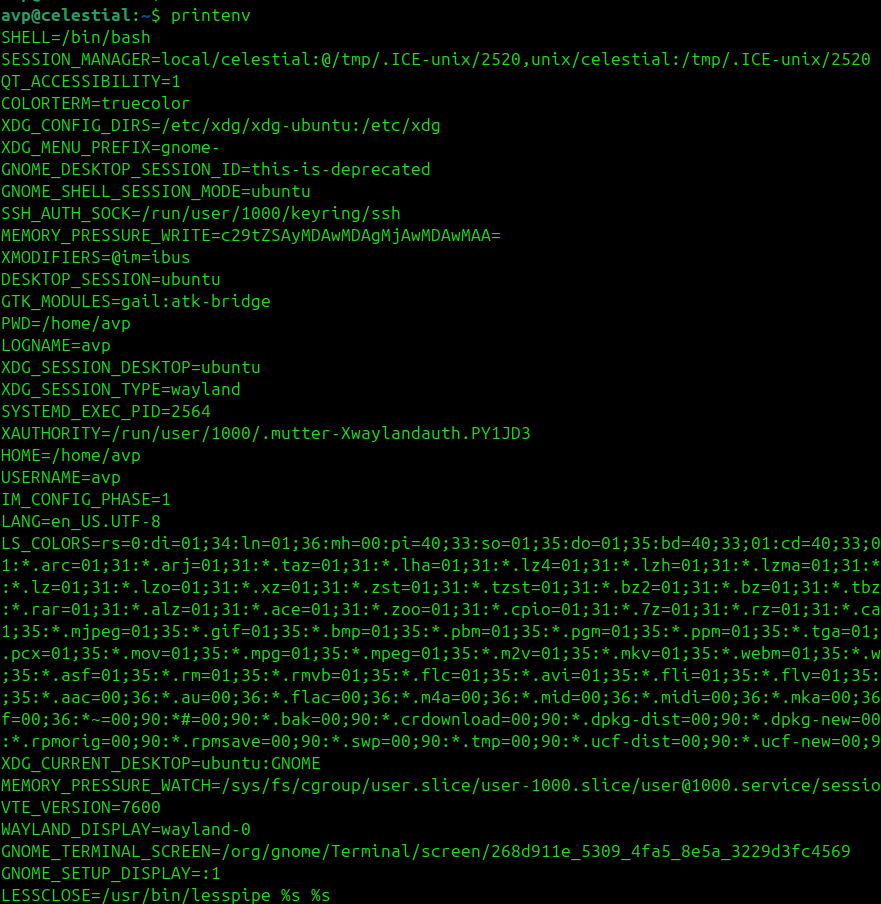
Or check a specific one with the echo command:
echo $HOME

The $ sign is used to refer to the value of a variable.
Example:
echo $USER
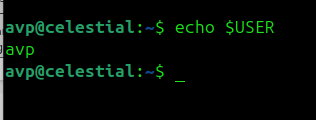
This will output the current user:
avp
How to Set Environment Variables
You can create or change a variable in your current terminal session like this:
export MYNAME="a"
echo $MYNAME
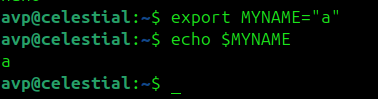
But this only lasts for the current session. If you open a new terminal, it’s gone. So to make it permanent, add it to your shell configuration file, such as:
~/.bashrc (for Bash)
~/.zshrc (for Zsh)
Example:
To set the default text editor to nano, use the following command:
export EDITOR=nano
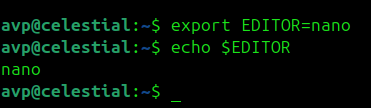
Then run the following command to apply the changes immediately:
source ~/.bashrc
The PATH Variable
PATH is one of the most important environment variables. It tells your shell where to look for commands when you type something.
Check it with:
echo $PATH

It will show a list of folders, like:
/usr/local/sbin:/usr/local/bin:/usr/bin:/bin:/usr/sbin
If you install your own scripts or programs, you can add their location to your PATH, so you can run them easily.
Example:
export PATH=$PATH:/home/avp/scripts
Now, you can run scripts in /home/avp/scripts from anywhere.
Temporary vs Permanent Variables
- Temporary variables are set in the current session only.
- Permanent variables are added to your shell configuration file (.bashrc, .zshrc, etc.).
- Use temporary variables for quick tasks and use permanent ones for settings you always want.
Final Tips
- Use printenv or env to explore your environment.
- Always use export when creating new environment variables.
- Don’t edit system files like /etc/environment unless you know what you’re doing.
- Use .bashrc or .zshrc to set your own preferences.
To sum it up, environment variables are a simple but powerful part of the Linux command-line. Once you understand them, you’ll be able to configure your environment, write smarter scripts, and work more efficiently on the command line.
Happy exploring.

Free Debian Administrator’s Handbook Released
Emmabuntus : A Debian Based Distro For Older And Refurbished PCs
