Find Words Instantly on Any Webpage in Microsoft Edge
When browsing the web, you may sometimes need to locate a specific word or phrase within a long article or document. Instead of scrolling endlessly, Microsoft Edge offers a built-in search feature that lets you quickly find what you’re looking for.
Here’s how it works and why it can save you time.
Open Microsoft Edge and go to any webpage. Press Ctrl + F on Windows/Linux (or Command + F on Mac).

A small search bar will appear at the top-right corner of the browser.
Type the word or phrase you want to find. Edge will highlight all matches on the page.
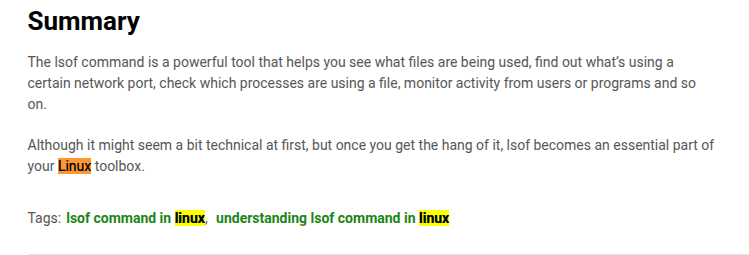
You can use the up/down arrows in the search box to move between results.
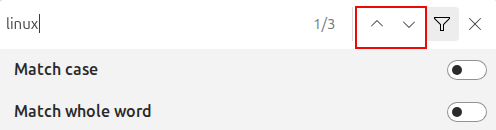
Use Search Filters for Precise Results
Edge also lets you fine-tune your search with two useful filters:
- Match case: Only finds results that match the exact capitalization of your search. Example: Searching for “Linux” won’t show “linux” if this option is turned on.
- Match whole word: Finds only complete word matches, not partial ones. Example: Searching for “lin” won’t show “linux” when this is selected.
You can toggle these filters using the Match case and Match whole word icons next to the search box.

Why This Feature Saves Time
- Quickly locate key information in lengthy articles or research papers.
- Avoid manual scrolling through large webpages.
- Find exactly what you need, especially when using the match filters for precision.
So whether you’re looking for a product name, a quote, or a specific section in documentation, this feature helps you find it in seconds.
Tip: Once you get used to pressing Ctrl + F, you’ll wonder how you ever browsed without it. It is one of the simplest yet most powerful time-saving shortcuts in Microsoft Edge along with the double-clicking tabs to quickly close them.
Happy browsing.

How To Add Feeds In Vivaldi Browser

How To Write Facebook Status Updates In Different Languages
