How to Generate Your Dropbox Personal Data Report
Dropbox lets you download a report of the personal data that it maintains about you. You may use this to review your information or for reference.
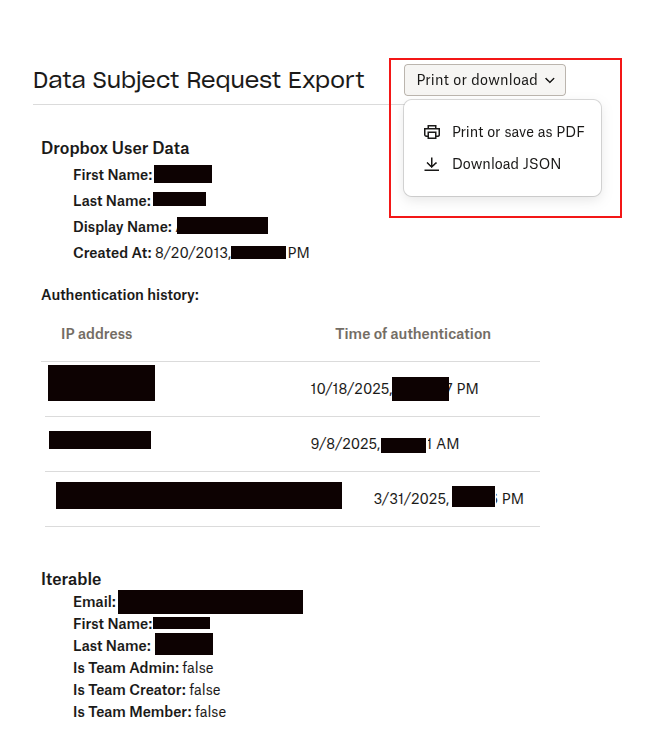
This report consists of personal information like your account creation date, authentication history (IP addresses from where you logged in) and your account privileges.
Here is how to request a copy of this data:
Login to Dropbox web and click the account icon to select Settings.

From under the Personal Account section, click on Privacy and scroll to Access your data section.
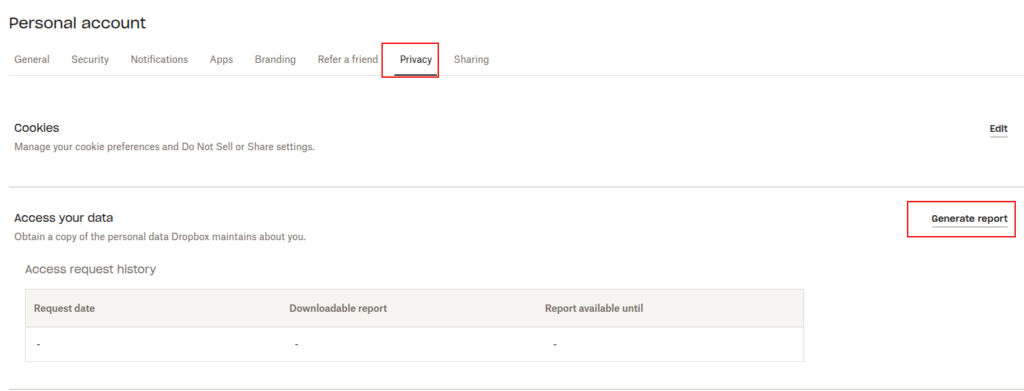
Over there, click the link Generate report.
A confirmation dialog will show up asking whether you want to proceed with this. Click the Submit button.

You can see the status as Pending from the Access your data section.
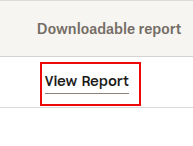
When the report is ready, you will receive an email notification asking you to download this report within 14 days. Click the View my export button from that email.

Alternatively, you can download the report from Access your data section after logging into Dropbox web.
This report consists of your user account details along with IP addresses from where you recently accessed Dropbox and your account role/privileges. It can also be saved offline as a PDF or a JSON file from the Print or download drop-down.
Save it somewhere safe for reference.
Take Notes And Write Without Distractions Using This Online Text Editor
How to Open Office Files Directly in Microsoft Edge