How to Toggle Memory Usage Display in Chrome Tabs
Google Chrome has a handy option that lets you see how much memory each tab is using. This can be very useful if you want to know which websites are consuming the most system resources, especially if your computer starts to feel slow.
What does the Chrome Memory Usage for tabs option do?
When enabled, Chrome shows the memory usage of each tab directly in the tab bar.
For example, next to a tab’s title, you’ll see the amount of memory that the specific tab is using.
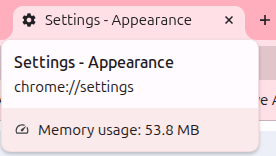
This makes it easy to identify “heavy” websites that may be slowing down your system.
You can choose to turn this feature on or off whenever you like though.
Here’s how:
Open Google Chrome. In the address bar, type the following and hit Enter:
chrome://settings/appearance

Scroll down to the Tab hover preview card. From there toggle the option Show tab memory usage.
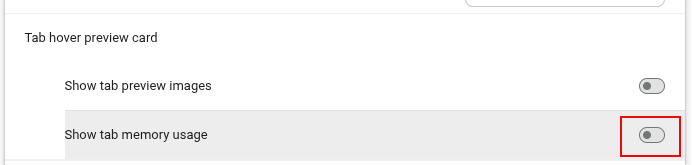
The changes will be instant. After it is turned off, hover to any of the open tabs. The memory usage won’t be displayed.
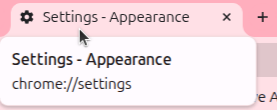
So, even though it is a useful feature, you may want to keep it off if you don’t want extra numbers cluttering your tab bar.
How To Use JuiceSSH For Android Devices

Automatically Browse Websites Securely Using This Firefox Add-On
