How to Use Hemingway Editor for Clear Writing
Writing clearly is important, whether you’re working on an article, email, or blog post. The Hemingway App helps you do just that.
It’s a clutter-free writing tool that checks your text for readability, highlights complex sentences, and suggests ways to make your writing simpler and easier to understand.
You can use Hemingway in two ways:
Desktop App: If you prefer working offline, you can purchase and install the desktop version for Windows or macOS.
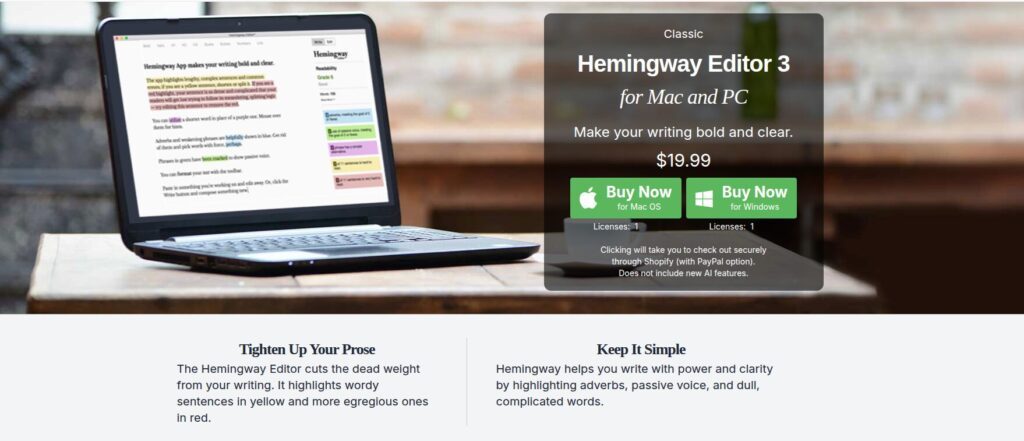
The desktop app can be used offline and without AI which is great if you are really privacy-conscious.
Online Editor: Go to Hemingway Editor . It opens directly in your web browser and is free for basic writing and editing without requiring a sign-up.
Once opened, you’ll see a clean editor with a demo text explaining the tool.
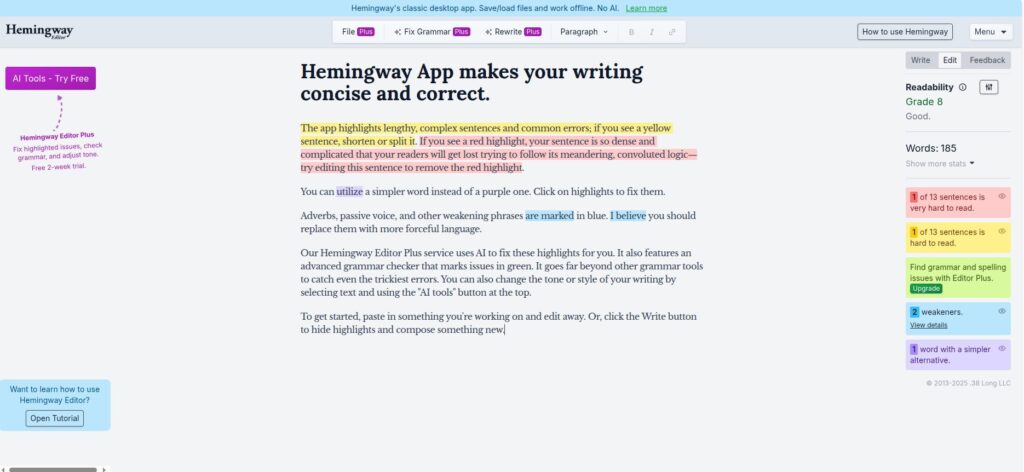
To use other features which use AI you need to sign-up for the paid plan but without it too you can write, edit and tweak your content in a distraction-free mode.
Paste or Type Your Text
Delete the sample text and paste your own writing into the editor, or start typing directly. As you do, Hemingway instantly analyzes your writing and applies color-coded highlights to show where improvements can be made.
Understand the Color Highlights
The Hemingway App uses simple color codes to give feedback:
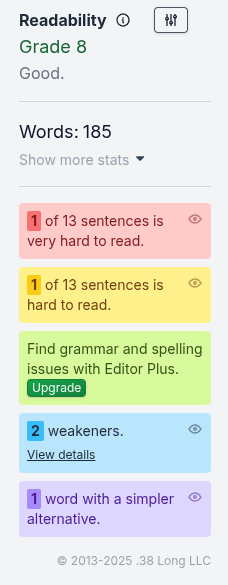
Yellow: The sentence is hard to read. Try shortening or breaking it into two.
Red: The sentence is very hard to read and needs major simplification.
Blue: You’ve used too many adverbs/weakeners (words like quickly, really, very). Try removing or replacing them.
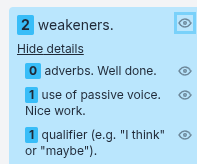
Green: The phrase uses a passive voice. Rewrite it in active voice if possible.
Purple: A simpler word could replace the one you used. Hover over it to see suggestions.
These highlights help you see exactly where to improve your writing.
Check Your Readability Score
On the right side of the app, you’ll find the Readability Grade. This shows the grade level at which your text can be understood.
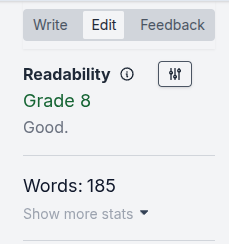
A lower number means simpler writing. Hemingway recommends aiming for Grade 9 or lower, making your writing accessible to most readers. You’ll also see stats like word count, reading time, and number of adverbs or passive sentences.
If you are a paid user, you can adjust the Readibility settings as per your target audience by clicking the filter button next to it.
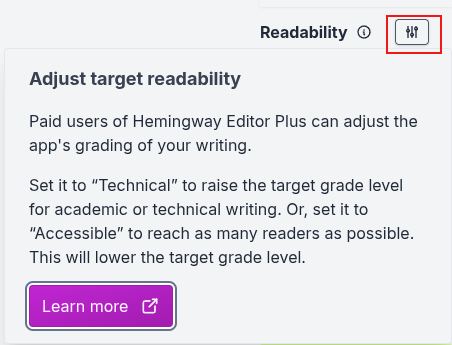
So if you are writing an academic report or a technical document, this score will be much different than it is for the default audience.
Edit and Improve
Go through the colored highlights one by one and make changes.
- Split long sentences.
- Replace complex phrases with simpler words.
- Remove unnecessary adverbs.
- Convert passive voice into active voice.
The highlights disappear as you fix each issue, making it easy to track your progress.
Switch Between Edit and Write Modes
At the top right corner, you can toggle between Write and Edit modes.
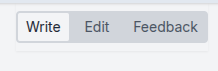
Write: Removes all highlights for distraction-free writing.
Edit: Analyzes your writing and shows suggestions. Readibility Score and suggestions are shown only in this mode.
So this helps you first write freely and then polish your text for clarity.
Save or Export Your Work
Once your text is ready, copy and paste it back to your blog, email, or document.
If you’re using the desktop version, you can also export your work as HTML or Markdown, which is helpful for publishing online.
Final Thoughts
The Hemingway App is a simple yet powerful tool for improving your writing. It doesn’t just check grammar, it helps you write in a way that’s clear, bold, and easy to read.
So whether you’re a student, blogger, or professional writer, using Hemingway regularly will help you develop a cleaner, more confident writing style.
Happy writing.

Medal Of Honor Warfighter HD Wallpapers
How To Use The PDF Editor In Dropbox
