Linux Commands 101: What is the ln Command
If you’ve recently switched from Windows to Linux , the command-line might look a little scary at first. But once you start using it, you’ll see how powerful it can be especially for tasks that would take several clicks in Windows.
One such useful command is ln, which is used to create something called symbolic links or symlinks for short.
What Are Symlinks?
A symlink in Linux is similar to a shortcut in Windows.
Think of it this way:
In Windows, you might right-click a file and select Create shortcut. In Linux, you can achieve the same result using the command line with the ln command.
A symlink just points to another file or folder, it doesn’t duplicate the content. If you open or edit the symlink, you’re actually working on the original file it points to. This saves space and makes file management much easier.
Why Use Symlinks?
Here are a few practical reasons to use symlinks:
- To access a frequently used file or folder from another directory.
- To keep configuration files organized while still accessible from default locations.
- To manage large files stored on an external drive or different partition.
In short, symlinks make your Linux environment more flexible and organized.
Basic Syntax of the ln Command
The general format of the command looks like this:
ln -s [target_file_or_folder] [symlink_name]
- s stands for symbolic
- The target is the actual file or folder you’re linking to or want to create a shortcut for.
- The symlink name is the shortcut you’re creating.
Example: Creating a simple symlink for a folder
Let’s say you have a folder in your home directory called Documents/work/ and you want a shortcut to it named work-link right on your Desktop.
You can do this with:
ln -s ~/Documents/work/ ~/Desktop/work-link

Here’s what’s happening:
~/Documents/work/ → the target (your actual folder)
~/Desktop/work-link → the symlink (the shortcut you’re creating)
After running this command, you’ll see a new icon named work-link on your Desktop. Clicking it will open your Documents/work/ folder instantly. So the symlink work-link points to the actual folder work.
Checking symlinks
You can check if something is a symlink by running the ls command:
ls -l
Symlinks will show an arrow (->) pointing to their target.
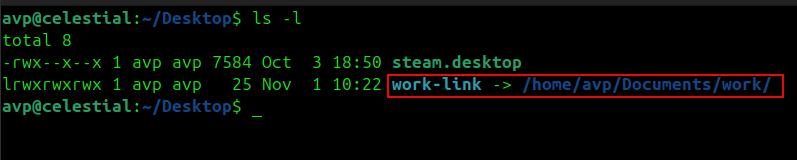
Always use full or absolute paths when linking system files to avoid confusion. Remember that symlinks can point to anything, even files on another drive or partition.
Example: Linking a File
Suppose you often edit a configuration file located deep inside your system, like:
/etc/nginx/nginx.conf
Instead of typing that long path every time, you can make a symlink in your home folder:
ln -s /etc/nginx/nginx.conf ~/nginx.conf
Now, you can easily open it with:
nano ~/nginx.conf
And it will edit the real file!
Removing a Symlink
If you ever want to remove a symlink, you can simply delete it with:
rm symlink_name
For example:
rm work-link

This does not delete the original folder or file, just the shortcut. So it’s completely safe.
Wrapping Up
The ln command might sound like just another Linux command but once you get the hang of it, you’ll see how it can simplify your Linux life.
It’s a small step toward becoming more comfortable with the command line and it’s much like using shortcuts in Windows, only more powerful.
So next time you need quick access to a file or folder, try making a symlink instead of digging through directories!
Happy symlinking.

A Simple Linux Shell Script To Export WordPress MySQL Database
Quickly Reverse File Contents With This Linux Command
