Google Chrome:Toggle On-Device Generative AI
Google Chrome is increasingly building artificial intelligence directly into the browser to help you write better, stay safe, and stay organized. But instead of sending all your data to the cloud to be processed, Chrome is now downloading on-device Generative AI models.
Here is a breakdown of why Chrome is doing this, what it actually does, and how you can turn it off if you don’t want it.
Why Put AI “On-Device”?
Traditionally, when you use an AI tool, your prompt is sent over the internet to a massive server, processed, and sent back. On-device AI flips that script. By downloading the actual AI models directly to your computer in the background, Chrome can run AI-powered tasks locally.
This approach offers a few key benefits:
- Speed: Because the processing happens on your machine, features stay ready to use without waiting on a server connection.
- Privacy: For certain tasks, your data never has to leave your computer.
- Enhanced Experience: It allows Chrome to weave intelligent features directly into your everyday browsing seamlessly.
What These AI Models Actually Do
Once these AI models are downloaded to your device, they work behind the scenes to power several specific Chrome features:
- Writing Assistance: Helping you draft or rephrase text in text boxes across the web.
- Security Warnings: Catching and warning you about potential scams or malicious sites.
- Reading Tools: Summarizing long web pages into quick takeaways.
- Organization: Automatically sorting and organizing your messy browser tabs.
(Note: Chrome does have other AI features that still rely on the cloud. Those will continue to work even if you disable the on-device models.)
How to Toggle On-Device AI
Because these models are downloaded to your computer, they do take up storage space. If you want to free up some room on your hard drive, or if you simply prefer not to use these specific local AI features, you can easily disable them and delete the downloaded models.
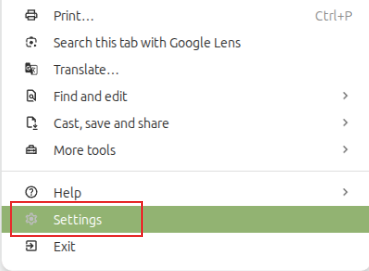
Click the More menu (the three vertical dots) in the top right corner of your browser window, and select Settings.
Then in the left-hand sidebar menu, click on System.
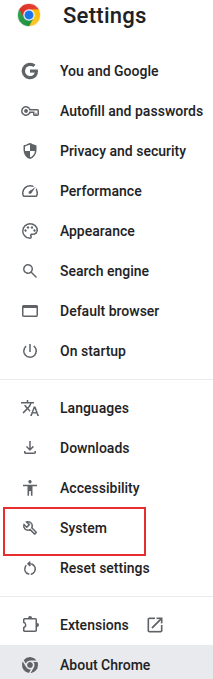
Alternatively, type in the address bar to directly access Chrome system settings:
chrome://settings/system

Find the setting labeled On-device AI to toggle it.
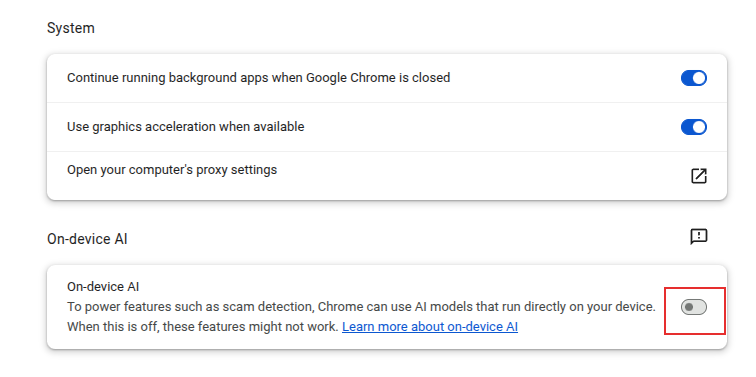
What happens when you turn it off?
Once disabled, the AI models are deleted from your computer, immediately freeing up storage space. Any Chrome feature that relies specifically on those local models (like the ones listed above) will no longer work.
If you ever change your mind, you can flip the switch back on. Chrome will simply re-download the models in the background, though it will take a little time depending on your internet speed and the size of the files.
Quickly Find Out Tab Statistics When Using Mozilla Firefox

How To Turn Off WhatsApp Messages Preview In Windows Phone