Need Keep: A Versatile and Easy to Use Video Converter
If you’ve been around the PC block a few times, you already know the struggle. Have you ever tried to play a downloaded video file only to be greeted by an annoying “format not supported” error?
Or maybe you’ve wanted to grab a video for an editing project, extract the audio from a lecture, or generate subtitle files, only to realize you need three different, often bloated, programs to get the job done.
Enter Need Keep.
Need Keep is a reliable, free video converter and downloader. This neat little piece of software might just be the exact utility you need sitting on your desktop.
What is Need Keep?
Developed by Vidkitsoft, Need Keep isn’t just another run-of-the-mill format changer. It’s a unified desktop workspace designed specifically for handling your local media conversion, audio extraction, and online video saving in one clean interface.
The Core Features That Actually Matter
1. A Lightning-Fast Free Video Converter
At its core, Need Keep functions as an incredibly efficient media converter. Whether you have a massive MKV file that your smart TV refuses to play, or you just need to compress a bulky video into a web-friendly MP4, this tool has your back. It easily converts between popular formats like MP4, MOV, MP3, and WAV.
What really makes it stand out is the under-the-hood performance. The app utilizes modern GPU acceleration, meaning it offloads the heavy lifting to your graphics card. You aren’t going to be sitting around for hours waiting for a simple format change; it zips through local files at an impressive speed.
2. Seamless Media Downloader
We’ve all been there: you need an authorized clip for a video essay, or you want to save a tutorial for offline viewing. Need Keep’s “Save Mode” acts as a robust video downloader. All you have to do is copy the link from a supported media page, and Need Keep will analyze it.
From there, you just pick your preferred resolution, and the software saves the video directly to your local workspace. It completely eliminates the need to rely on sketchy browser extensions.
3. One-Click Audio Extraction
Sometimes you don’t need the video at all. Maybe you recorded a long meeting or a podcast in a video format, but you just want the lightweight audio to listen to on your phone. Need Keep lets you rip clean audio from your saved or local video files and export them straight to MP3 or WAV without any fuss.
4. AI-Powered Subtitles
This is where Need Keep really flexes its modern muscles. If you create content, you know that manually typing out captions is an absolute nightmare. Need Keep includes an AI subtitle recognition tool that listens to your video’s audio, cleans up the timing, and generates a perfectly editable .SRT file.
So whether you are translating a video, prepping it for publishing, or just archiving it, this feature alone is a massive time-saver.
How to use Need Keep for your video editing needs
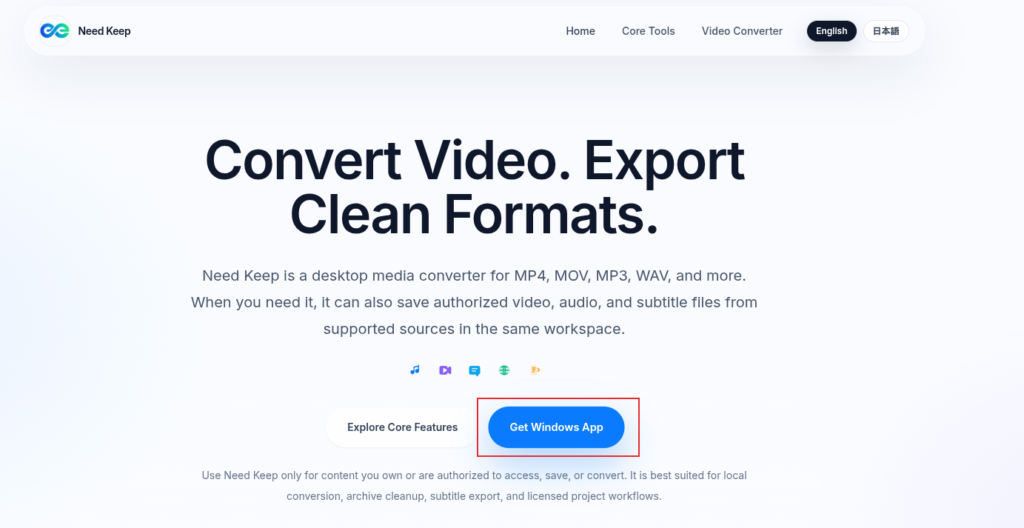
Download the Windows version of Need Keep from the homepage.
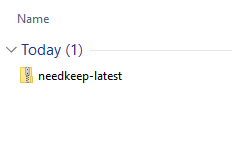
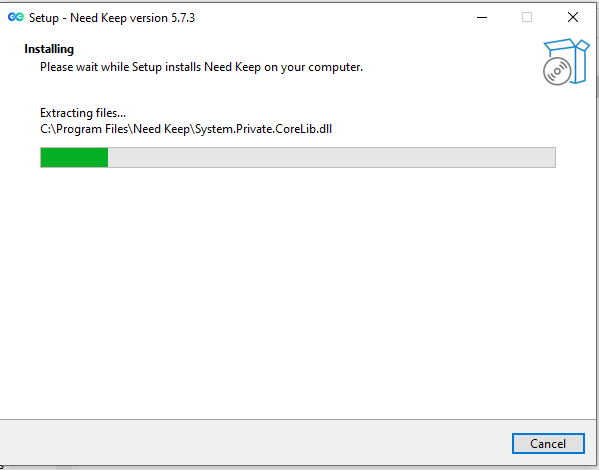
Installation is simple. Extract the zipped setup file and follow the instructions on-screen to finish the installation.
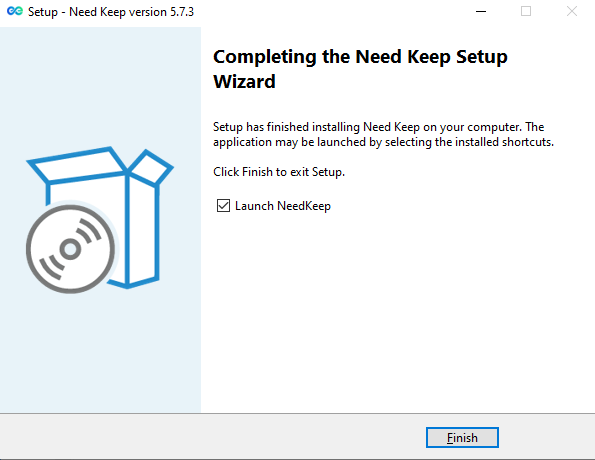
Once installed, launch it.
Instead of bombarding you with pop-ups, confusing timelines, or unnecessary features like some heavy-duty editors do, Need Keep keeps things strictly functional.
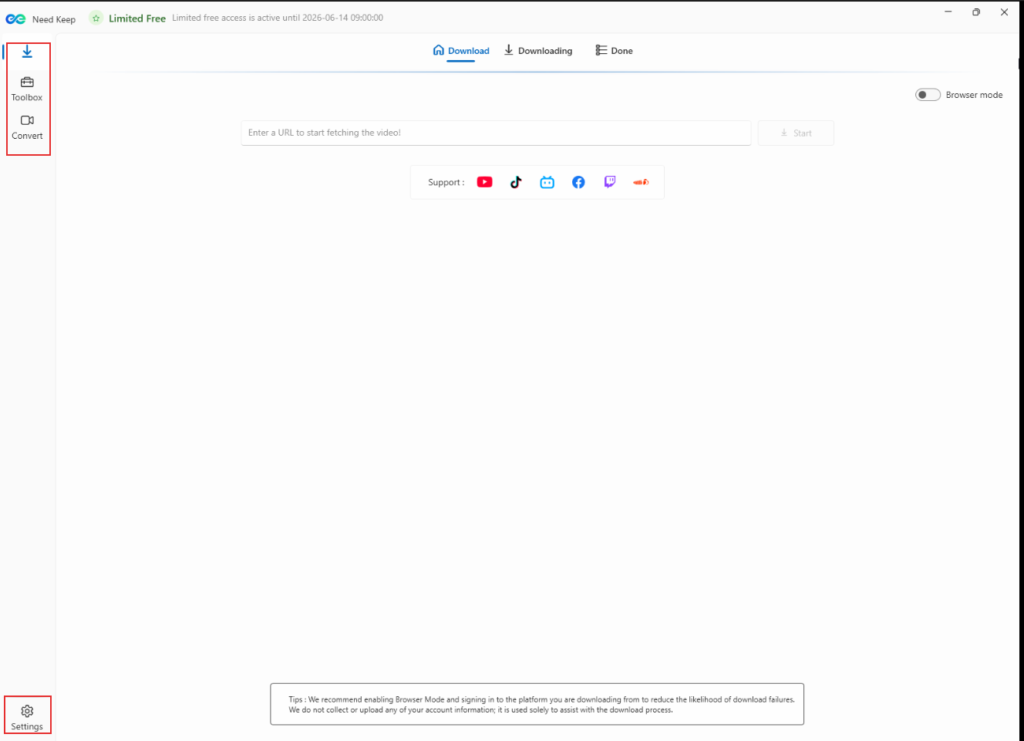
Using Need Keep is simple. It has a minimal clutter-free interface consisting of three sections on the left side.
- Download
- Toolbox
- Convert
Let’s take a look at each of these.
Download: You can copy-paste video links from online sites like YouTube and others to download them locally. To do that, copy-paste the URL and let Need Keep parse it. You will be offered different options for downloading including various resolutions and file size.
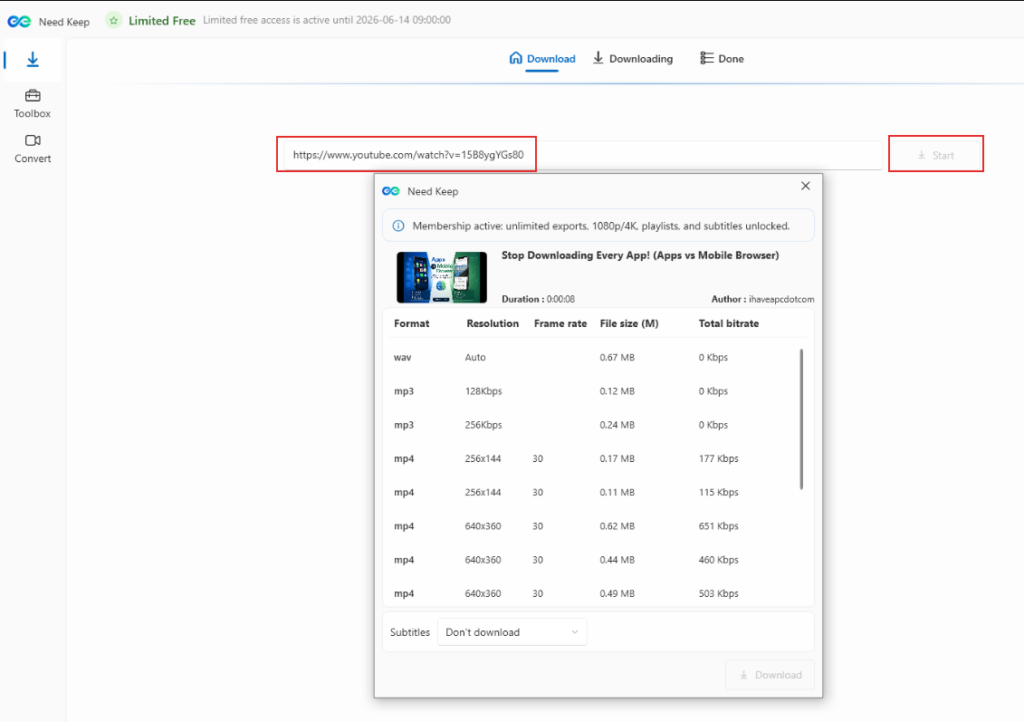
Choose as needed and click the Download button.
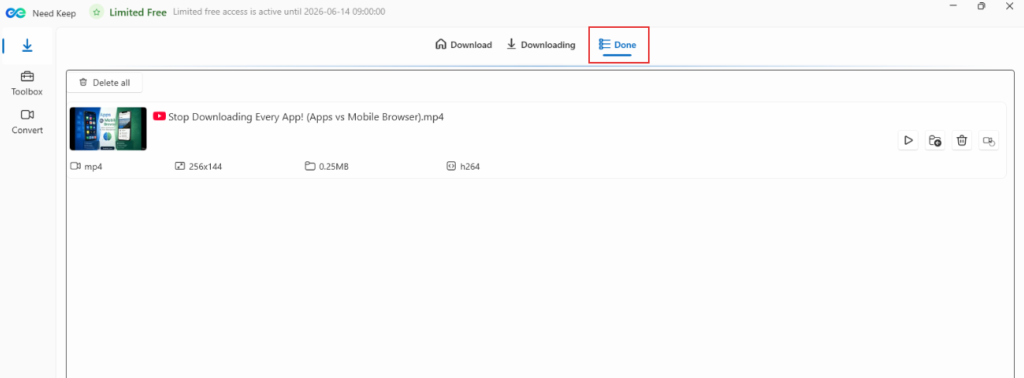
Wait for the download to finish, you can then access the video file locally.
Toolbox: Toolbox includes the option of adding AI-generated subtitles to your videos.
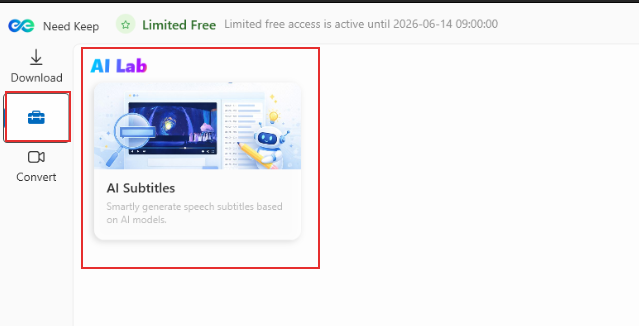
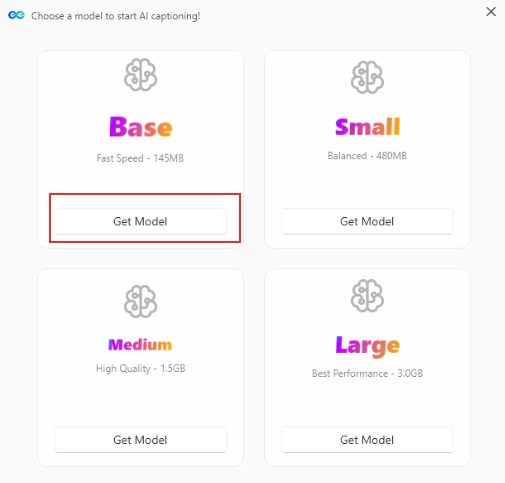
On the first run, you would need to download an AI model for this. So select as needed and click the Get Model button to download it.
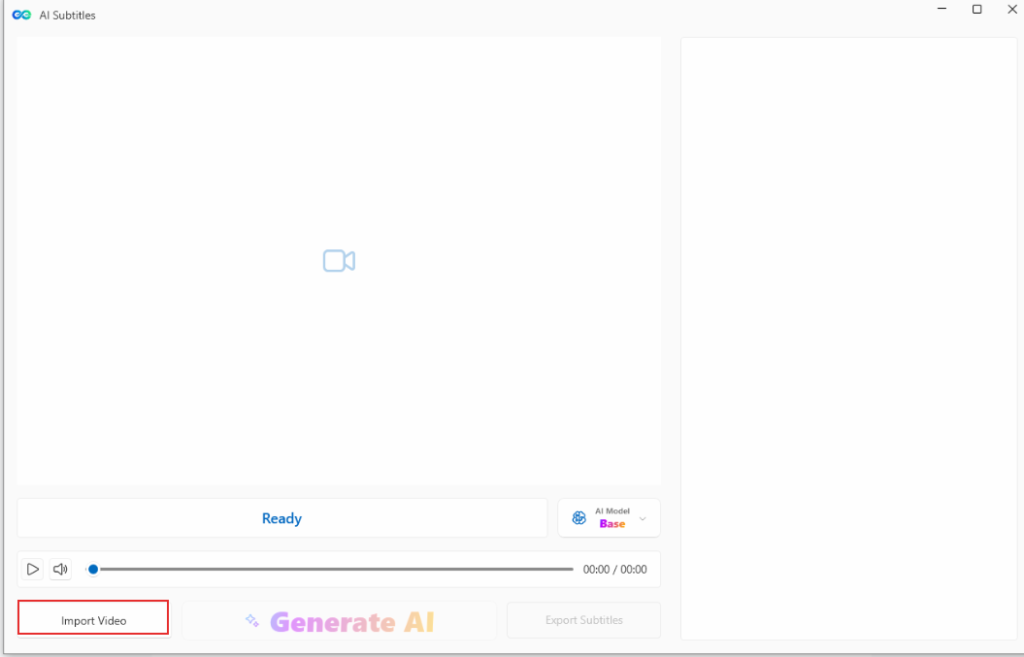
Once it is downloaded, you can add the video file for which subtitles are to be generated by clicking on the Import Video button.
Convert: Easily convert between popular formats like MP4, MOV, MP3, and WAV with this option. Choose the source file to be converted by either clicking the Import File button or by dragging it to the pane.
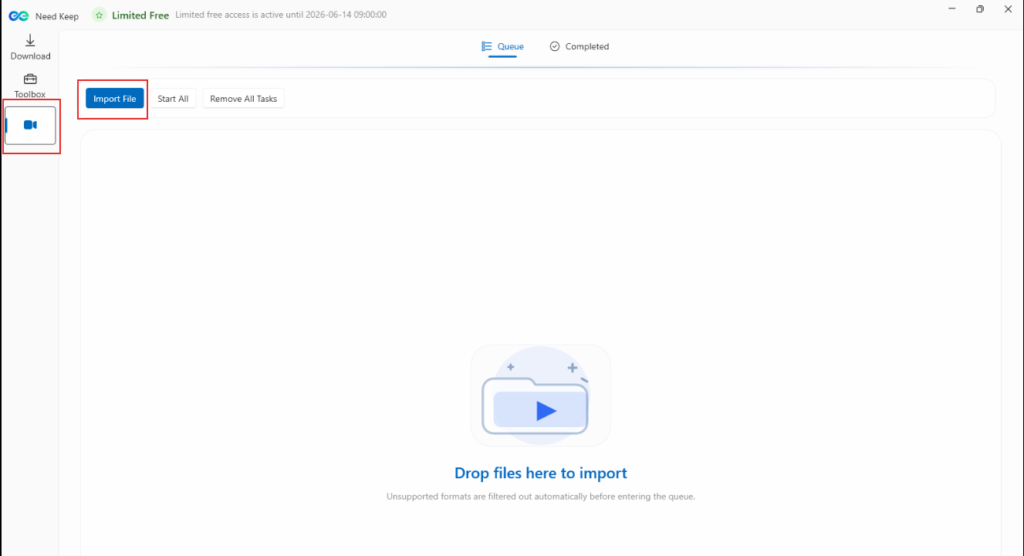
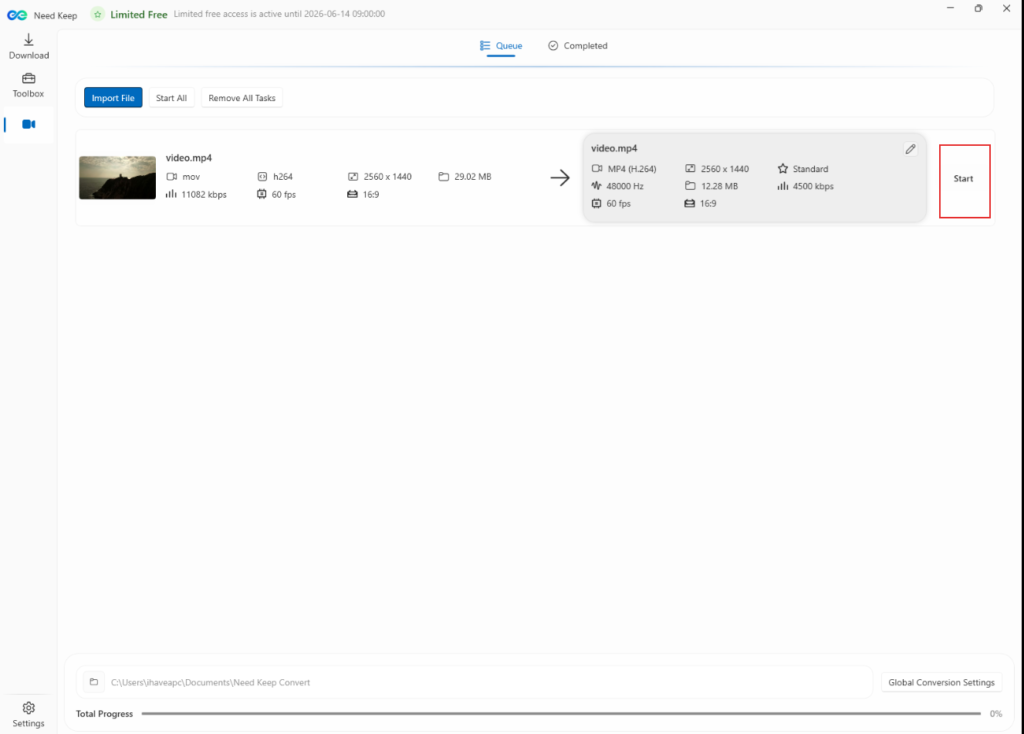
Then click the Start button to begin conversion. You can also batch convert files from here.
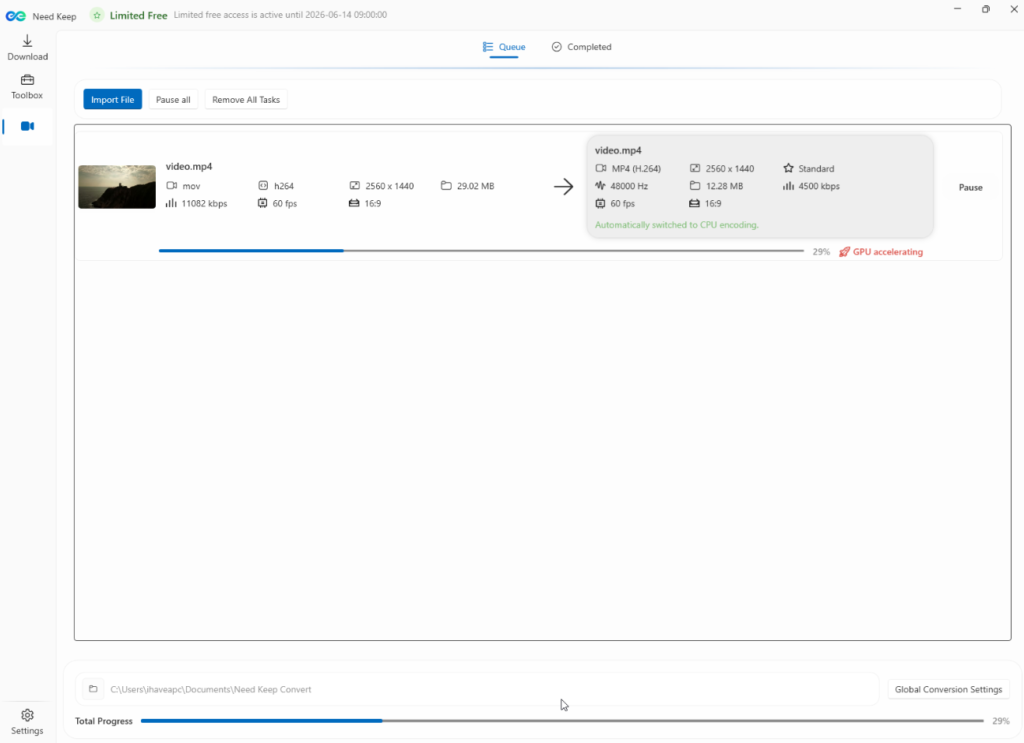
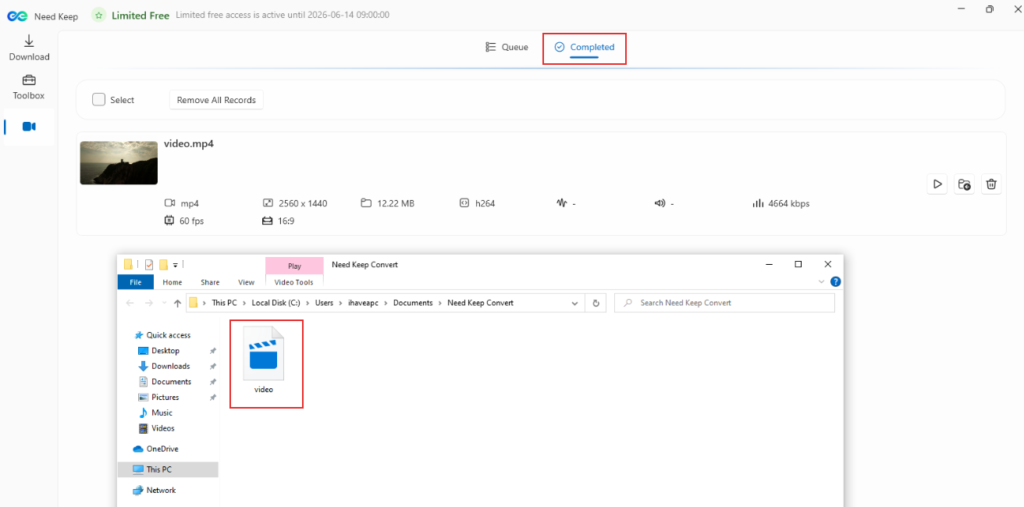
Wait for the conversion process to finish. The processed file by default will be available in the folder named Need Keep Convert.
Settings: You can change and customize different settings for Need Keep by clicking on the Settings option at the bottom left on the interface.
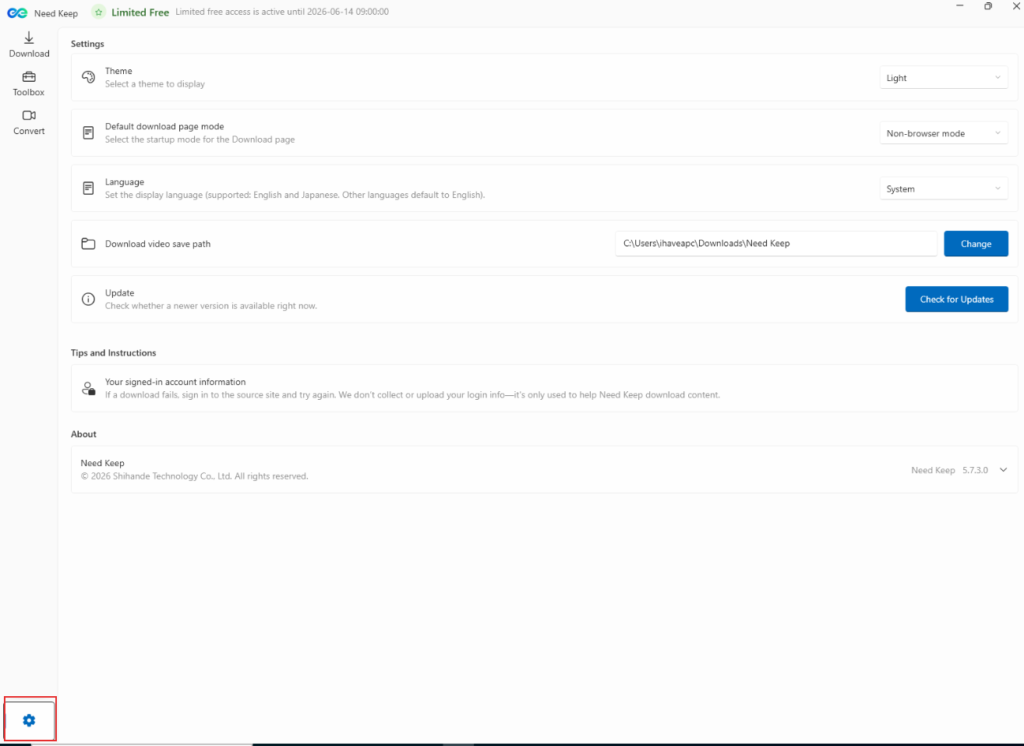
Change the theme appearance, the local download folder path, the user interface language and more from this section.
The Final Verdict
At the end of the day, your PC should make your life easier, not harder. Juggling multiple apps for downloading, converting, and subtitling is a waste of your time and your hard drive space.
Need Keep consolidates all these essential media tasks into one surprisingly lightweight interface that has no learning curve. All you need to do is point and click.
So if you are a video editor, an archivist, or just a regular user trying to make your media files behave, Need Keep can be a good choice for you. It’s fast, the GPU acceleration actually works, and the AI subtitle generation is the cherry on top.
Head over to this free video converter home page to get your media library under control today!
Happy converting.

Doctor Who Wallpapers

Stunning HD Wallpapers For Your Desktop #9 – Gamer Edition