Demystifying wc: The Hidden Power of Linux’s Word Count Command
If you spend enough time in the Linux terminal, you quickly realize that the most powerful tools are often the simplest. Among these is wc, a utility that stands for word count.
While its name implies a singular purpose, wc is actually a versatile measuring tape for your data. Whether you are a newcomer trying to figure out how long a text file is, or a seasoned sysadmin writing complex deployment scripts, wc is an indispensable part of your toolkit.
Here is a no-nonsense guide to understanding and mastering the wc command, from the absolute basics to real-world command-line pipelines.
The Basics of wc: Reading the Default Output
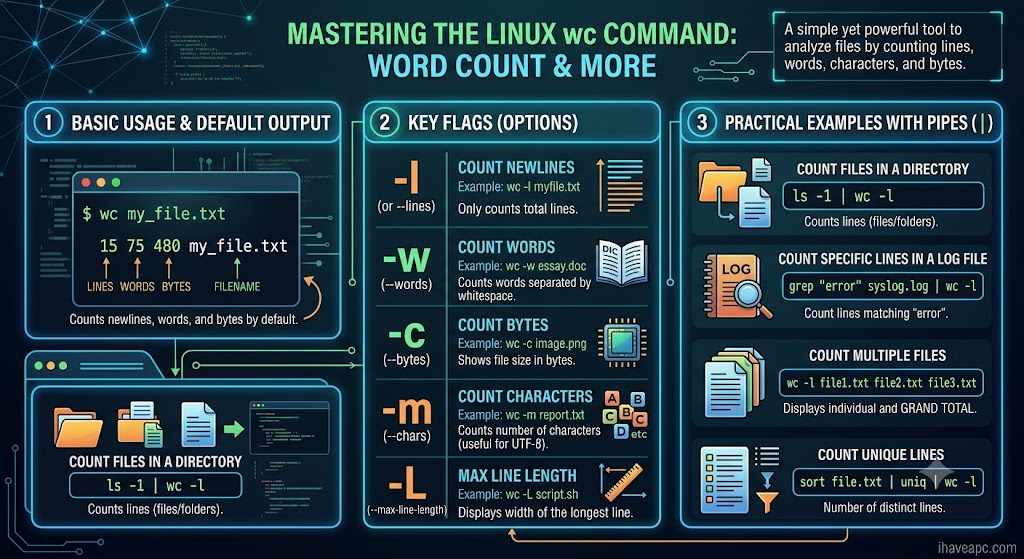
At its core, wc reads a file (or standard input) and spits out a quick summary. To use it, simply type wc followed by the name of the file you want to analyze:
wc myfile.txt
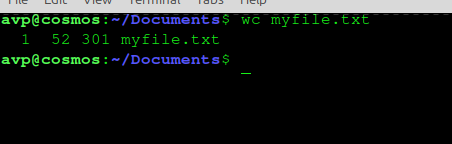
If myfile.txt is a standard text document, the output will look something like this:
1 52 301 myfile.txt
To the uninitiated, those numbers might look arbitrary. By default, wc outputs four distinct columns of information in this exact order:
- Newlines (Lines): The number of lines in the file (1).
- Words: The total number of words (52).
- Bytes: The file size in bytes (301).
- Filename: The name of the file you analyzed (myfile.txt).
Tailoring the Output: Essential Flags
Most of the time, you don’t need all three metrics at once. You can use command-line flags (options) to tell wc exactly what you want to measure.
| Flag | Name | What it counts |
| -l | Lines | Total number of newlines (effectively, the line count). |
| -w | Words | Total number of words separated by whitespace. |
| -c | Bytes | Total number of bytes in the file. |
| -m | Characters | Total number of characters (useful for multi-byte encodings like UTF-8). |
Example: If you only want to know how many lines are in a configuration file, you would use the -l flag:
wc -l /etc/ssh/ssh_config
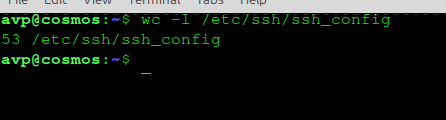
It shows 53 lines in the configuration file in this example.
Practical Use Cases: Where wc Shines
The true power of wc unlocks when you combine it with other commands using a pipe (|). A pipe takes the output of the command on the left and feeds it directly into the command on the right.
Because wc excels at counting streams of text, it becomes the perfect tool for answering “How many?” questions in Linux.
Counting Files in a Directory
Want to know exactly how many files and folders are in your current directory? List them out with ls (one per line) and pipe the output to wc -l:
ls -1 | wc -l
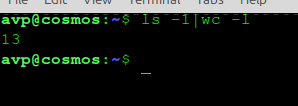
(Note: That is the number 1 after ls, which forces the output to be a single column). The output shows that there are total 13 files and folders in the directory.
Searching for Errors in Log Files
If you are troubleshooting a server and want to know how many times the word “ERROR” appears in an application log, you can combine grep (which searches for text) with wc:
grep "ERROR" /var/log/syslog | wc -l
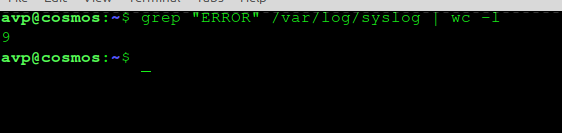
Instead of flooding your screen with hundreds of error lines, this cleanly outputs a single number telling you exactly how many errors occurred, 9 in the above example.
Checking Active Processes
Curious how many background processes a specific user is currently running? You can list all processes with ps, filter them by the user with grep, and count the lines:
ps aux | grep "username" | wc -l
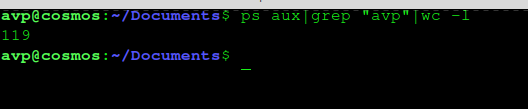
In the above output, 119 background processes are being used by the specific user.
Analyzing Multiple Files at Once
You can pass multiple files to wc simultaneously. It will provide the counts for each individual file, followed by a convenient grand total at the bottom:
wc -l myfile.txt myfile2.txt myfile3.txt
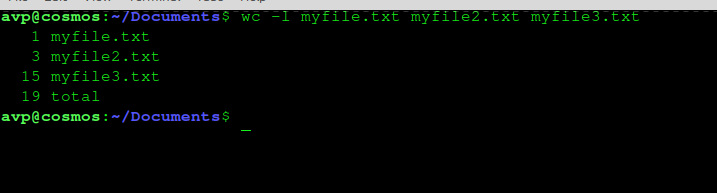
The above ouput shows the number of newlines in each of the specified files along with the total count at the bottom.
Summary
The wc command perfectly encapsulates the Unix philosophy: do one thing, and do it well. On its own, it’s a quick way to check file sizes and word counts. Paired with other commands via pipes, it becomes a dynamic counter capable of quantifying almost anything your operating system can output.
Have fun exploring the Linux command-line and use the man pages to get help quickly right from the Terminal.
How To Quickly Find NIC Firmware And Driver Information In Linux Mint / Ubuntu

Easily Record Screencasts In Ubuntu Using Vokoscreen
