Understanding The uptime command in Linux
Ever wondered how long your computer has been chugging along without a single reboot? In the world of Linux, there’s a quick and easy way to find out and that is the uptime command.
Let’s explore just how useful this little command can be.
What is Uptime Anyway?
Think of uptime as a stopwatch for your computer. It tells you how long your Linux system has been continuously running since it was last started or rebooted. It’s like checking how long your car has been driving since you last turned it off.
Using the uptime command:
Open your Terminal: This is where you’ll type in your commands. You can usually find it in your applications menu, often called Terminal, Konsole, GNOME Terminal, or something similar.
Type uptime and hit Enter.

You’ll find it display something like this:
12:41:45 up 2:35, 1 user, load average: 0.77, 0.61, 0.61
Let’s dissect this output:
12:41:45: This is the current time on your system.
up 2:35: This is the actual uptime! In this example, the system has been running for 2 hours and 35 minutes. As it’s running for less than a day, it displays just the hours and minutes, but the output will show in days once it’s running beyond that.
1 user: This tells you how many users are currently logged into your system.
load average: 0.77, 0.61, 0.61: This is a bit more advanced, but in simple terms, from left to right the values depict the CPU load for the last minute, last 5-minute interval, and the average 15-minute CPU load. For new users, just know that extremely high numbers here could indicate your system is struggling/sluggish and it may be time to investigate further.
If this output seems too confusing, there is always the -p flag which makes it easier to read by just displaying the system uptime:
uptime -p

As with all Linux commands, you can deep dive into various usage options of the uptime command by reading the man page. Use the man command for that:
man uptime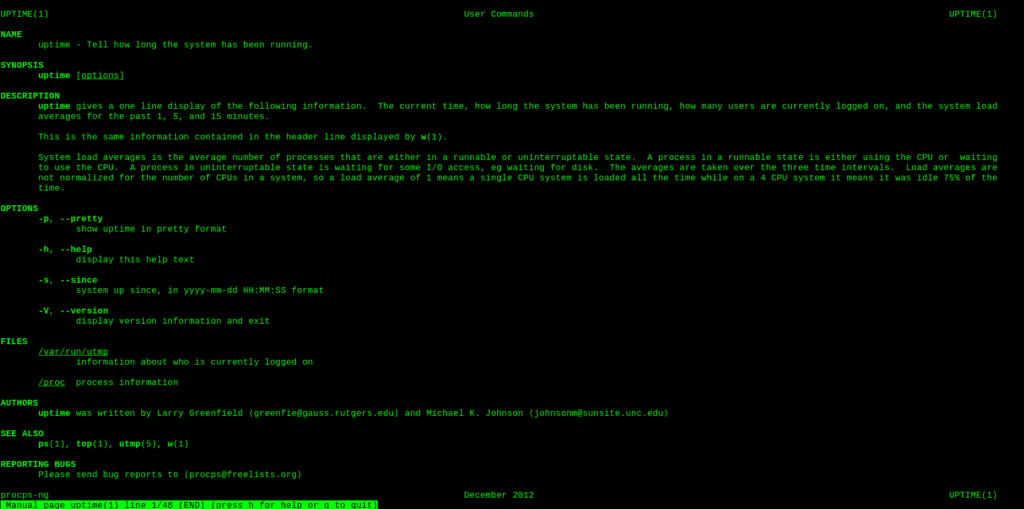
Practical uses for uptime:
Troubleshooting (Has it been rebooted recently?): Imagine you’re having an issue with your computer, and someone asks, “Did you try rebooting it?” Running the uptime command can immediately tell you if your system has been running for weeks, indicating it might be time for a fresh start to clear out any temporary glitches.
Verifying System Reliability: If you’re running a server or a critical application, a long uptime is generally a good sign. It indicates that your system is stable and hasn’t crashed or required unexpected reboots. For personal use, a very long uptime might just be a badge of honor (nothing new though for Linux servers, they can run for decades without a reboot!).
Checking for Scheduled Restarts: Sometimes, system administrators (even if you’re your own admin!) schedule reboots for updates or maintenance. Checking uptime can confirm whether a scheduled reboot has occurred.
Curiosity and Bragging Rights: Let’s be honest, sometimes it’s just fun to see how long your Linux machine has been humming along without a hiccup! Many Linux users take pride in their systems’ impressive uptimes.
Wrapping Up
To wrap it up, the uptime command is a small but mighty tool in your Linux arsenal. It’s simple to use, provides valuable information at a glance, and can be surprisingly helpful in various situations.
So go ahead, open your terminal, type uptime, and see how long your Linux journey has been continuous!
Happy computing!
How To Add Workspaces In Ubuntu 19.04 And Change The Dock Position

Set Custom Size For Launcher Icons In Ubuntu 13.10