How to Set the Primary Password in Thunderbird
Thunderbird is a free and open-source email application that you can download and install on your computer. Instead of using a website to check your email, Thunderbird allows you to manage all of your email accounts (like Gmail, Outlook, Yahoo, custom email services and more) in one place on your desktop.

Think of it as a central hub for all your communication. It offers features such as a calendar, contact book, and spam filtering, and prioritizes your privacy by not collecting or selling your data. It’s a great option for people who want more control over their emails and prefer a dedicated application over a web browser.
It also lets you set a primary password to access your configured email accounts. This password only needs to be set once and needs to be entered when launching Thunderbird.
This is useful if you have multiple email accounts configured, as this primary password protects access to all of them.
Here is how to do that:
Open Thunderbird and click Edit > Settings.

From the Privacy & Security tab, scroll down to the Passwords section in the right pane.

By default, the primary password is disabled. Enable the tick next to the option Use a Primary Password.

Choose a strong password and click the OK button once done.
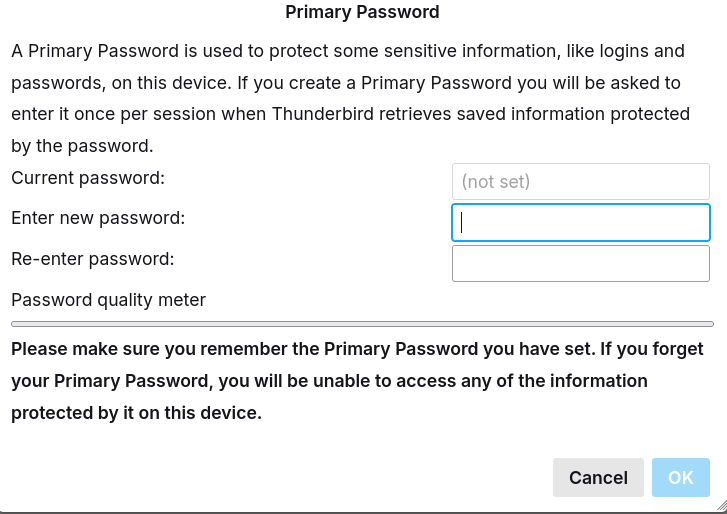
You will see a notification about the Primary Password successfully changed.

Exit Thunderbird and launch it again. From now on, you will need to enter this password before you can access any of the configured email accounts and other items in Thunderbird.

Happy emailing.
3 Email Services Which Don’t Ask For A Phone Number During Sign Up

How To Watch Streaming Movies And Access Shared Folders From Android