How to Set Default Fonts in LibreOffice Writer
LibreOffice Writer is a free and open-source alternative to Microsoft Word that offers a wide range of formatting and customization options.
It supports a wide range of document formats, including DOCX and ODT, making file sharing and collaboration easy. It also includes advanced features such as styles, templates, password-protecting documents, automatic spelling and grammar checking, and mail merge, while also allowing customization of fonts, layouts, and formatting.
Its open-source nature ensures regular updates, strong community support, and compatibility across operating systems, making it ideal for students, professionals, and anyone looking for a reliable and cost-effective word processing solution.
One of the most useful and common settings you can adjust in it is changing the default font so that every new document automatically uses your preferred typeface and size instead of the default which is Liberation Serif, 12 pt.
Here’s how to set the default font in LibreOffice Writer:
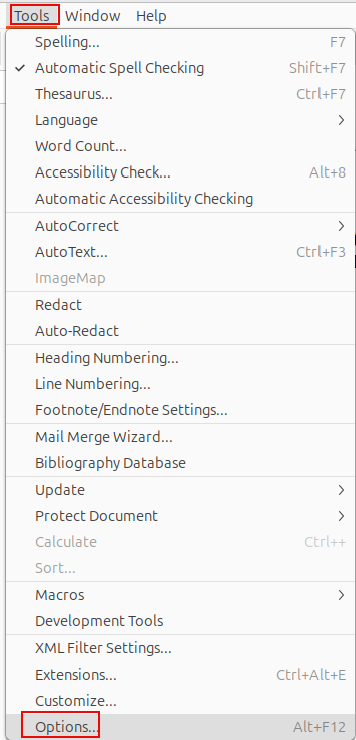
Open LibreOffice Writer and go to the top menu. Choose Tools > Options (on Windows/Linux) or LibreOffice > Preferences (on macOS).
In the left pane, expand LibreOffice Writer, then select Basic Fonts (Western).

You’ll see options for different text types like Default, Heading, List, Caption, and Index. For each type, select your desired font name and size from the drop-down menus.
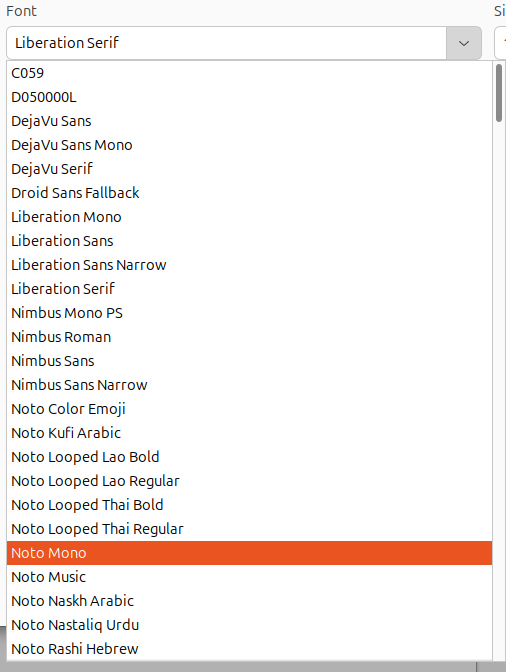
Click Apply, then OK to save the changes.

From now on, every new document you create in LibreOffice Writer will automatically use the font and size you’ve chosen.
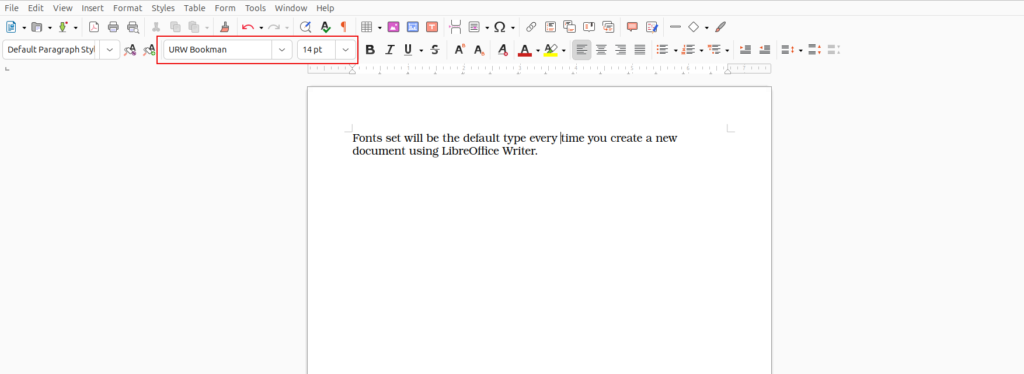
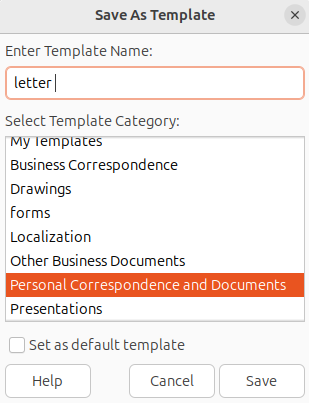
Save as Template
If you want to go a step further, you can also modify the default template so that it always uses your preferred formatting for styles, margins, and fonts.
To do this, set up a document the way you like, then go to File > Templates > Save as Template, and mark it as Set as Default Template.
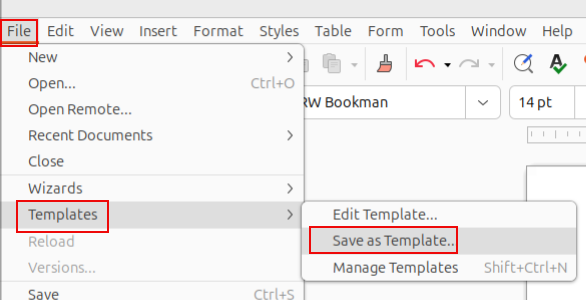
Save the template by giving it a name and choosing the category. You can setup different templates depending on the type of documents you wish to create.
This ensures consistent appearance across all your documents without needing to change the font each time.
Happy writing.
How To Use Immersive Reader In Microsoft Edge

How To Make An Attractive Avatar Online For Free

Also just downloaded the ttf-ms-fonts for AUR Arch Linux and with this I am happy. Thanks for your time.