Cool Things You Can Do With the ncal Command in Linux
The ncal command is a close relative of the classic cal command, but with a slightly different and often more readable layout. It displays calendars in a vertical style and includes a few features that many new Linux users find easier to understand.
Let us look at some simple and useful things you can do with ncal.
(You can install the ncal package using sudo apt install ncal if it is not already installed in a Debian-based distro like Linux Mint.)
View the Current Day and Month (Default Use)
To display the current day and month, simply type:
ncal
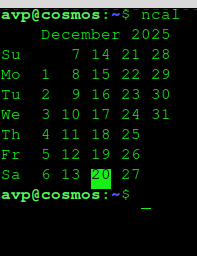
This shows the calendar for the current month in a vertical format, with days listed from top to bottom.
Today’s date is highlighted, making it easy to spot at a glance.
Display a Specific Month and Year
You can view any month from any year using:
ncal 12 2026
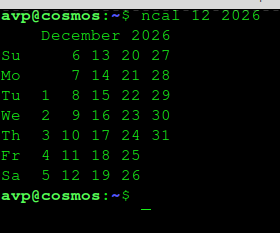
This displays December 2026. The format is:
ncal <month> <year>
This is useful for checking future dates, planning trips, or verifying deadlines.
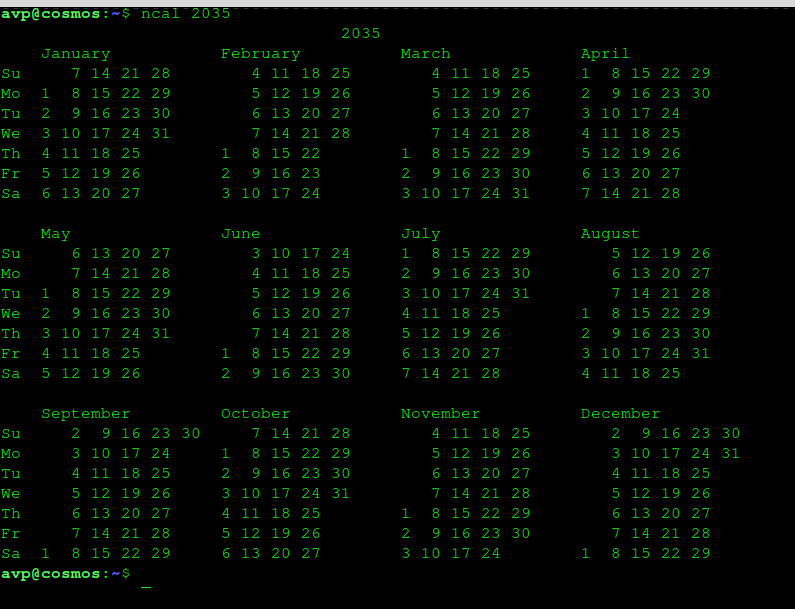
Show the entire year
To display all 12 months of a year:
ncal 2026

The full year is shown in a compact vertical layout. This view is helpful when you want a quick overview of the year without switching between months.
Start the week on Monday/Sunday
If you ever want Monday to be the first day, use:
ncal -M
For Sunday, use:
ncal -S
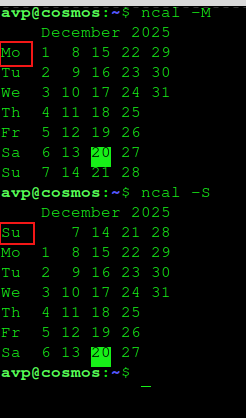
Show past and future calendars
You can easily check calendars from previous or future years:
ncal <year>
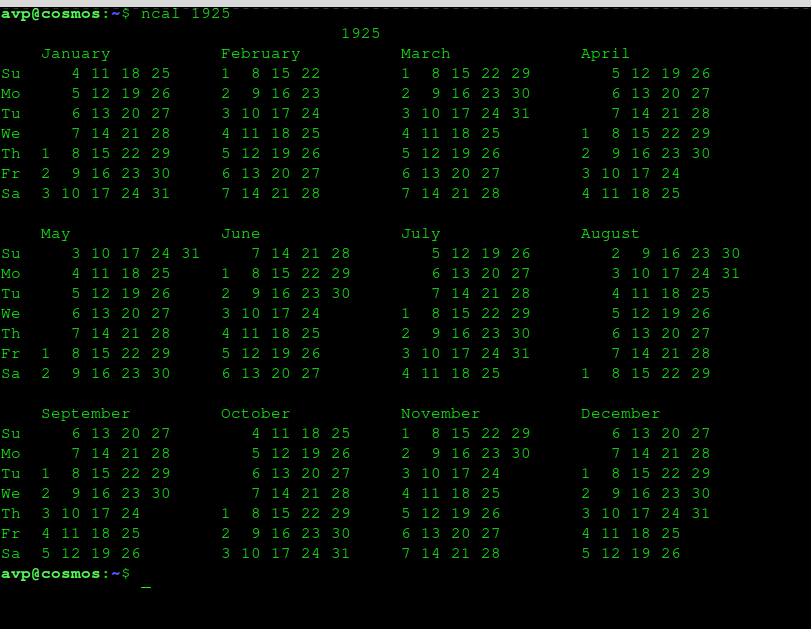
This can be useful for curiosity, historical reference, or long-term planning.
Why ncal is awesome
- Clean and easy-to-read vertical layout.
- Today’s date is clearly highlighted.
- Works offline and opens instantly.
- Simple syntax that is easy to remember.
- For many users, ncal feels more natural than cal, especially when reading dates line by line.
Final Thoughts
The ncal command proves that even simple terminal tools can be practical and user-friendly. For new Linux command-line users, it is a great way to get comfortable with everyday utilities while discovering that the terminal can be both powerful and approachable.
Happy exploring.
A Simple Linux Shell Script To Display Public IP Of PC

How To Set A Warning Banner For SSH Logins
