How to Toggle Inactive Tabs in Google Chrome
Google Chrome includes performance settings because today’s websites and web apps consume significant system resources. Pages often contain videos, animations, large scripts, and interactive elements.
Without some controls, these can slow down your device or make the browser feel less responsive. Performance settings help Chrome manage memory, limit background activity, and keep browsing smooth even when many tabs are open.
Devices also vary in power and battery capacity. A lightweight laptop, for example, may need stricter resource limits than a desktop PC. Chrome’s performance settings allow the browser to adjust to these differences by saving energy, reducing power drain, and preventing slowdowns.
Overall, these performance settings ensure a faster, more stable, and more efficient browsing experience.
Here is how to toggle inactive tabs in Google Chrome:
Access the Performance settings by typing in the address bar:
chrome://settings/performance

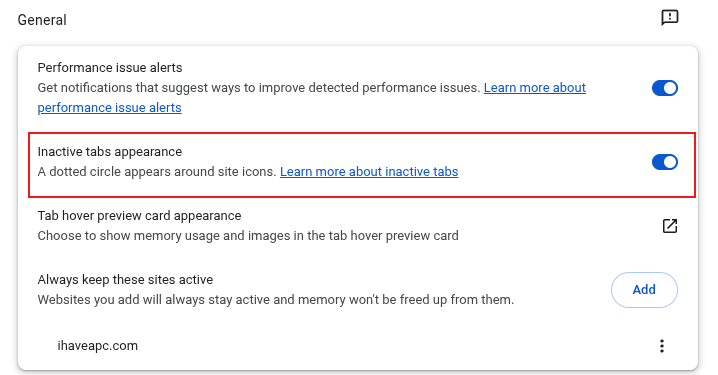
Toggle the option of Inactive tabs appearance on/off as needed. When it is on, the inactive tabs will have a dotted circle visible on them.
All done.
How To Enable Single Key Shortcuts In Opera 11.6 Browser

How to Configure DNS Settings in Brave Browser
