Demystifying Linux Updates: apt update vs. apt upgrade
So, you’ve taken the plunge into the Linux terminal. First off, welcome! It is completely normal if the command prompt feels a bit like a foreign language right now.
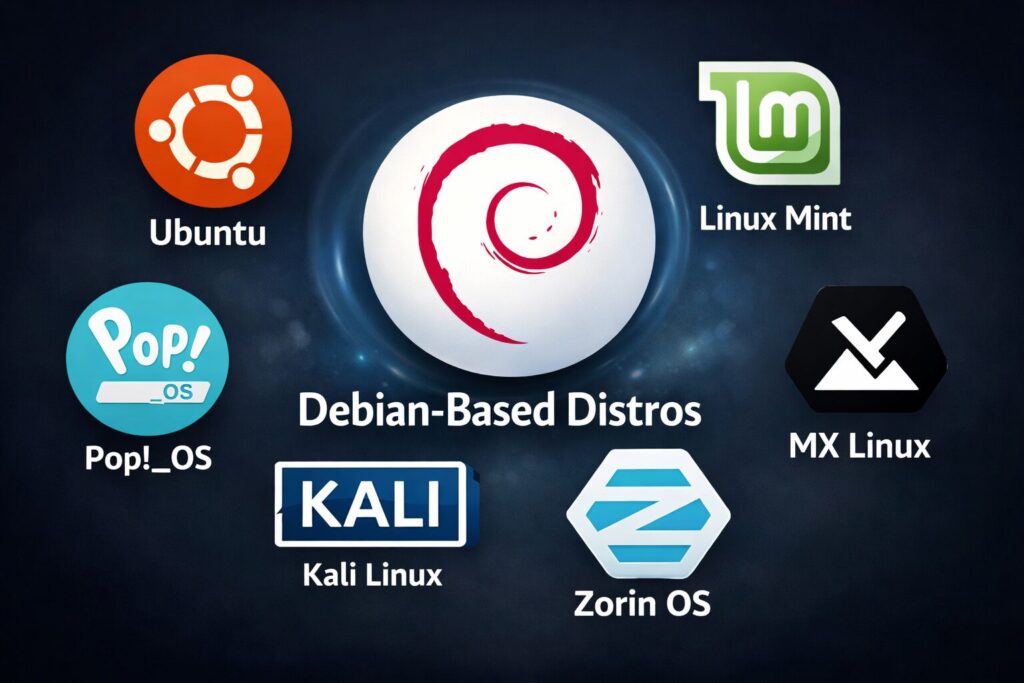
If you’re using a Debian-based distribution like Ubuntu, Linux Mint, or Debian itself, you’ve probably learned that keeping your system updated is step one for good maintenance.
But here is where almost every new Linux user wonders what these commands do: apt update and apt upgrade.
In plain English, “update” and “upgrade” are basically synonyms. In the Linux terminal, however, they are two entirely different steps in the exact same dance.
Let’s clear the air and break down what these commands actually do, without the dry, technical jargon.
The “Grocery List” Analogy
To make sense of it quickly, think of your Linux system as you going to the grocery store to restock your pantry.
- apt update is checking what’s in stock and updating your shopping list.
- apt upgrade is actually buying the groceries and bringing them home.
sudo apt update: Checking the Menu
When you type sudo apt update (remember, you need sudo for the administrative privileges to do this!), your computer reaches out to its software servers, which are known as repositories.

It asks the servers one simple question: “Hey, do you have any newer versions of the software I currently have installed?”
The servers reply with a list of the latest versions available. Your system takes this list and updates its own internal map of what software is out there.
The crucial takeaway: Running apt update does not install, alter, or upgrade a single piece of software on your machine. It only downloads information about what is available.
sudo apt upgrade: Bringing Home the Goods
Now that your system’s internal database knows what is currently available on the servers, it’s time to actually get the new software.
When you run sudo apt upgrade, your computer looks at that newly updated list. It compares the versions of the apps, tools, and libraries you currently have installed against the newer versions available on the servers. It then downloads the new files and installs them, replacing the old ones.

This is the command that actually makes changes to your system, applying important security patches and bringing your software up to speed.
The Perfect Combo
Because upgrade relies completely on the list created by update, you have to run them in a specific order. If you run the upgrade without running update first, your system won’t know there are new versions available, and nothing will happen!
This is why you’ll often see veteran Linux users chain the two commands together in one smooth motion:
sudo apt update && sudo apt upgrade

Pro Tip: The && symbol is just a terminal shorthand that tells your computer, “Run the first command, and if it finishes successfully, immediately run the second command.” And that’s it!
Once you understand that update gets the information and upgrade applies the changes, you are already thinking like a seasoned Linux administrator.
Remember, it is always fun to explore the Linux command-line, that in fact, is the best way to learn it.
Enjoy.
How To Convert RPM File Into DEB File In Linux Mint

Quickly Make Sequential Directories In Bulk From Linux Terminal