

When you start using Linux, you’ll often come across two commands that seem to do something similar: sudo and su. Both are related to getting administrator (root) privileges, but they work in different ways.
Let’s break down what they do, when to use each in Ubuntu, and some practical examples to make it easy to remember.
Quick Summary
| Command | Full Form | Purpose | How It Works |
| sudo | superuser do | Run one command with admin (root) privileges | Temporarily elevates your privileges for a single task |
| su | substitute user | Switch to another user account, often the root user | Permanently logs you into that user’s shell until you exit |
What is sudo?
The sudo command is used when you want to run a single command as a superuser (root) or another user. You don’t actually log in as root, you just tell Linux to execute this one command with temporary administrator privileges.
Example:
sudo apt update
After the command finishes, you go back to being a normal user.
When to Use sudo
• Installing or removing software (sudo apt install / sudo apt remove)
• Editing system files (sudo nano /etc/hosts)
• Restarting system services (sudo systemctl restart apache2)
• Changing permissions on system directories
Case Study for sudo
Suppose you want to install VLC player. Instead of switching to root, you can use sudo to temporarily raise the privileges needed to install it:
sudo apt install vlc
The system asks for the root password and runs the installation. Once done, you will be back to your normal session.
What is su?
su stands for substitute user. When you run su, you can log in as another user, typically the root user(#) and stay there until you type exit.

When to Use su
• When performing multiple admin tasks in a row
• When troubleshooting system issues as root
• When managing users or permissions directly
Case Study for su
Suppose a system admin needs to edit multiple configuration files, restart services and run updates. Instead of typing sudo before every command, a better choice will be using su:
After entering the root password once, several administrative tasks can be run until exiting.
su
nano /etc/ssh/sshd_config
systemctl restart ssh
adduser testuser

apt update && apt upgrade

exit
Security Tips
• On Ubuntu and similar distros, the root account is disabled by default for security. You’re expected to use sudo for admin actions. So if you initially run su, you will see an Authentication failure message.

Enabling su
You can use the passwd command to enable su. The command will be
sudo passwd root

Important considerations
Using su can be risky as if you forget you’re in root mode, you might delete or change system files accidentally.
• Always use sudo unless you really need full root access.
Set a password for root, the account will be enabled and you can now use the su command for administrative tasks.
Disabling su
It is a good idea to disable this when not in use. For this, the command will be:
sudo passwd -l root
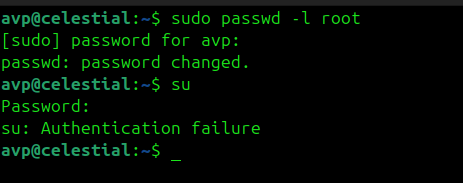
After running the above command, try using su. You will once again see the Authentication failure message indicating that it is now disabled.
Key Difference Recap
| Feature | sudo | su |
| Requires root password? | No (uses your user password) | Yes |
| Temporary or full access? | Temporary (per command) | Full access (until you exit) |
| Safer for beginners? | Yes | No (more risky) |
| Common on Ubuntu? | Yes | Disabled by default |
Simple Way to Remember
sudo = borrow root’s power for one command.
su = become root until you leave.

Final Tip for New Linux Users
If you’re new to Linux ,especially on Ubuntu, Mint, or Debian, always use sudo for admin-level commands. It’s safer, you don’t need the root password, and it helps prevent accidental damage to system files.
Reserve su only for advanced tasks where you explicitly need to act as the root user.
Happy exploring.


[…] you type sudo apt update (remember, you need sudo for the administrative privileges to do this!), your computer reaches out to its software servers, […]