Stop the Buffering: 5 Ways to Fix YouTube Lag
We’ve all been there. You finally sit down with your favorite snack, ready to dive into YouTube for a highly anticipated video essay, a funny compilation, or a crucial tutorial. The video starts, you get invested, and right at the climax the dreaded spinning wheel of death appears. The audio stutters, the video freezes, and your relaxation time suddenly turns into a stressful troubleshooting session.

Experiencing stuttering, delay, or constant buffering when watching YouTube in your web browser is universally frustrating. But before you give up and close the laptop, take a deep breath. Most video playback issues are incredibly easy to solve on your own.
Here is a simple, step-by-step guide to stop the lag and get back to smooth streaming.
1. Check Your Internet Speed
It sounds obvious, but the most common culprit behind choppy video is your internet connection. Video streaming requires a steady, robust flow of data. According to the Federal Communications Commission (FCC) Broadband Speed Guide, you need a minimum download speed of 5 Mbps to stream standard High-Definition (HD) video smoothly, and at least 25 Mbps if you want to watch in ultra-crisp 4K.
To see where you stand, run a quick diagnostic using a trusted tool like Speedtest by Ookla. If your current speed is significantly lower than what you’re paying your internet provider for, try moving closer to your Wi-Fi router or giving the router a quick restart.
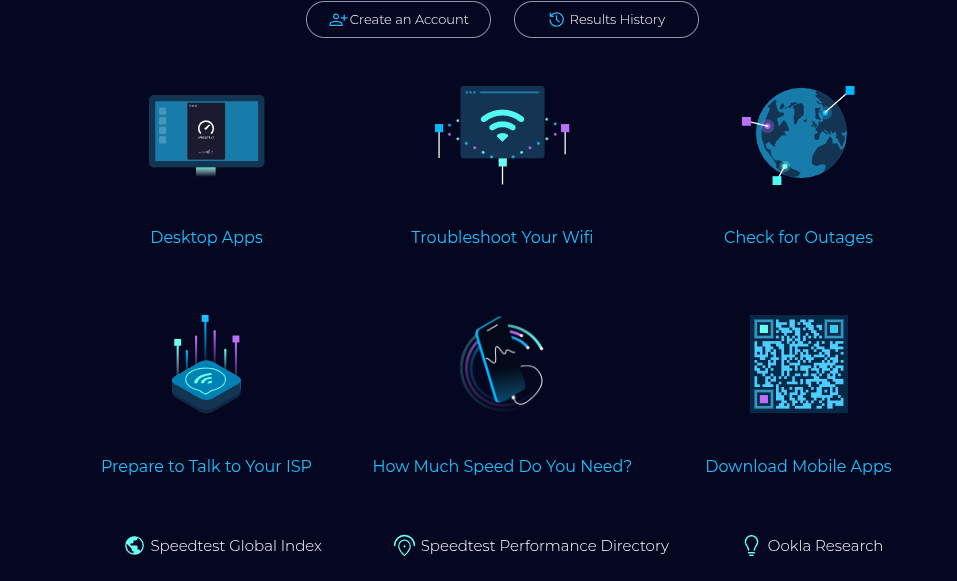
Sometimes, a simple reboot is all your home network needs.
2. Tweak the Video Quality
If your internet speed is just having a sluggish day, YouTube’s default settings might be working against you. YouTube usually defaults to “Auto” quality, meaning it tries to play the highest resolution it thinks your connection can handle. Sometimes, it overestimates.
Hover over the video player, click the little gear icon in the bottom right corner, select Quality, and manually drop it down a notch. Stepping down from 1080p to 720p (or even 480p if you’re on a very weak connection) can instantly eliminate stuttering.
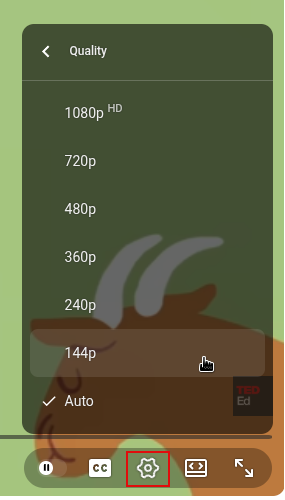
The picture might be slightly less sharp, but a smooth video is always better than a frozen one.
3. Clear Out the Digital Cobwebs (Cache and Cookies)
As you browse the web, your browser saves temporary files, images, and data to load websites faster the next time you visit. This is called your “cache.” While helpful, a cache that becomes too full or corrupted can start to slow your browser down, severely impacting heavy media players like YouTube.
Clearing your cache and cookies gives your browser a clean slate. It only takes a minute, and it’s a proven fix for strange browser bugs. If you use Google Chrome, Google offers a quick and straightforward guide on how to clear your cache. (The process is very similar for Safari, Edge, and Firefox—usually found under your “History” or “Privacy” settings).
4. Turn Off Hardware Acceleration
This sounds like heavy tech jargon, but it’s actually a simple toggle in your browser settings. “Hardware Acceleration” is a feature where your browser offloads heavy tasks like decoding high-definition YouTube videos to your computer’s graphics card.
In theory, this makes everything run smoother. In practice, if there’s a miscommunication between your browser and your hardware, it causes massive video stuttering or audio desync. Go into your browser’s settings menu, search for “Hardware Acceleration,” and toggle the switch off. Relaunch your browser and see if the video plays smoothly.
5. Declutter Your Tabs and Extensions
Be honest: how many tabs do you have open right now? Web browsers are notorious for eating up your computer’s memory (RAM). If you have thirty tabs open alongside five different ad-blockers and shopping extensions, your browser simply might not have the resources left to play a video smoothly.
Close out the tabs you aren’t actively using and consider temporarily disabling heavy browser extensions. If your issues persist after cleaning up your workspace, it’s also worth checking YouTube’s official video streaming troubleshooting page for any platform-wide outages or advanced tips.
Smooth Streaming Ahead
You don’t have to suffer through choppy, stuttering videos. The next time YouTube starts acting up, run through this quick checklist. By testing your internet, lowering the quality, or doing a little browser housekeeping, you can banish the buffering wheel and get right back to enjoying your favorite content.
Happy viewing.
Winners Announced : Primo iPhone Data Recovery

Company Of Heroes 2 : HD Wallpapers
