Download Videos Using ReClip for Linux
ReClip is a lightweight, open-source, and self-hosted media downloader equipped with a clean web UI. Powered by the incredibly robust yt-dlp, ReClip allows you to download videos or extract audio (MP3) from over 1,000 supported websites including YouTube, TikTok, Instagram, Twitter/X, and more.
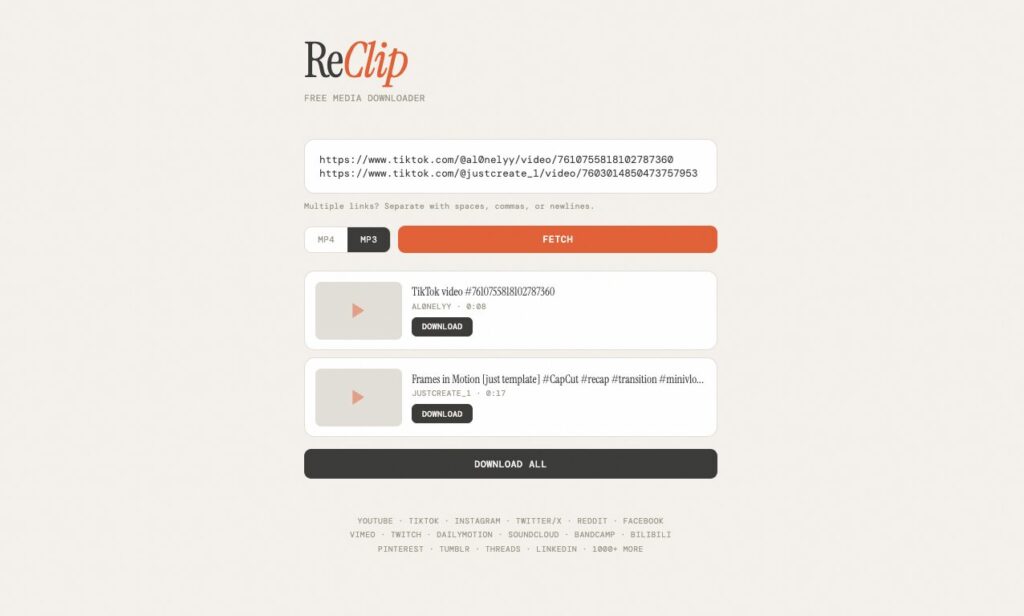
[Image courtesy: ReClip]
Because of its minimal footprint utilizing just a single-file Python backend and a vanilla HTML/JS frontend without any build steps it is incredibly easy to set up on Debian-based distributions like Ubuntu, Linux Mint, Pop!_OS, and Debian itself.
This guide will walk you through setting up ReClip using two methods: a Native Installation and a Docker Installation.
Prerequisites
Before starting, ensure your system is up-to-date. Open your terminal and run:
sudo apt update && sudo apt upgrade -y
Method 1: Native Installation (Recommended for Local Use)
Running ReClip natively requires ffmpeg (for media processing) and Python. Because modern Debian and Ubuntu versions manage system-wide Python packages strictly (PEP 668), it is highly recommended to use a Python virtual environment.
Step 1: Install System Dependencies
Install git, ffmpeg, python3, and python3-venv:
sudo apt install git ffmpeg python3 python3-pip python3-venv -y
Step 2: Clone the Repository
Download the ReClip source code from GitHub:
git clone https://github.com/averygan/reclip.git
cd reclip
Step 3: Create a Virtual Environment and Install Python Dependencies
Set up a safe Python environment inside the project folder so it doesn’t conflict with your system packages:
# Create the virtual environment
python3 -m venv venv

# Activate the virtual environment
source venv/bin/activate

# Install the required packages (Flask and yt-dlp)
pip install -r requirements.txt
Step 4: Run the Application
ReClip comes with a handy shell script to start the server. While your virtual environment is still active, simply run:
./reclip.sh
(Note: If you run into permission issues, make the script executable by running chmod +x reclip.sh first).
The terminal will indicate that the server is running. You can now open your web browser and navigate to:
http://localhost:8899
Method 2: Docker Installation (Recommended for Homelabs)
If you prefer keeping your applications containerized or want to run ReClip continuously on a home server or NAS, Docker is the best approach.
Step 1: Install Docker
If you don’t have Docker installed already, you can usually install it via apt:
sudo apt install docker.io -y
(Make sure your user is added to the docker group, or use sudo for the following commands).
Step 2: Clone the Repository
git clone https://github.com/averygan/reclip.git
cd reclip
Step 3: Build and Run the Container
ReClip provides a built-in Dockerfile. Build the image and start the container by mapping the default port (8899):
# Build the Docker image
sudo docker build -t reclip .

# Run the container in the background
sudo docker run -d -p 8899:8899 --name reclip reclip
You can now access ReClip by navigating to http://localhost:8899 in your browser. (If running on a remote server, replace localhost with the server’s IP address).
How to Use ReClip
Once you have the web UI open in your browser, using ReClip is incredibly straightforward:
- Paste your Link(s): Copy a video URL from a supported site (e.g., YouTube, TikTok). You can even paste multiple URLs at once for bulk downloading!
- Choose the Format: Use the toggle to select either MP4 (Video) or MP3 (Audio only).
- Fetch Metadata: Click the Fetch button. ReClip will communicate with yt-dlp to grab the video thumbnails, titles, and available qualities.
- Select Quality: If you chose MP4, pick your desired resolution from the dropdown menu that appears.
- Download: Click the Download button next to individual videos, or use Download All if you are processing a batch.
Disclaimer
ReClip relies on yt-dlp and ffmpeg. This tool is intended for personal use and archiving only. Always respect the copyright laws in your region and the terms of service of the platforms you download media from.

Saving Disk Space In Linux Mint Using Deborphan
Auto Delete Temp Files And Empty Trash In Ubuntu 19.04