How to Clear Your Search History in Outlook Web
Every time you look for an old email or a specific contact, Outlook Web saves your queries to help you find things faster down the road. While convenient, this can quickly lead to a cluttered search dropdown filled with typos and outdated queries.
Whether you are trying to keep your search bar tidy or just prefer to keep your search habits private, clearing this data is incredibly simple.
Here is how to wipe your Outlook Web search slate clean in just a few clicks:
Log into your Outlook account on the web. Look at the top-right corner of the screen and click on the gear icon to open the settings menu.

In the settings window that pops up, navigate to General on the left menu, then select Privacy and data.
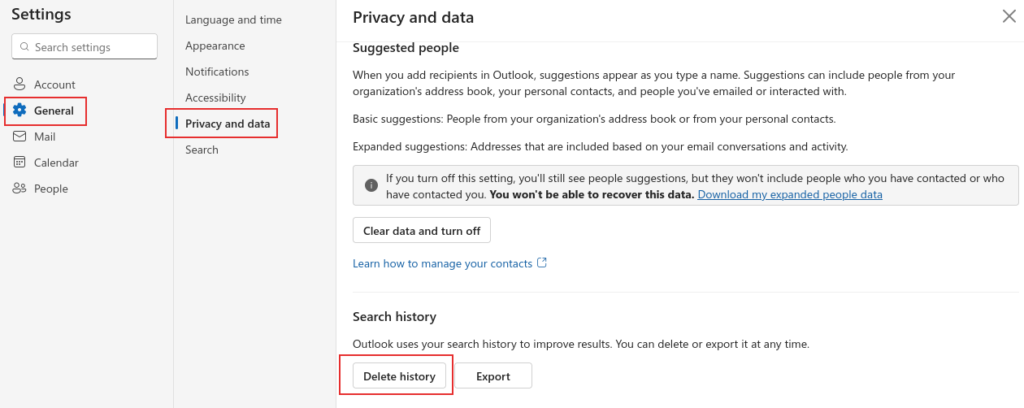
Locate the Search history section on the right side of the screen and click the Delete history button.

And that is all there is to it! Outlook will immediately purge your previously typed searches, leaving you with a fresh, clutter-free search bar.
It is a quick and painless way to keep your inbox feeling brand new. By the way, you can also selectively search folders by changing the search scope in Outlook.
Happy emailing.

Stunning HD Wallpapers For Your Desktop #5

How to Enable Temporary Chat in ChatGPT
