In today’s interconnected world, the applications we install on our computers are gateways to our personal and professional lives. From banking to communication, these apps handle sensitive data, making their security paramount.
A fundamental principle of cybersecurity is to always install apps from trusted sources. This simple habit can significantly reduce your risk of encountering malware, privacy breaches, and system instability.
Windows 11, with its enhanced security features, offers users a robust way to control where applications can be installed from. By taking a few moments to configure these settings, you can add a vital layer of protection to your digital fortress.
Why Trusted Sources Matter
Think of a trusted source as a reputable store that vets the products it sells. When you download an app from an official store like the Microsoft Store, you’re benefiting from a rigorous vetting process. This typically includes:
- Malware Scanning: Apps are scanned for viruses, spyware, and other malicious software before they are made available.
- Privacy Adherence: Trusted sources often have policies that ensure apps respect user privacy and don’t collect excessive personal data without consent.
- Quality Control: Reviews and ratings from other users can provide insights into an app’s reliability and quality.
- Regular Updates: Apps from trusted sources usually receive timely updates that patch security vulnerabilities and fix bugs.
Conversely, downloading apps from untrusted or unofficial sources can expose you to a myriad of risks:
- Malware and Viruses: Unofficial apps are a common vehicle for malware that can steal your data, damage your system, or even turn your computer into part of a botnet.
- Data Theft and Privacy Breaches: Malicious apps can gain unauthorized access to your contacts, messages, passwords, and even financial information.
- Financial Fraud and Identity Theft: Some rogue apps may prompt you for sensitive information like credit card details, which can be harvested by cybercriminals.
- System Instability: Untested or poorly coded apps can cause system crashes, performance issues, and general instability.
Taking Control: Configure App Installation in Windows 11
Windows 11 lets you define your app installation preferences, giving you control over your device’s security posture. Here’s how to access and configure these crucial security settings:
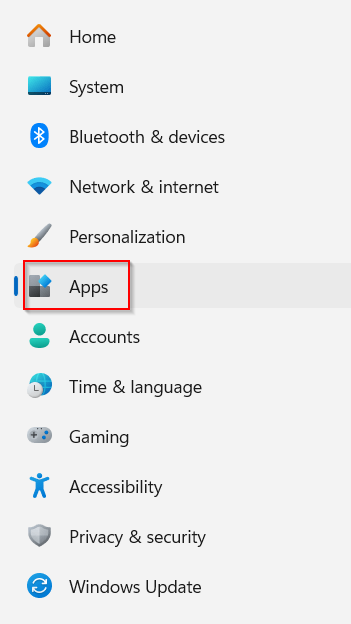
Press the Windows key + I on your keyboard to open the Settings application. In the left-hand pane of the Settings window, click on Apps.
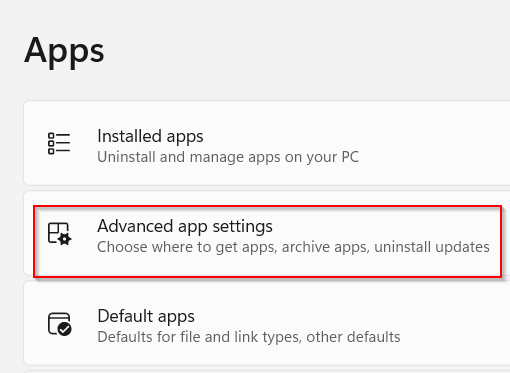
From the right-hand pane, click on Advanced app settings.
Within the Choose where to get apps section, you’ll find a dropdown menu with several options, each offering a different level of security:

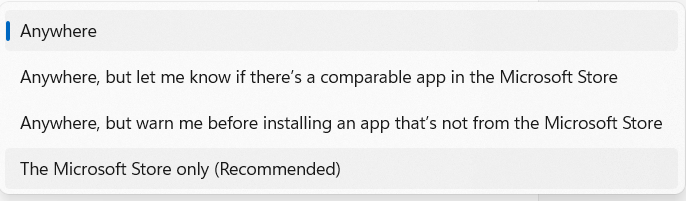
- Anywhere: This is typically the default setting, allowing you to install apps from any source. While offering maximum flexibility, it also carries the highest risk.
- Anywhere, but let me know if there’s a comparable app in the Microsoft Store: This option provides a balance of flexibility and guidance. You can still install apps from anywhere, but Windows will suggest a similar, potentially safer, app available in the Microsoft Store.
- Anywhere, but warn me before installing an app that’s not from the Microsoft Store: This setting prioritizes security by prompting a warning whenever you attempt to install an application not sourced from the Microsoft Store. This gives you a crucial opportunity to reconsider and verify the legitimacy of the app.
- The Microsoft Store only (Recommended): This is the most secure option. By restricting installations exclusively to the Microsoft Store, you ensure that every app has undergone Microsoft’s security vetting process, significantly minimizing your exposure to malicious software. This is highly recommended for most users.
The Bottom Line for Your Security
While the Anywhere option offers convenience, the security implications of installing apps from unverified sources are significant. By taking a proactive approach and configuring your Windows 11 app installation settings, especially by choosing The Microsoft Store only (Recommended), you are making a conscious decision to safeguard your device and your personal data.
Regularly reviewing your app permissions and keeping your operating system and applications updated are also crucial steps in maintaining a secure computing environment. Prioritizing trusted sources for your software downloads is not just a good practice; it’s an essential defense mechanism in the ever-evolving landscape of cyber threats.
All done.