Let’s face it: the Linux terminal can look like something straight out of The Matrix. If you are used to clicking a visual “My Computer” icon and seeing a nice, colorful bar showing your hard drive storage, staring at a black screen with a blinking cursor can feel deeply intimidating.
It is completely normal to feel a bit out of your depth when you first start using Linux. But here is the reality: the command line isn’t magic, and you don’t need a computer science degree to use it. It is simply a text-based chat window between you and your machine. You just need to learn a few basic phrases to get the answers you want.
If you want to ask your Linux system, “Hey, how much room do I have left on my hard drive?”
There is a simple, two-word phrase for that.
The Magic Command: df
To check your disk space, we use a command called df.
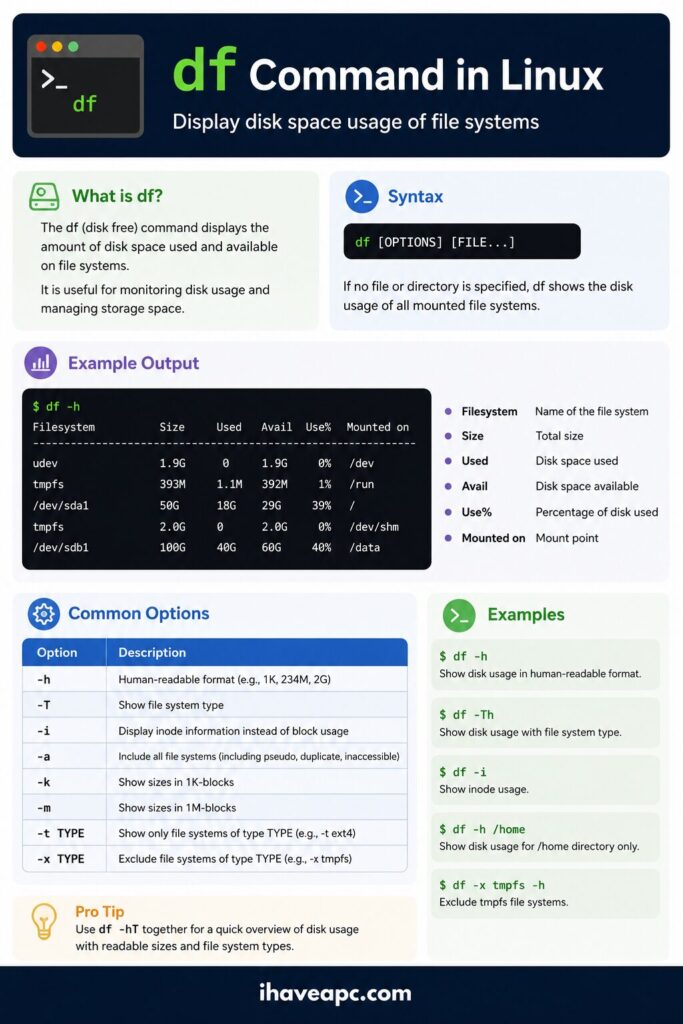
You can think of it as an abbreviation for Disk Free.
If you open your terminal right now, type df, and hit Enter, your computer will immediately spit out a list of your drives and how much space is left.
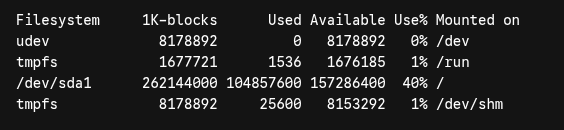
However, if you do this, you might notice a problem. The numbers look massive and confusing. That’s because, by default, Linux calculates everything in tiny, exact data blocks (kilobytes).
Unless you are a human calculator, reading millions of kilobytes isn’t very helpful. We need to ask Linux to speak our language.
Making It “Human Readable”: -h
In the Linux world, we use little modifiers called “flags” to tweak how a command behaves. To make the numbers make sense to a normal person, we add the -h flag.
df -h
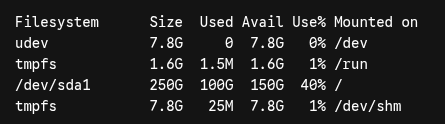
The h literally stands for Human-readable. It tells the computer, “Please show me this in Megabytes (MB) and Gigabytes (GB) so I can actually understand it.”
How to Read the Output (Without Panicking)
When you see that text block, your eyes might glaze over at the weird names like udev and tmpfs. Ignore them. Those are temporary, virtual filesystems the computer uses to run itself. You don’t need to worry about them at all.
You only need to look for two things to find your main hard drive:
Look at the “Mounted on” column (the far right): Find the row that just has a single forward slash: /. In Linux, the / symbol is called the “root.” It is the equivalent of the C:\ drive in Windows. It is where all your main files, programs, and operating system live.
Look at the “Avail” and “Use%” columns: Once you’ve found the row with the /, look across to see your numbers.
- Size: The total size of your drive (e.g., 250 Gigabytes).
- Used: How much space you’ve consumed (e.g., 100 Gigabytes).
- Avail: How much free space you have left (e.g., 150 Gigabytes).
- Use%: A quick percentage of how full your drive is.
Quick Tip: If you have an external USB drive or a secondary hard drive plugged in, you will usually find them at the bottom of the list, and their “Mounted on” name will often look something like /media/yourusername/drive_name.
You Did It!
That’s it. You just successfully communicated with your computer’s core using the command line. Whenever you need to know if you have enough room to download a large file or install a new game, just open the terminal and type df -h.
The terminal might look stark, but once you learn these small, logical Linux commands, it becomes one of the fastest and most reliable tools at your disposal.
Happy exploring.