Browser Troubleshooting Playbook 101
A web browser is your window to the internet, but like any other program, it can sometimes run into issues. Whether it’s slow performance, a website that won’t load, or the browser itself crashing, these problems can be frustrating.

Here is a simple browser troubleshooting playbook for common browser issues.
The Universal Fixes: The First Steps
Before you dive into more technical solutions, always start with these basic steps. They solve a surprising number of problems and save you a lot of time.
- Refresh the page: This is the quickest and easiest fix. If a page isn’t loading correctly or seems “stuck,” hit the refresh button (usually a circular arrow) or press F5 on your keyboard. It forces the browser to re-download the page.
- Close and reopen your browser: Sometimes a temporary glitch in the browser can cause issues. Closing the program completely (all windows and tabs) and then reopening it can reset things and fix the problem.
- Restart your computer: When in doubt, a full restart can work wonders. This clears your computer’s temporary memory (RAM) and can resolve underlying system issues that might be affecting your browser.
When to use: You’re trying to view a live news feed, but the page looks broken and the updates aren’t showing. You first try refreshing the page, and voilà, everything appears correctly.
Caching and Cookies: The Digital Housekeeping

Your browser stores temporary data, called the cache and cookies, to speed up your browsing. But over time, this data can become corrupted or outdated and cause problems. Think of it as a cluttered attic that you just need to clean it out.
- Clear your cache and cookies: This is a crucial step for many issues, from a slow browser to a site that won’t load properly. The cache stores images and files from websites you’ve visited so they load faster on a return visit. Cookies store your login information and site preferences. Clearing both forces the browser to get fresh data.
- Use an Incognito or Private window: Before you clear your entire cache, try opening the problematic website in a private browsing window (usually called Incognito in Chrome or Private in Firefox/Safari). This type of window doesn’t use your stored cache or cookies, so if the site works there, you know the issue is with your browsing data.
When to use: A specific website, like your online banking portal, gives you a strange error every time you try to log in. You open it in an Incognito window, and it works perfectly. This tells you that clearing your cache and cookies will likely solve the problem on your regular browser.
Extensions and Add-ons: The Potential Culprits

Browser extensions are mini-programs that add extra features, like ad-blockers or password managers. While useful, they can sometimes interfere with a website’s functionality or slow down your browser.
- Disable your extensions: If your browser is crashing or a website isn’t working, try temporarily disabling your extensions. You can usually find a list of them in your browser’s settings or by typing a command like chrome://extensions (for Google Chrome) into the address bar. Disable them one by one to pinpoint the one that’s causing the problem.
- Keep them updated: Just like your browser, extensions need to be updated to function correctly and securely. Most browsers update them automatically, but it’s a good idea to check for updates manually if you’re having issues.
When to use: You’re trying to watch a video on a streaming site, but it keeps freezing or refusing to play. You suspect your ad-blocker is the culprit. You temporarily disable it for that specific site, and the video starts playing without any issues.
Performance Issues: When Your Browser Feels Sluggish
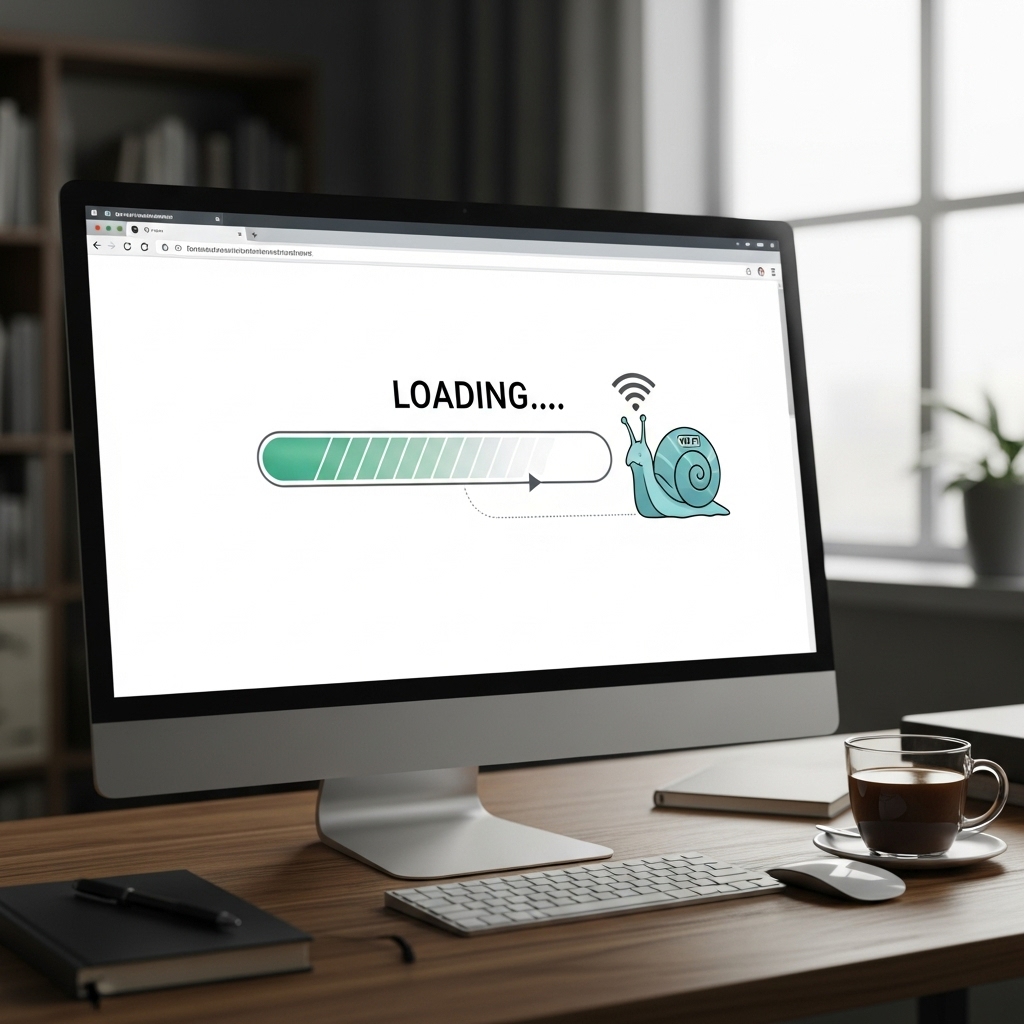
Slow performance is one of the most common complaints. The following steps can help get your browser back up to speed.
- Close unused tabs: Each open tab uses up your computer’s memory (RAM). Having too many can slow down your entire system. Get into the habit of closing tabs you’re not using.
- Update your browser: Browser developers constantly release updates that include performance improvements and security patches. Make sure you’re always on the latest version. You can typically find this in the “About” section of your browser’s settings.
- Scan for malware: Sometimes, malicious software or adware can run in the background, showing you pop-ups and slowing down your browser. Run a full scan with your antivirus or anti-malware program to check for and remove any threats.
When to use: Your browser feels slow, and you’ve noticed strange pop-up ads appearing. You run a malware scan, and it finds and removes a program you didn’t know was there. After the scan, your browser’s speed returns to normal.
The Last Resort: When All Else Fails
If none of the above steps work, these more advanced solutions are worth trying.
- Check your internet connection: Make sure it’s not a wider issue. Try using a different browser or even a different device (like your phone) on the same Wi-Fi network. If the problem persists, the issue might be with your internet service provider (ISP) or your modem/router. Try restarting your router.
- Create a new profile/Reinstall your browser: If a browser is hopelessly corrupted, a new profile or a fresh start is the best option. Create a new profile or completely uninstall the program completely from your computer and then download and install a new version from the official website.
Happy browsing.

How To Fix ‘d3dx9_43.dll missing’ Error In Windows 7

Stunning HD Wallpapers For Your Desktop #7
