How to Optimize Google Photos Storage
Google Photos is a great way to back up your pictures and videos across devices, but storage can fill up faster than expected especially if you’re syncing everything in original quality.

This is applicable even if you have a paid Google One plan. Storage can fill up quite quickly and even more so if it is a shared family plan.
The good news? There are several easy ways to make your storage last longer without losing your favorite memories.
Let’s look at some simple, practical tips to optimize storage for Google Photos.
Switch to Storage Saver Quality
By default, Google Photos might be uploading your files in Original quality, which keeps every pixel intact but also takes up a lot of space.
Switch to Storage saver (formerly High quality) mode.
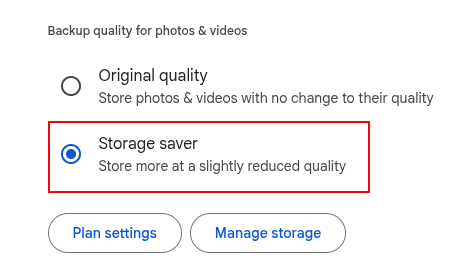
This compresses your photos and slightly reduces video quality but for everyday viewing and sharing, the difference is barely noticeable.
Use the Manage Storage Tool
The Manage Storage tool identifies large, blurry, and unwanted photos or videos that you can safely delete. It’s a quick, guided way to free up space.
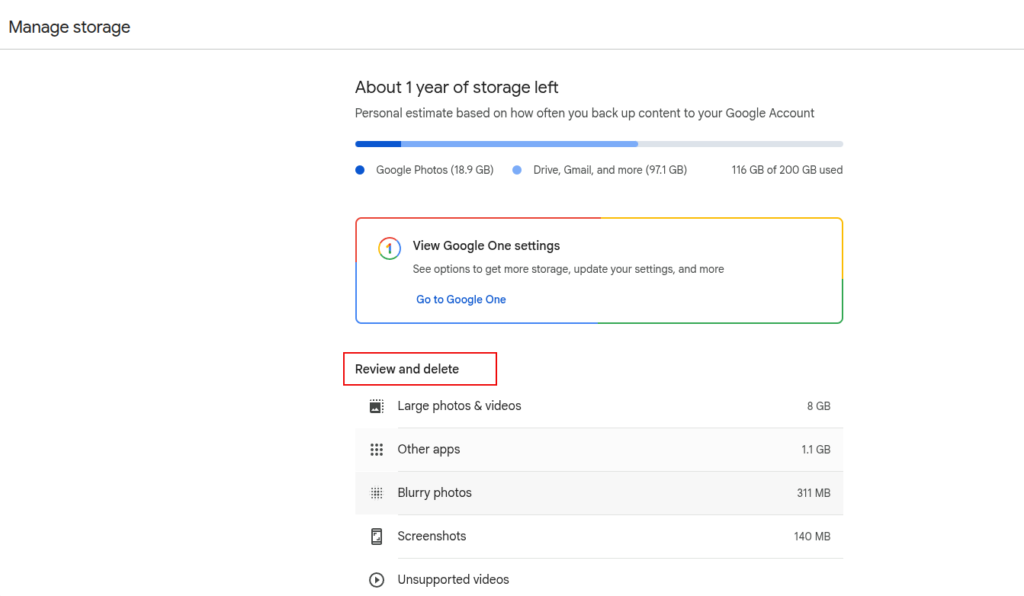
Use the Review and delete suggestions to find and remove these extras, keep the best version and delete the rest.
Delete or Trim Large Videos
Videos consume much more space than photos. Using the Manage Storage tool, sort by file size and remove clips that are long, shaky, unsupported or duplicates.
Even trimming videos down helps reduce space usage.
Backup Google Photos Locally, Then Delete from Cloud
If you have older albums in Google Photos which you rarely access, download them to your computer or external drive.
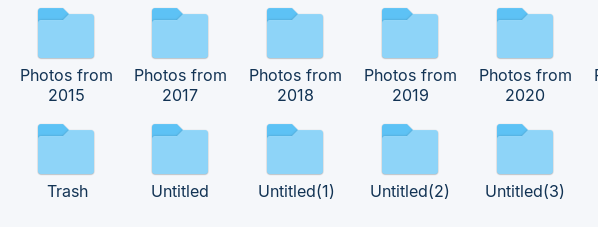
After confirming they’re safely stored elsewhere, delete them from Google Photos to free up cloud storage.
Turn Off Auto-Backup for Some Folders
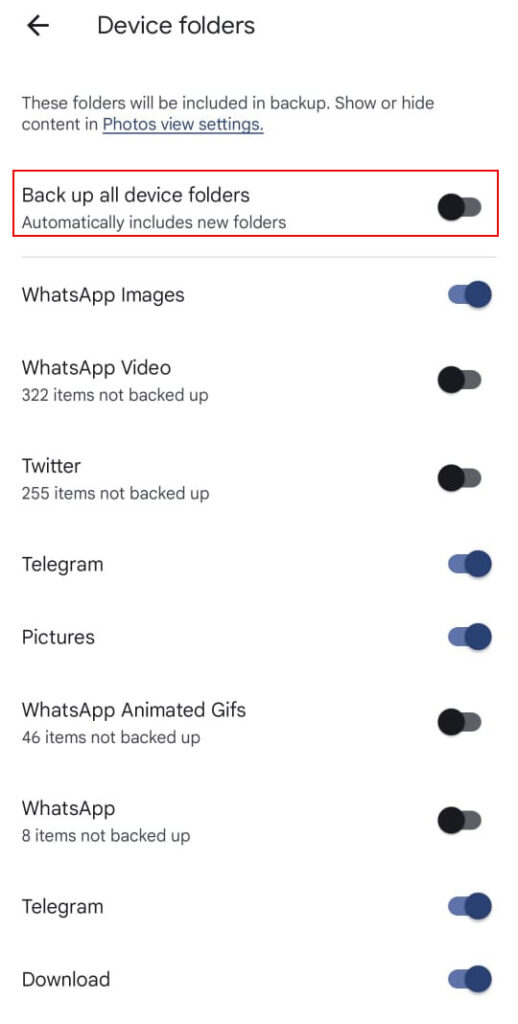
Not all folders need to be backed up, items like WhatsApp memes, screenshots, and downloads can pile up quickly.
From the Google Photos app on your mobile device, click your profile icon and go to Photos Settings > Backup > Backup device folders and uncheck the ones you don’t need.
Empty the Trash
Go to Settings > Trash to permanently delete items and instantly reclaim space.
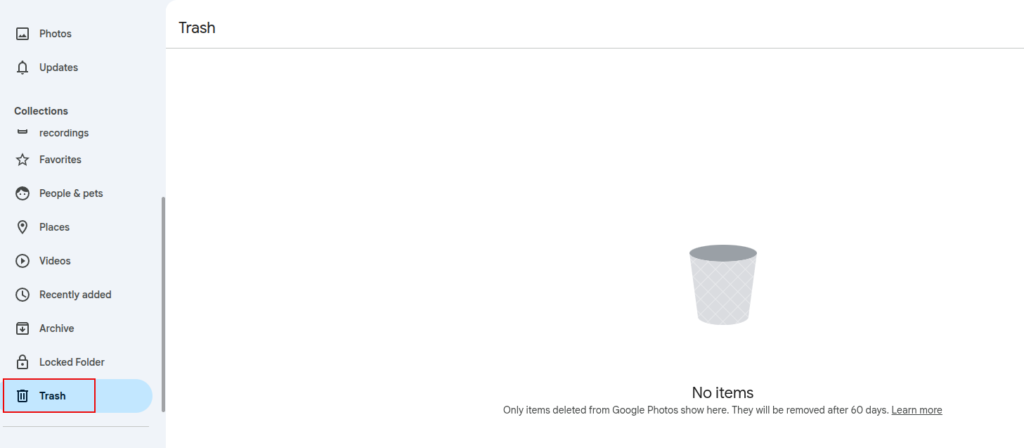
Deleted photos and videos remain in the Trash for 60 days.
That’s a Wrap
A few minutes of cleanup can go a long way in keeping your Google Photos organized and under quota. Whether you switch to storage saver or trim down old videos, these small habits will help you get the most out of your Google account space.
All done.
4 Reasons To Convert PDF To Excel On Your iPhone

How To Automatically Pause VLC Player On Minimizing