How to Configure Automatic Replies in Outlook Web
The auto-reply feature in email services automatically sends a predefined response to incoming messages. This is useful because it informs senders that their email has been received and sets clear expectations about when a response can be expected. It is commonly used during vacations, business travel, or periods of unavailability to maintain professional communication.
Automatic replies also help reduce follow-up emails by sharing essential information in advance, such as alternative contacts or limited availability, ensuring smoother communication even when the recipient is not actively checking email.
Here is how to configure it in Outlook Web:
Log in to Outlook and click on the gear icon to access settings.

Go to Account > Automatic replies > Automatic replies on.
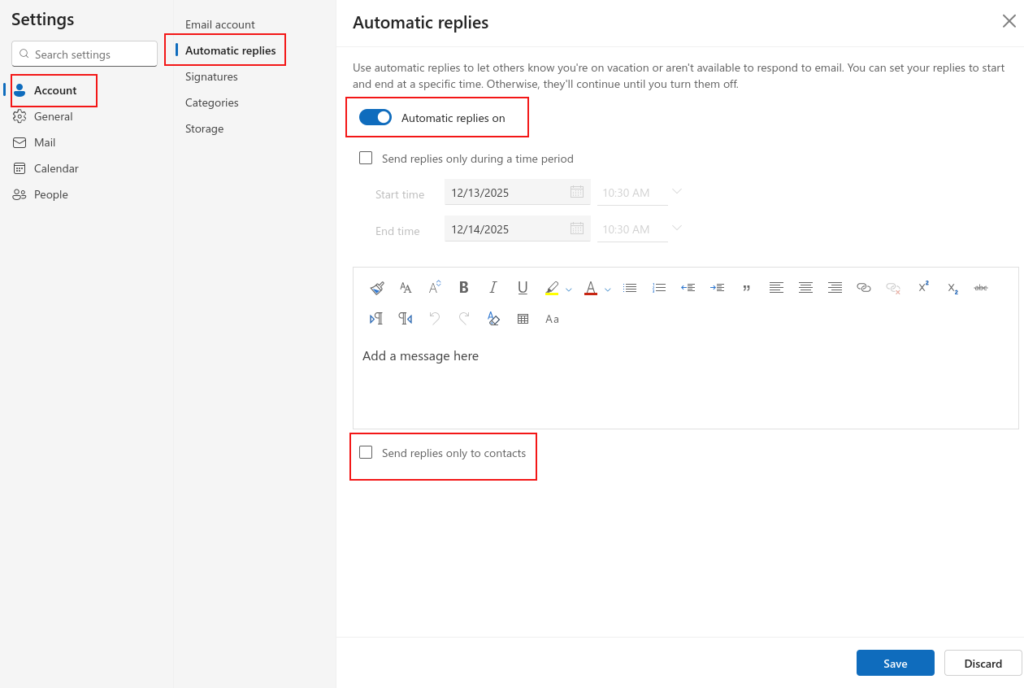
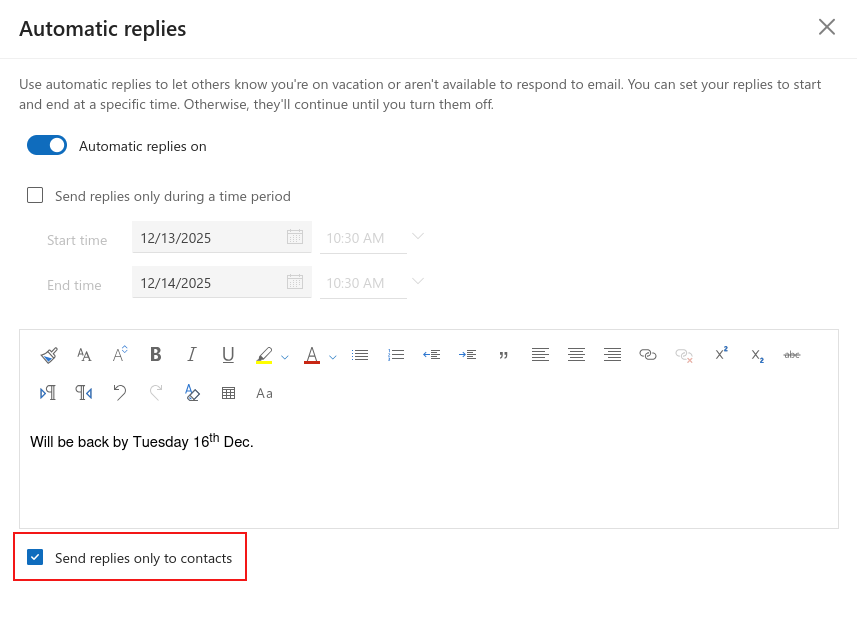
This enables a message composer to create an automatic reply message to all incoming emails. Should you choose to enable this only for your contacts, enable the option Send replies only to contacts at the bottom of the message composer.
Outlook Web also lets you configure automatic replies for a specific time period. For this, enable the option Send replies only during a time period, and select the Start time and End time. This also lets you block your calendar and cancel meetings during that period.
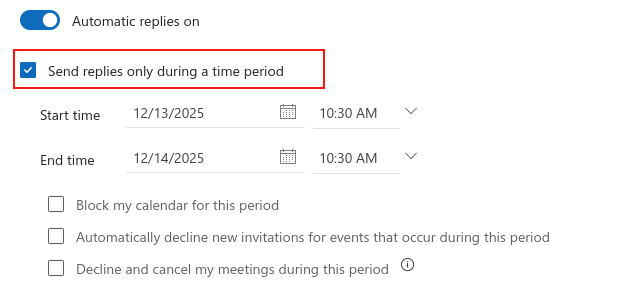
Once this time window is over, automatic replies will be turned off.
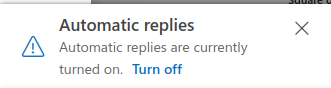
When enabled, a notification pop-up indicating that automatic replies are on is displayed, with a link to turn them off.
Incoming emails will be automatically replied to with the prefix Automatic reply.

Overall, this is a useful feature included with most of the email services that lets you set email reply expectations when you are away. By the way, here is how to set it up in Gmail.
Happy emailing.

How to Configure Adaptive Junk Filtering in Mozilla Thunderbird
Prevent Gmail And Outlook.com Misuse By Checking Recent Login Activities