Skip to content
  • About
  • Cart
  • Checkout
  • Contact
  • Cookie Policy
  • Copyright Policy
  • Daily Free Giveaways
  • Disclaimer/Privacy Policy
  • Games
    • ABC Wordgame
    • Adrenoid
    • Bongo Ball
    • BRU
    • Mystic Temple
    • Pac-Xon
    • Pacman
    • Pirate Gem
    • SokoZone
    • Space Invaders
    • Super Mario Crossover
    • Tetris
    • Treasure Chain
  • Get Me A Password
  • Giveaways and Freebies
  • My account
  • Newsletter
  • Shop
  • Sitemap
I Have A PC

Tech Tutorials, Linux & Windows Tips

  • Home
  • Tech
  • Apps
  • Linux
  • Windows
  • Misc
  • Digital Wellness
  • Sitemap
  • About
  • Contact
I Have A PC

Tech Tutorials, Linux & Windows Tips

Customize The Linux Mint Login Screen To Show Fewer Details

  • adminadmin
  • January 19, 2022
  • Linux

The login screen in Linux Mint by default shows a lot of details like the existing usernames, the system name, keyboard layout, accessibility settings, and more.
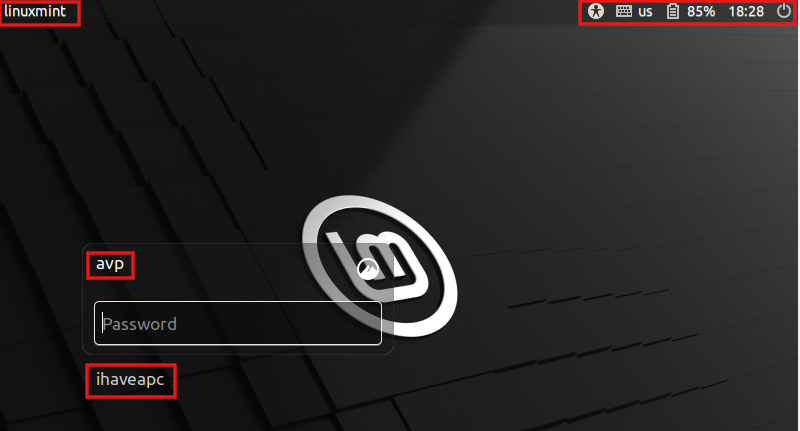
default login screen in linux mint

These details can be customized to turn them off selectively as needed.

customized login screen with minimum details visible
Customized Linux Mint login screen with minimum details visible

Here is how:

(This example uses Linux Mint 20.3 Cinnamon edition).

Access the Linux Mint menu and choose Administration > Login Window. Enter the sudo password to unlock it.
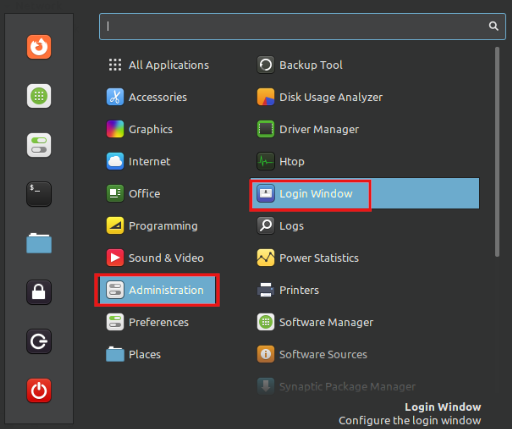
accessing linux mint settings for login screen

Click on the Users tab. From here, you can disable the listing of existing users on the login screen. Also, you can set a guest session by enabling that option.
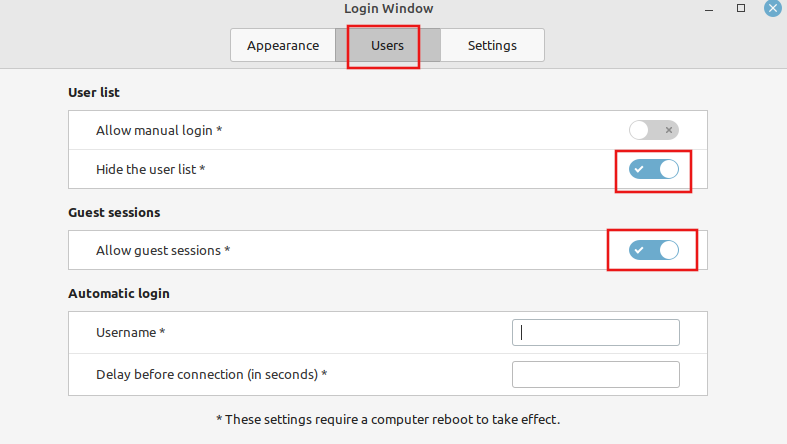
changing the user settings for login screen

An automatic log-in can be set by adding the username and the delay in seconds before it happens.
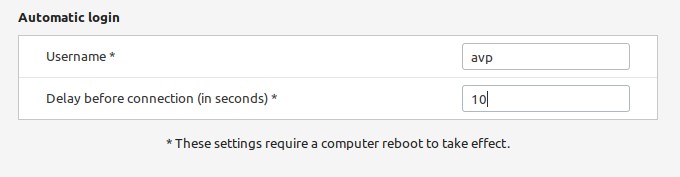
enabling automatic login in linux mint

All these changes will need a system restart to take effect.


automatic login enabled in linux mint
                                                                 Auto login enabled
automatic login and guest session enabled in linux mint
                                                     Auto login and guest session enabled


To turn off other details from getting displayed like the system hostname, accessibility options, and more, click on the Settings tab. Then, toggle each of these settings as needed.
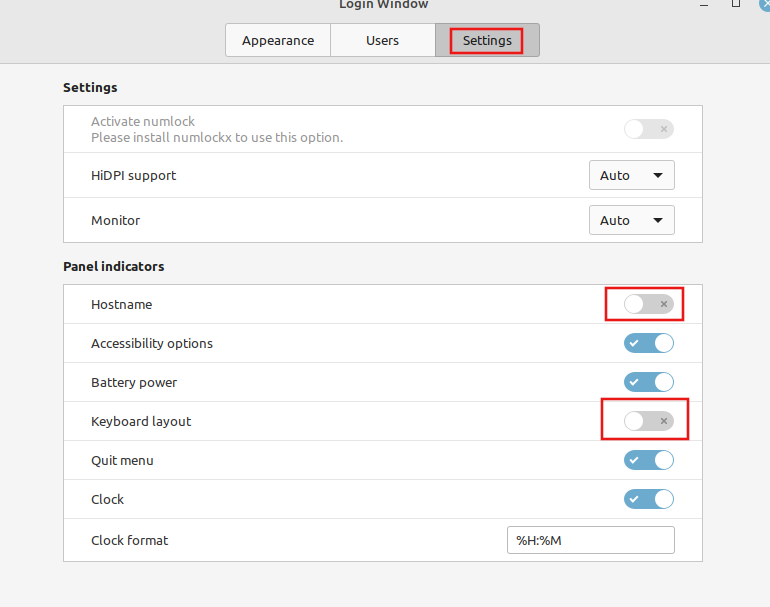
toggling other visible features from the mint login screen

You can also customize the clock format from here, the default being %H:%M (Hours and Minutes format).

Overall, these settings make it simple to tweak the Mint login window.

All done.
Previous Post Quickly Browse Internet Archives With The Wayback Machine Chrome Add-on
Next Post A Step-By-Step Guide To Install Signal Desktop Messenger On Linux Mint/Ubuntu
No results
  • Bluesky
  • Email
  • Facebook
  • Twitter

A List of Giveaways

Free Giveaways

Free E-Books

Linux Command Line Cheatsheet
Linux Command Line Basics
Linux Shell Scripting Primer

Archives

Related Posts

10 useful linux devops commands

10 Useful Linux Commands that Every DevOps Should Know

  • July 15, 2026
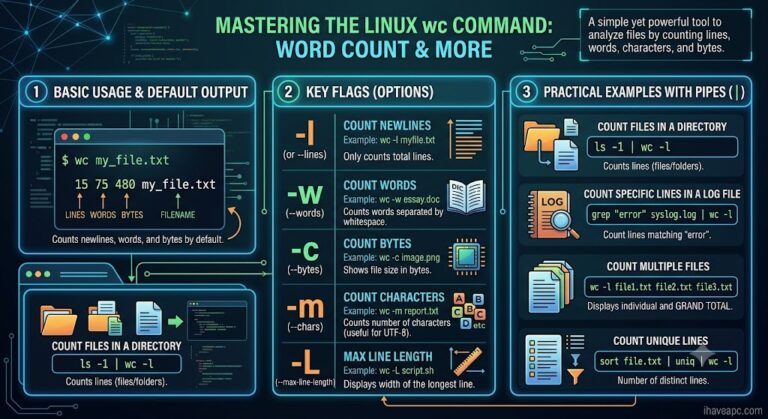
understanding the wc command in linux

Demystifying wc: The Hidden Power of Linux’s Word Count Command

  • July 13, 2026
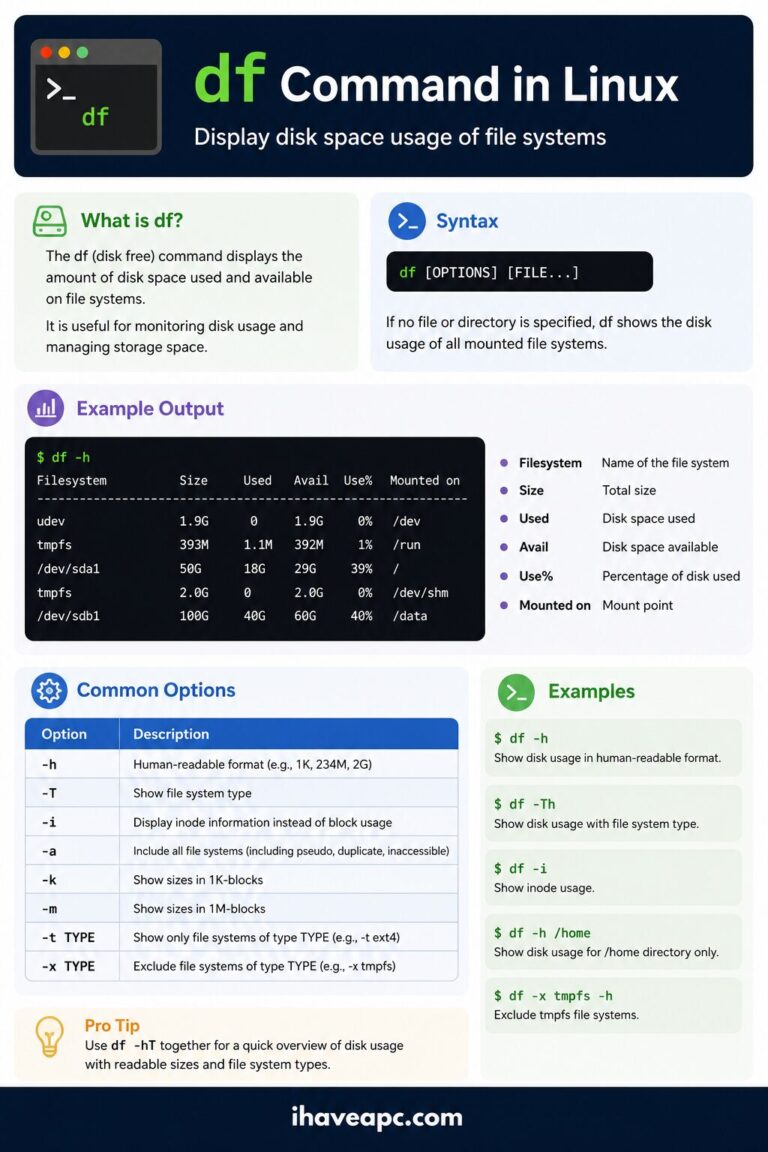
df command in linux

Linux Command to Quickly Check Your Free Disk Space 

  • June 8, 2026

Trending now

chrome 101
Google Chrome:Toggle On-Device Generative AI
SwifDoo PDF Anniversary Sale: iPhone 17 Giveaway & 84% Off
df command in linux
Linux Command to Quickly Check Your Free Disk Space 
cbackup professional giveaway
CBackup Premium Giveaway: Cloud Backup and Storage
Copyright © 2026 - WordPress Theme by CreativeThemes