Brave browser comes with a built-in password manager that makes saving and managing your logins simple. A handy feature is the ability to export your saved passwords as a CSV file or import existing passwords from a CSV file.
This is useful when switching devices, creating backups, or moving from another browser.
Here is how:
Open Brave Browser and access the autofill settings by typing in the address bar:

brave://settings/autofill
From the Autofill and passwords section, click on Password Manager

Then select Settings from the left pane. On the right pane, you will see the options Import passwords and Export passwords.
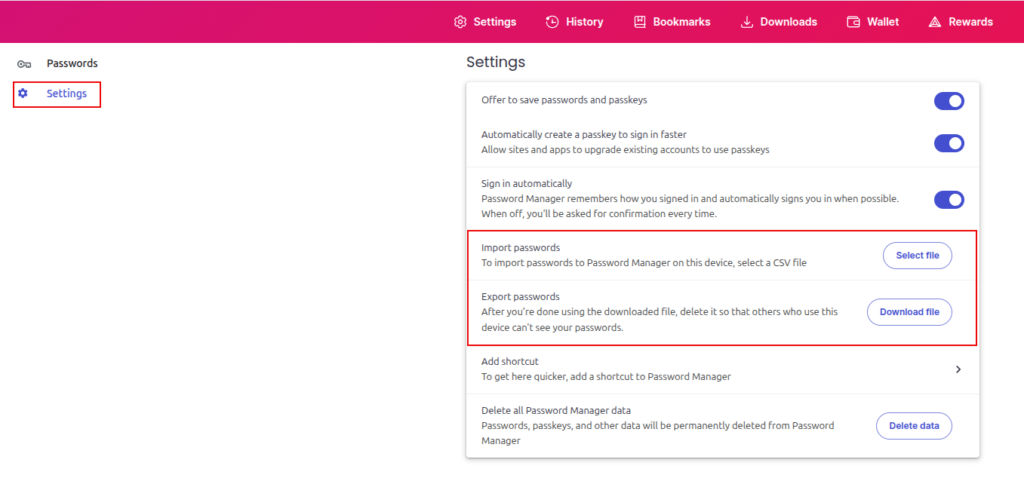
Exporting passwords from Brave browser
Click on the Download file button to export the saved passwords.

A CSV file containing your saved usernames and passwords will be generated.

Important: The CSV file is not encrypted. Store it securely and delete it once you’re done.
Importing Passwords into Brave browser
If you already have a CSV file of passwords from another browser or backup, you can import it using the Import passwords option.

Click the Select file button next to Import passwords and choose your CSV file.

Your saved logins will now be available in Brave’s Password Manager.
Things to remember
Exporting and importing passwords in Brave is straightforward, but always remember:
- CSV files are stored in plain text.
- Delete them after use to protect your information.
- Consider syncing with a secure password manager for long-term storage.
This way, you can easily move your login details in and out of Brave without hassle.
All done.