Useful Linux Commands To Find Your System Info
If you have recently switched from Windows to Linux, one of the first things you may want to know are the details of your Linux system like version and other system details.
Unlike Windows, where you go to System Properties or About This PC, Linux gives you simple commands to quickly find out details about your system.
Why Knowing Your Linux Version Matters
- Helps you check compatibility when installing software.
- Useful when asking for help in forums or from friends.
- Makes you know whether you’re running an older release that may need an update.
This guide uses Ubuntu (a widely used Debian-based distribution), but the steps are similar on other Linux distros.
Check Your Linux Version
To find which version of Ubuntu (or Debian-based Linux) you are running, open the Terminal and type:
lsb_release –a
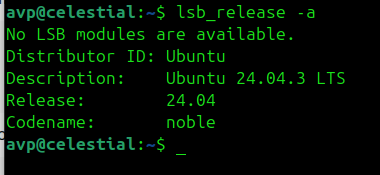
Here’s what it means:
- Distributor ID: The name of your Linux distribution (Ubuntu in this case).
- Description: The full version info.
- Release: The release number.
- Codename: The internal name developers use.
To know more OS-related details, use the command
cat /etc/os-release
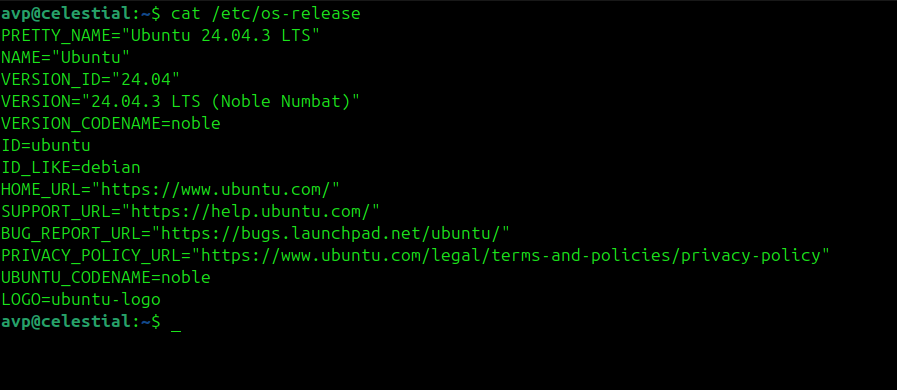
The above command includes the official web links for your distro which can be useful for support and checking new updates.
Check Your Kernel Version
The Linux kernel is like the engine of your operating system. To see which version you’re running, use the uname command:
uname -r
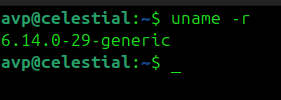
This means you’re using kernel version 6.14.0
Check Basic System Information
Want to know if your system is 32-bit or 64-bit, and what processor you’re using?
Run the following command:
uname -m
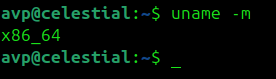
This means you’re running a 64-bit version of Linux.
For more details, you can also use:
uname -a

This gives a quick summary of your system (distribution, kernel, architecture).
Check Hardware Information
If you’d like to see more about your hardware, such as CPU and memory, you can try the lscpu (for CPU) and free (for memory usage) commands:
lscpu
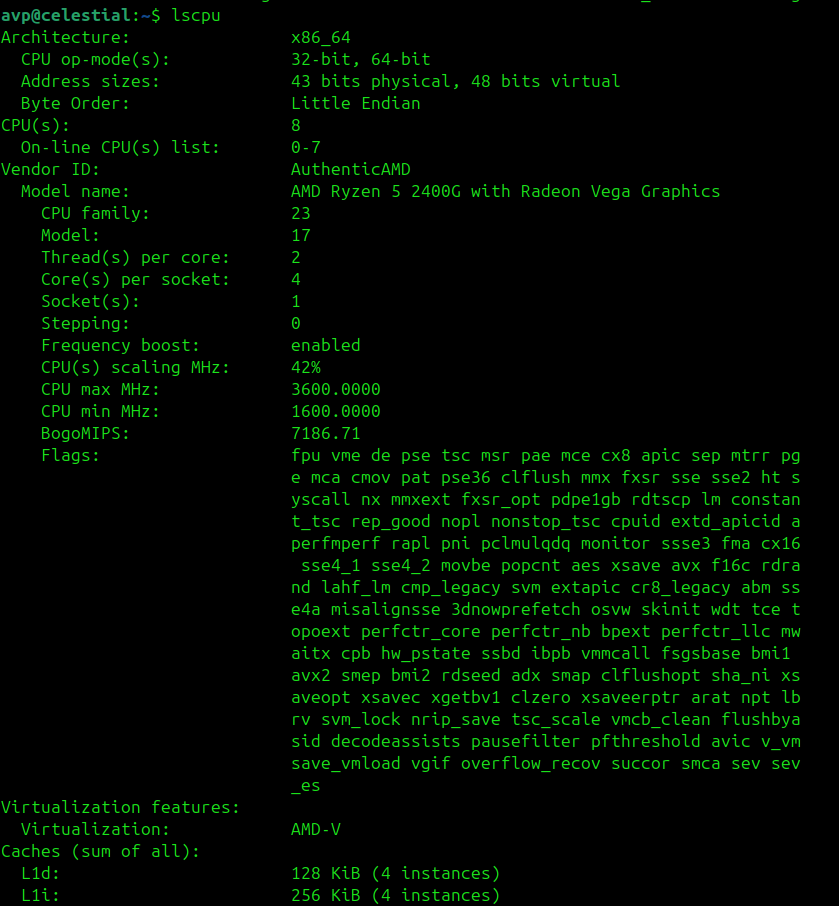
free -h

These are handy when you want to know how much RAM or processing power your Linux system has.
The inxi Tool
If you’d like an easy way to see all important system related details in one place, the inxi tool is perfect.
Install inxi: First, use the following command to install inxi as it does not come installed by default in most distros:
sudo apt install inxi
Then run it:
inxi -F

This will show a neat report including:
- Linux version and kernel
- Desktop environment (like GNOME or KDE)
- CPU, RAM, and storage details
- Network information
With inxi, you don’t need to remember multiple commands as it gives you everything in one clean view.
That’s a wrap
To sum it up, now you know the useful Linux commands that help you to check:
- Your Linux version
- Your kernel version
- Whether your system is 32-bit or 64-bit
- Hardware details (CPU, RAM, etc.)
- And with inxi, a complete system overview
These easy-to-use Linux commands are safe to try, even if you’re new to Linux. In just seconds, you’ll be familiar with your system details.
Happy exploring.

How To Auto Update Software Packages In Linux Mint / Ubuntu
How To Install And Use Furius ISO Mount In Linux Mint
